This guide describes how to create a project on the WildObs Image Platform.
Visit Getting started with the WildObs Image Platform for all guides in this series.
TABLE OF CONTENTS
2. Navigate to the WildObs Image Platform
1. About projects
A project is the top level of organisation for a camera trap dataset. Each project will be exported as a Camera Trap Data Package (Camtrap DP) after processing. For more information on the Camtrap DP format, visit WildObs data standards.
For each project, the following information is created or associated with it on the WildObs Image Platform:
- Project settings – describes the project and how deployments are processed on the Platform.
- Users – list of users that have access to the project and their roles.
- Deployments – multiple camera trap deployments are added for each project.
- Locations – each deployment has a sampling location with name, latitude and longitude.
- Cameras – each deployment has a camera with an ID and other features.
- Observations – observations are created as sequences of images from deployments are annotated and validated on the Platform.
- Species – a list of species identified within the observations created.
All information is unique to a project and is not shared or copied between projects. Only some users can view or edit some project information, depending upon their role on the project. For more information, visit Project roles and permissions.
2. Navigate to the WildObs Image Platform
Follow the guide Create a WildObs account to access the WildObs dasboard, then navigate to the WildObs Image Platform by clicking on "Get Started" under "AI Image Management Platform":
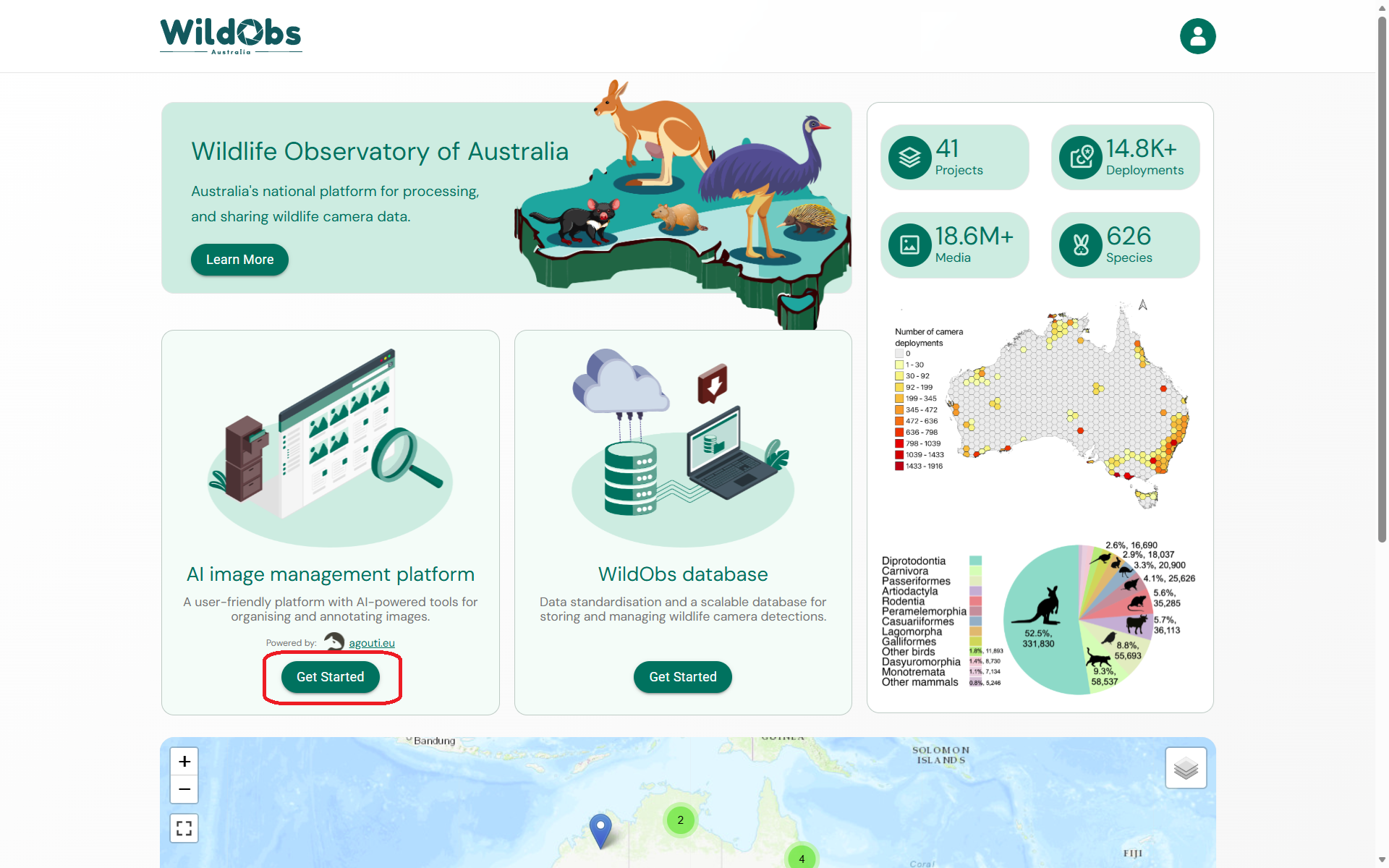
Note: If the Platform is taking some time to load, try refreshing your page and clicking again.
3. Add new project
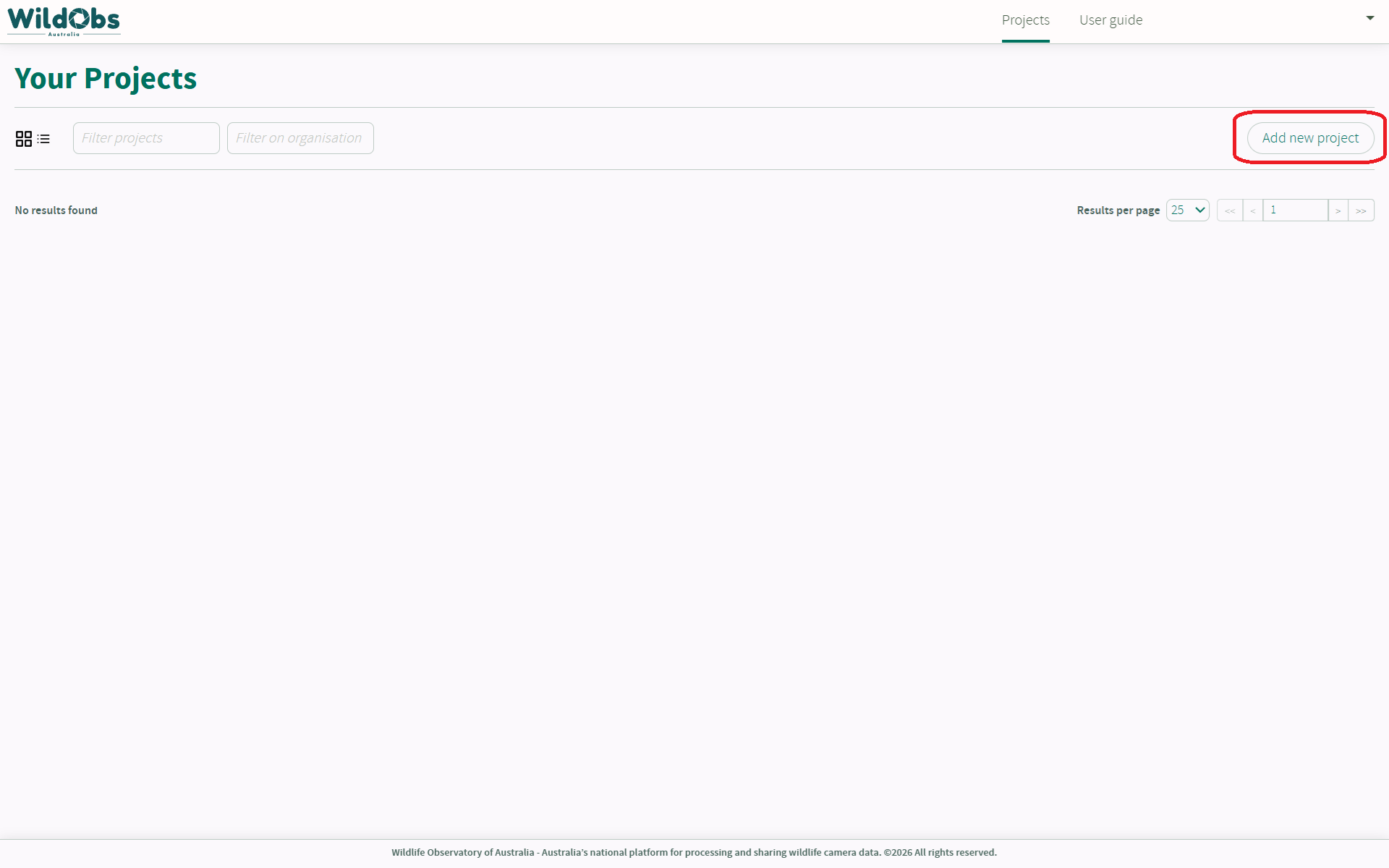
When the Platform loads, it will open to your projects page. If you do not have any projects, this page will be empty.
To add a new project, click "Add new project". A new project will be created immediately after clicking "Add new project" even if you click away without saving:
4. Enter project settings
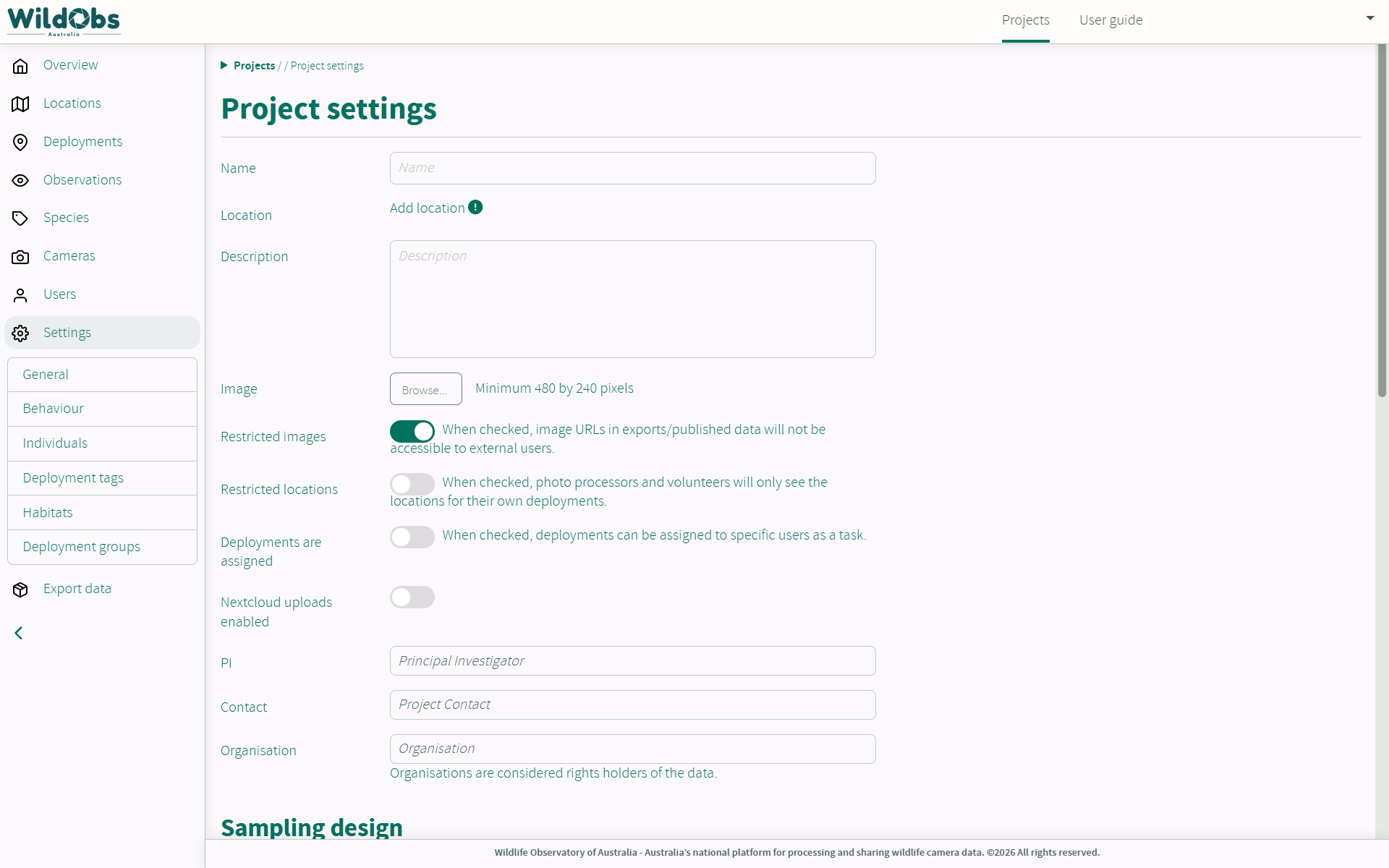
A project can be saved without adding or changing any project settings from the default values. It is highly recommended that you complete all project settings before adding a deployment or any other information to the project.
⚠️ The setting for "Sequence cut-off" cannot be changed after a deployment has been added to the project. Please ensure the correct value is added when creating the project.
Settings for a project describe:
- how the project appears and functions on the Platform,
- how media files can be uploaded,
- how deployment uploads are processed, and;
- who the main contacts for the project are.
Settings that restrict types of access to project assets or locations are not affected by, or change the Data sharing terms agreed with WildObs. Please ensure the most appropriate settings are selected for your project.
For more information about each of the project settings, visit the article on Project settings.
Once all settings have been entered, click "Save changes":
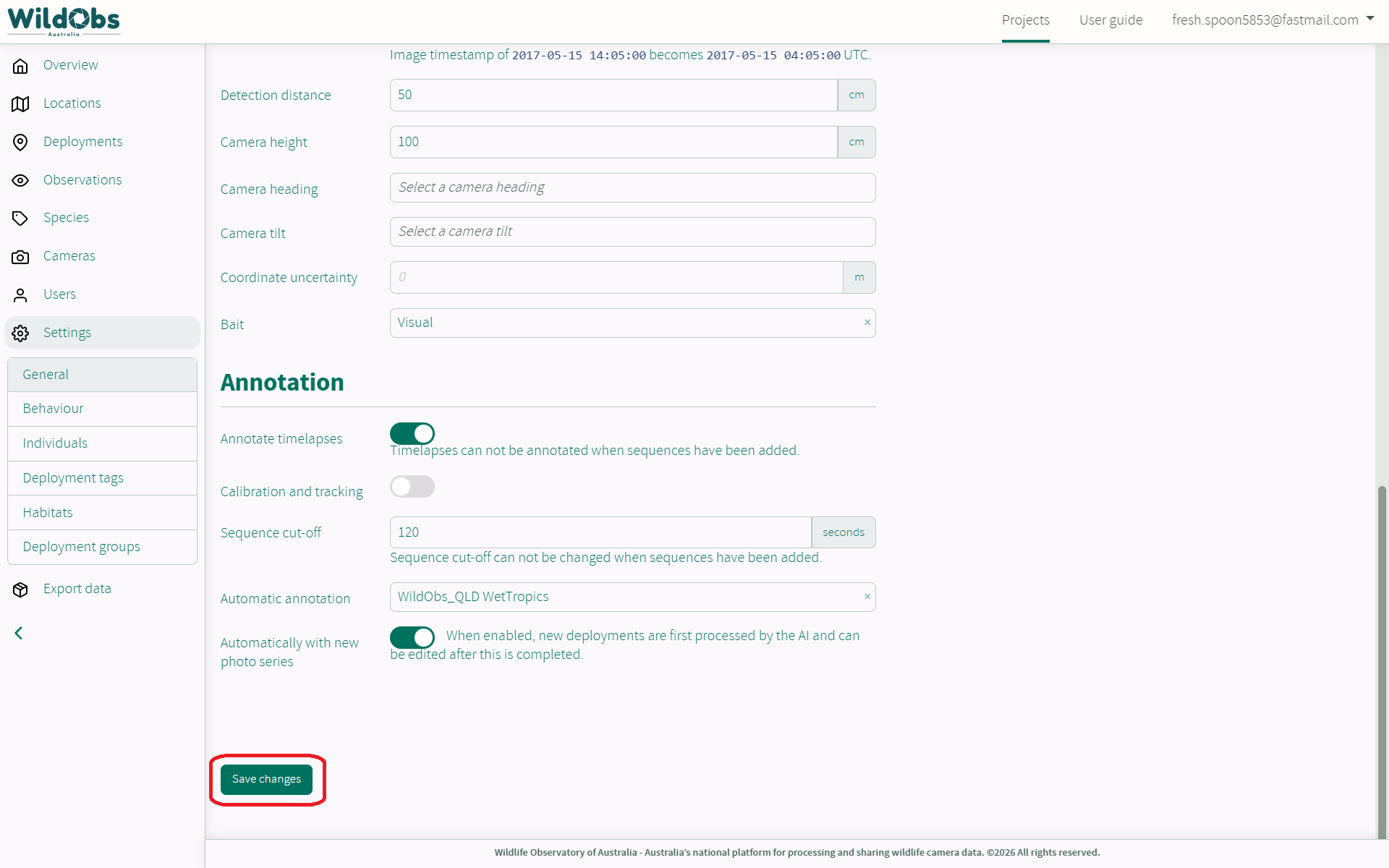
You will be redirected to the project overview.
Next steps
Return to Getting started with the WildObs Image Platform
Invite others to collaborate on your project
More information
Was this article helpful?
That’s Great!
Thank you for your feedback
Sorry! We couldn't be helpful
Thank you for your feedback
Feedback sent
We appreciate your effort and will try to fix the article