This guide is describes how to create a WildObs user account. A WildObs account allows access to the WildObs Image Platform and download functions of the WildObs Database.
Visit Getting started with the WildObs Image Platform for all guides in this series.
TABLE OF CONTENTS
1. Navigate to the WildObs login page
2a. Create an account using Australian Access Federation (AAF)
2b. Create an account using email
1. Navigate to the WildObs login page
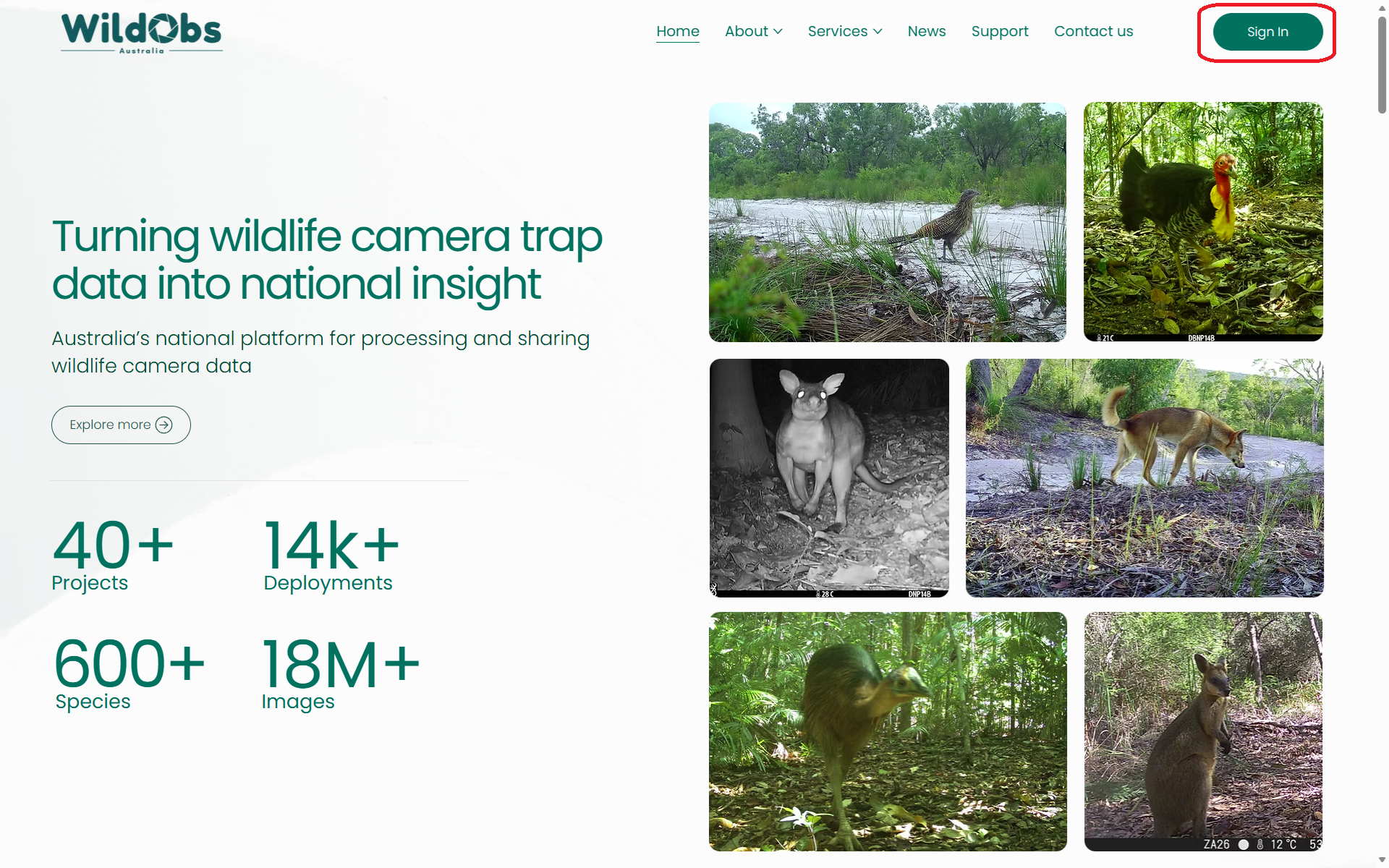
Navigate to the WildObs login page by visiting www.wildobs.org.au and clicking "Sign In":
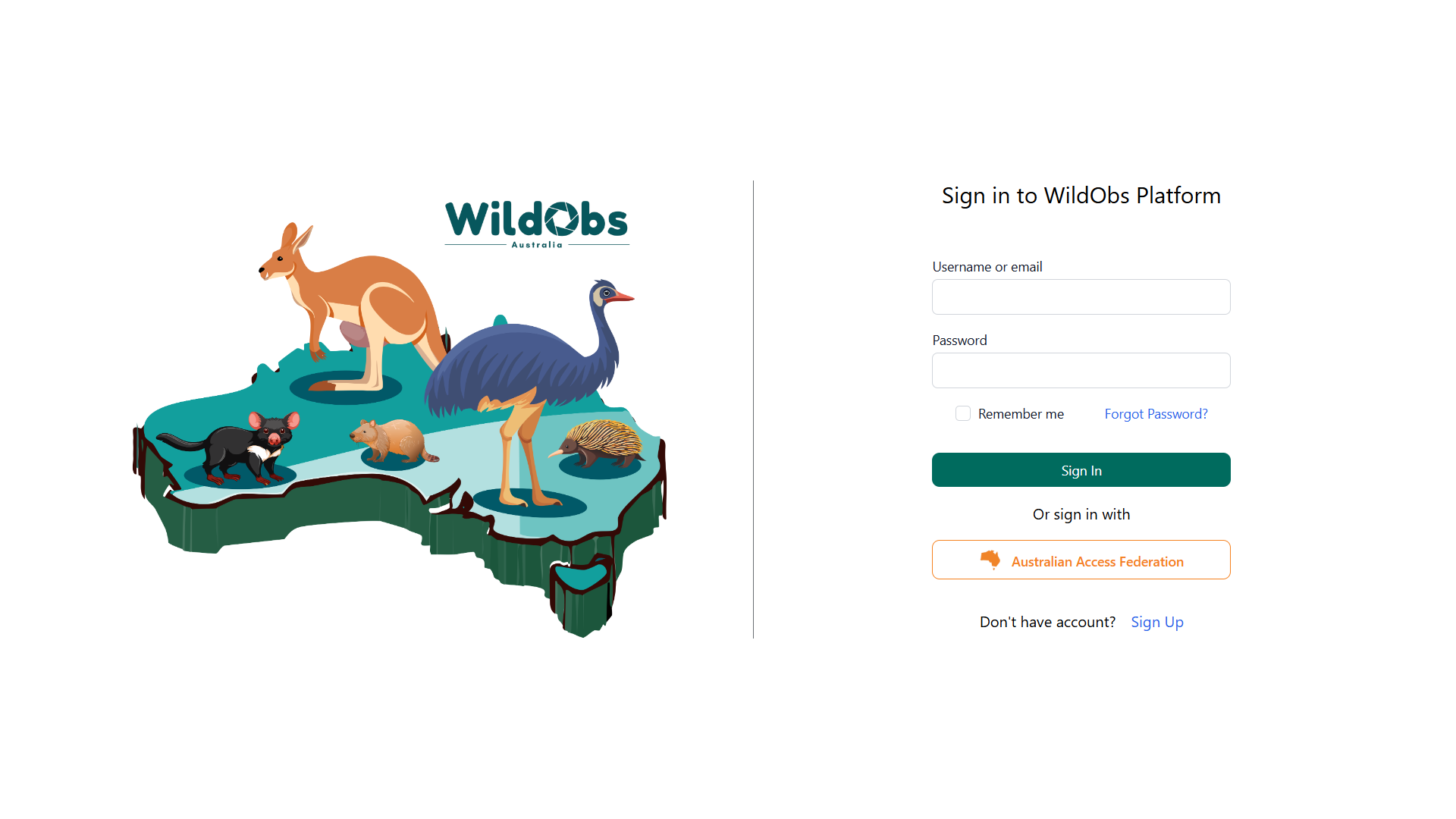
Or by the direct link https://dashboard.wildobs.org.au/:
2. Create an account
There are two ways to create an account with WildObs:
- Australian Access Federation (AAF) – If your organisation is registered with AAF, you can use your organisation login to create a WildObs account.
- Create an account using an email address.
2a. Create an account using Australian Access Federation (AAF)
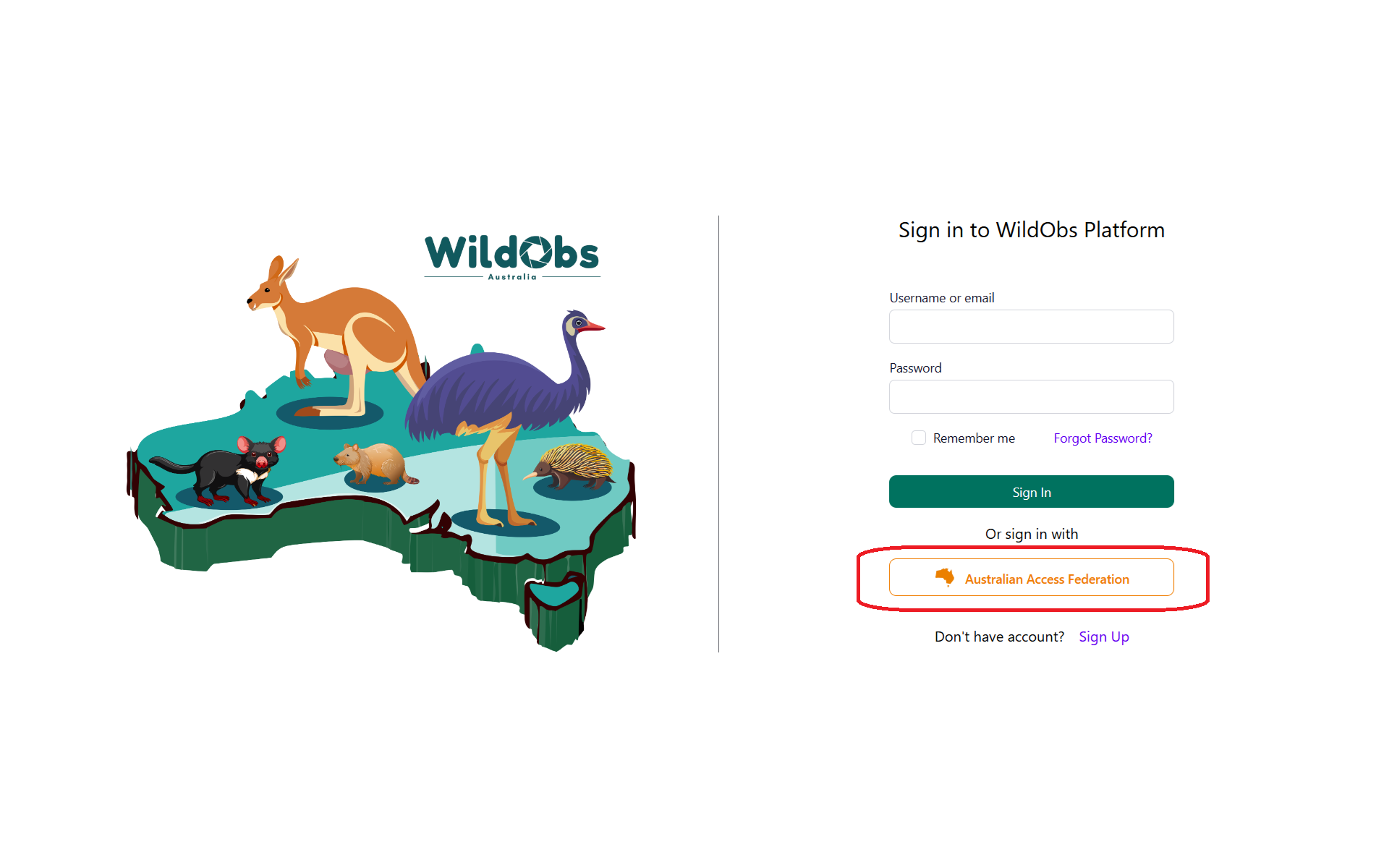
To create an account using AAF, click on the "Australian Access Federation" button:
Select your organisation from the menu by searching or scrolling, then click "Continue to your organisation":
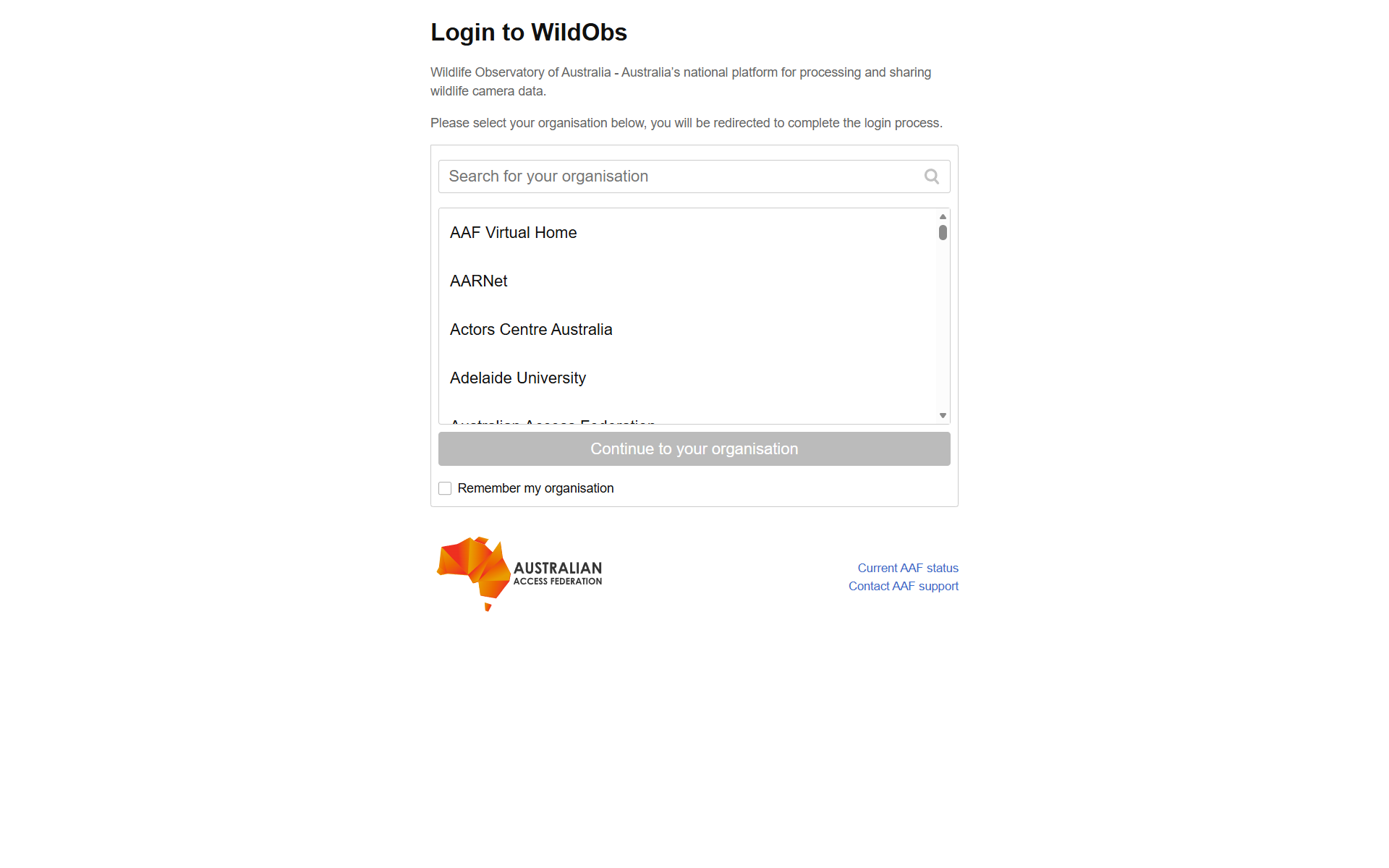
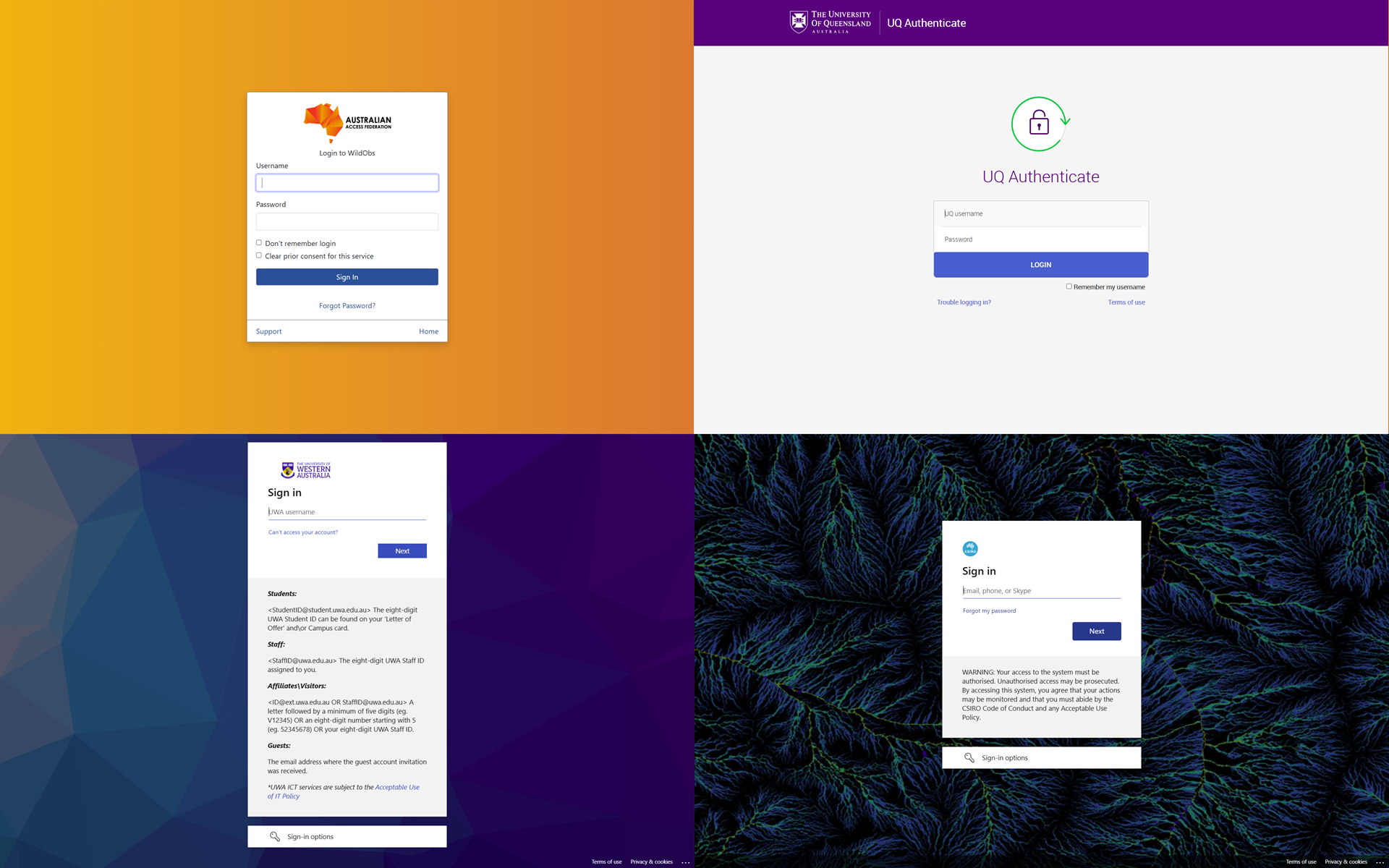
The next page will look different depending upon your institution. Follow the prompts to sign in to your organisation and authorise the required information (name and email) to connect to the WildObs service.
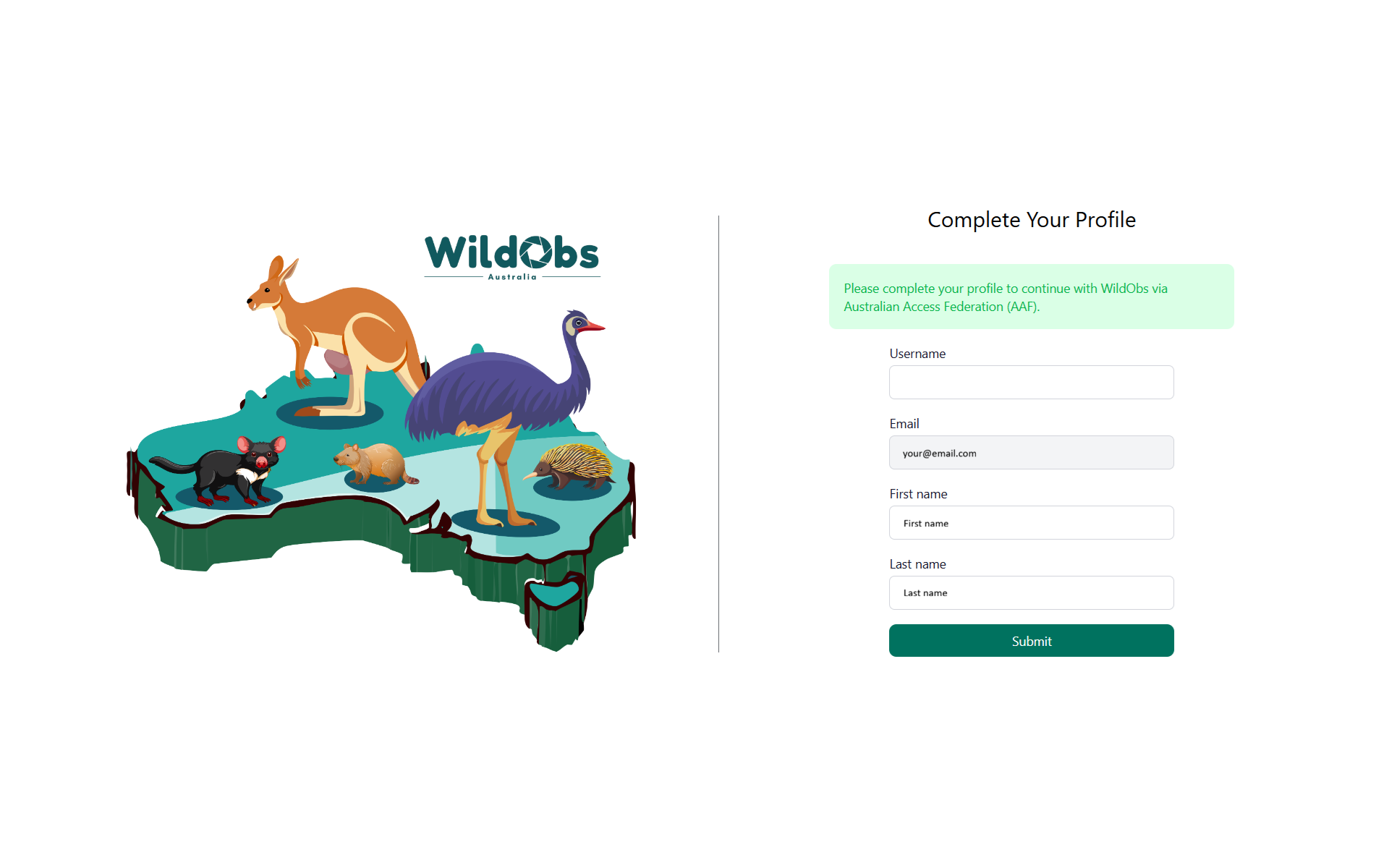
You will be redirected back to the WildObs login page to complete your profile. Enter a username and click "Submit":
2b. Create an account using email
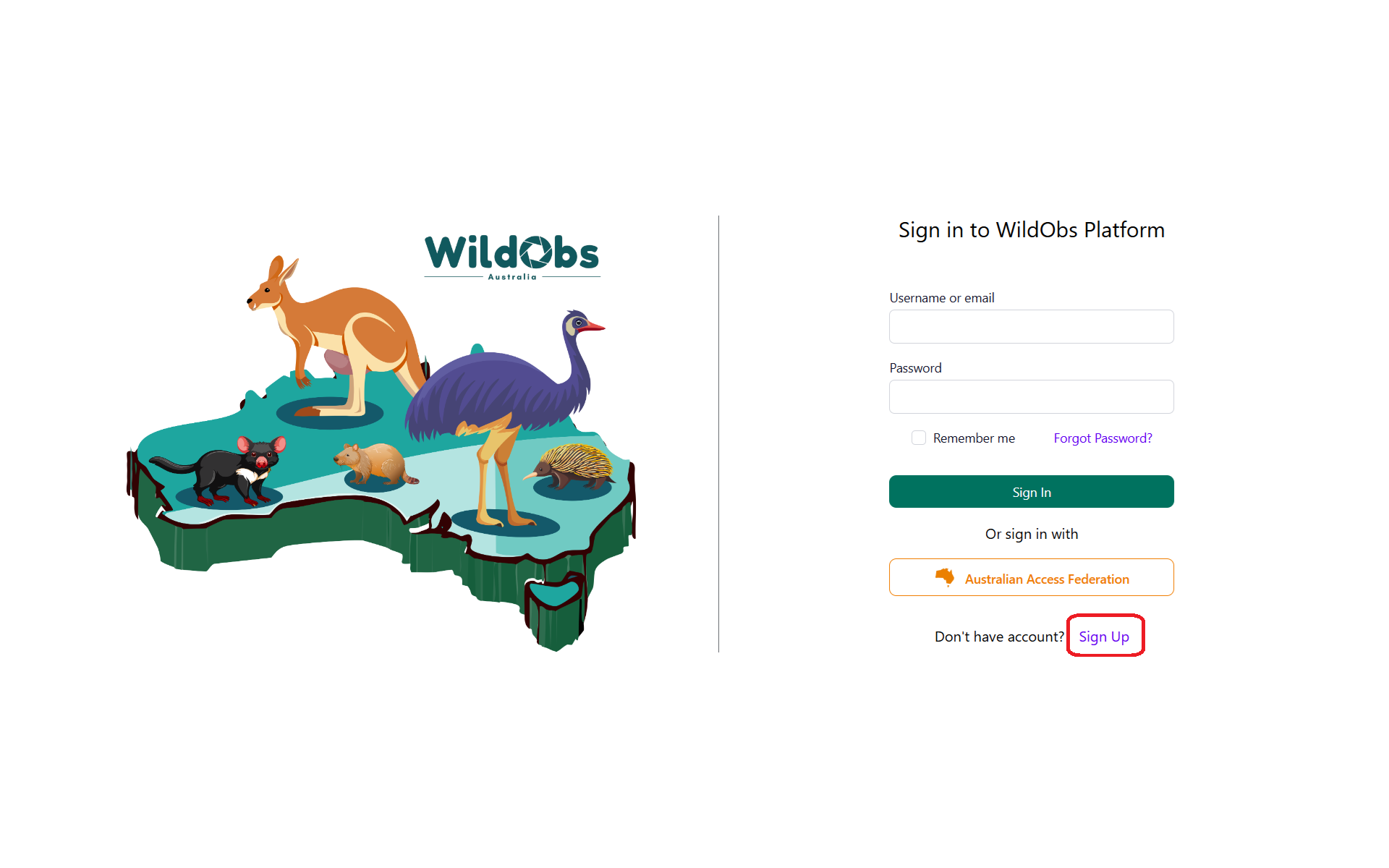
To create an account using email, click on "Sign up" at the bottom of the page:
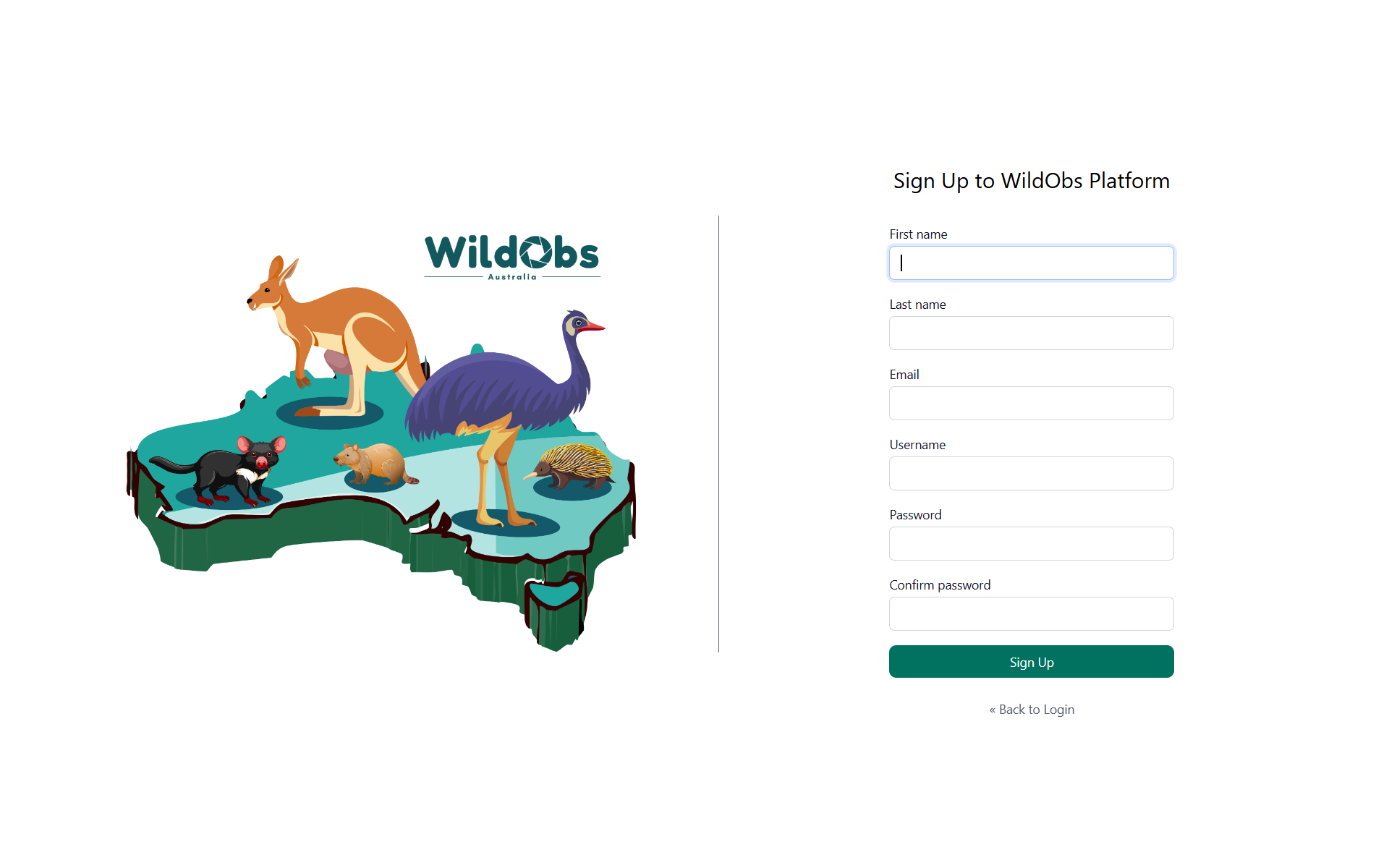
Enter the required details to create an account and click "Sign Up"
3. WildObs dashboard
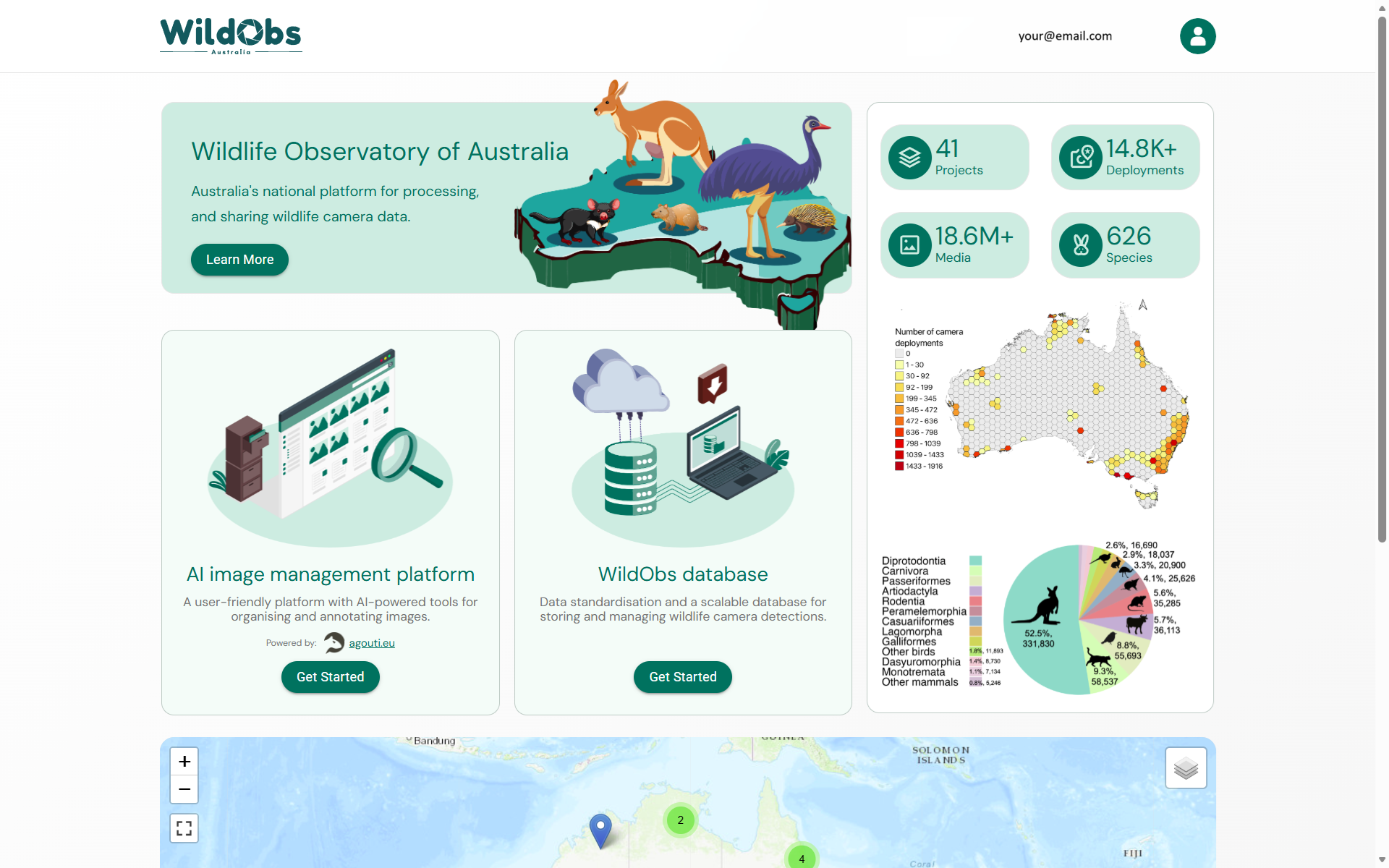
After signing in, you will be redirected to the WildObs dashboard page where you can click "Get Started" to access either the WildObs Image Platform or the WildObs Database:
Next steps:
Return to Getting started with the WildObs Image Platform
Create a project on the WildObs Image Platform
Was this article helpful?
That’s Great!
Thank you for your feedback
Sorry! We couldn't be helpful
Thank you for your feedback
Feedback sent
We appreciate your effort and will try to fix the article