This guide describes how to export data from a project on the WildObs Image Platform.
Visit Getting started with the WildObs Image Platform for all guides in this series.
TABLE OF CONTENTS
1. Create export
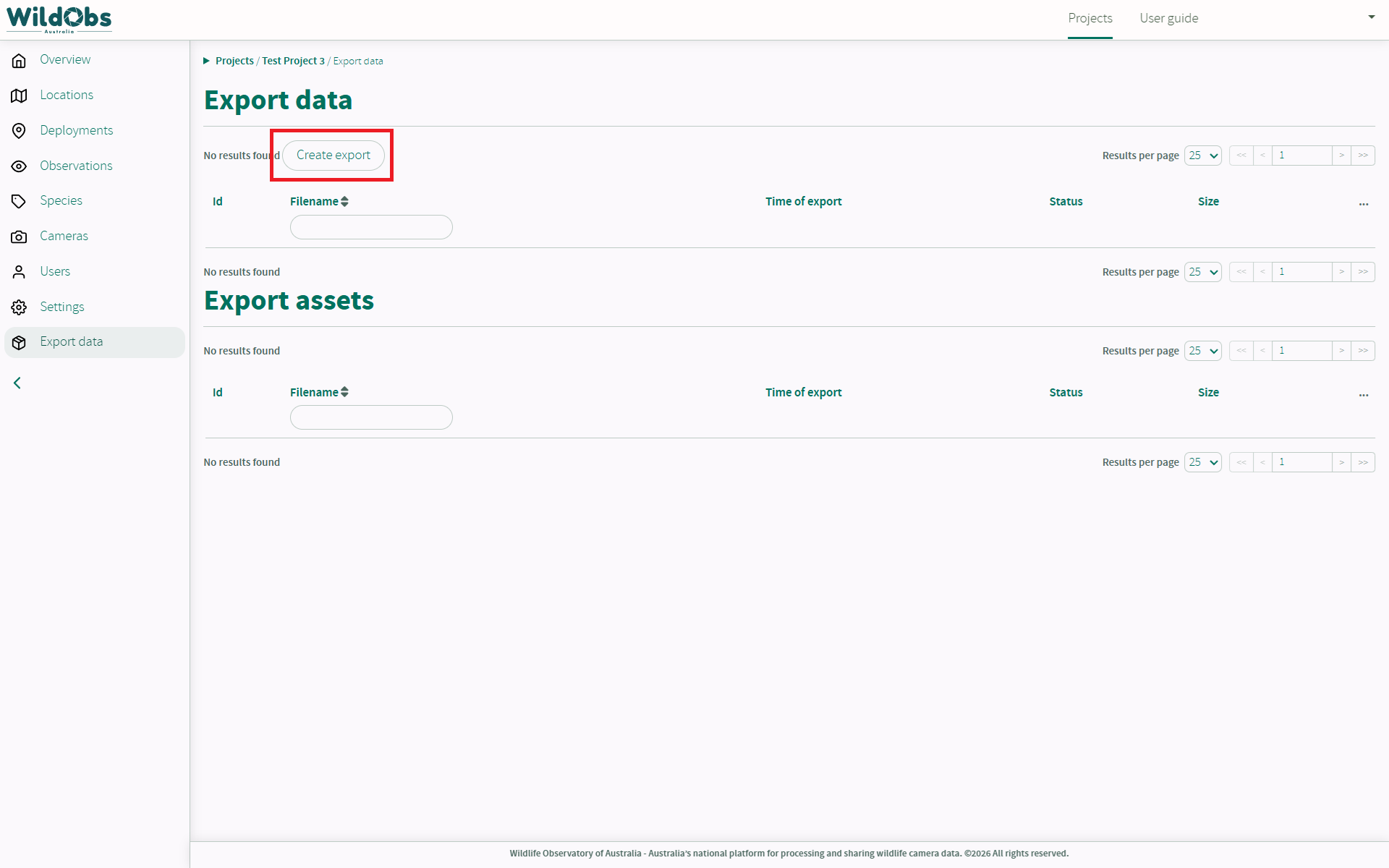
Navigate to Export data in the left side menu.
Click on "Create export" to begin the data export process:
The export job will be sent for processing and will appear as "Scheduled" until it is processed:
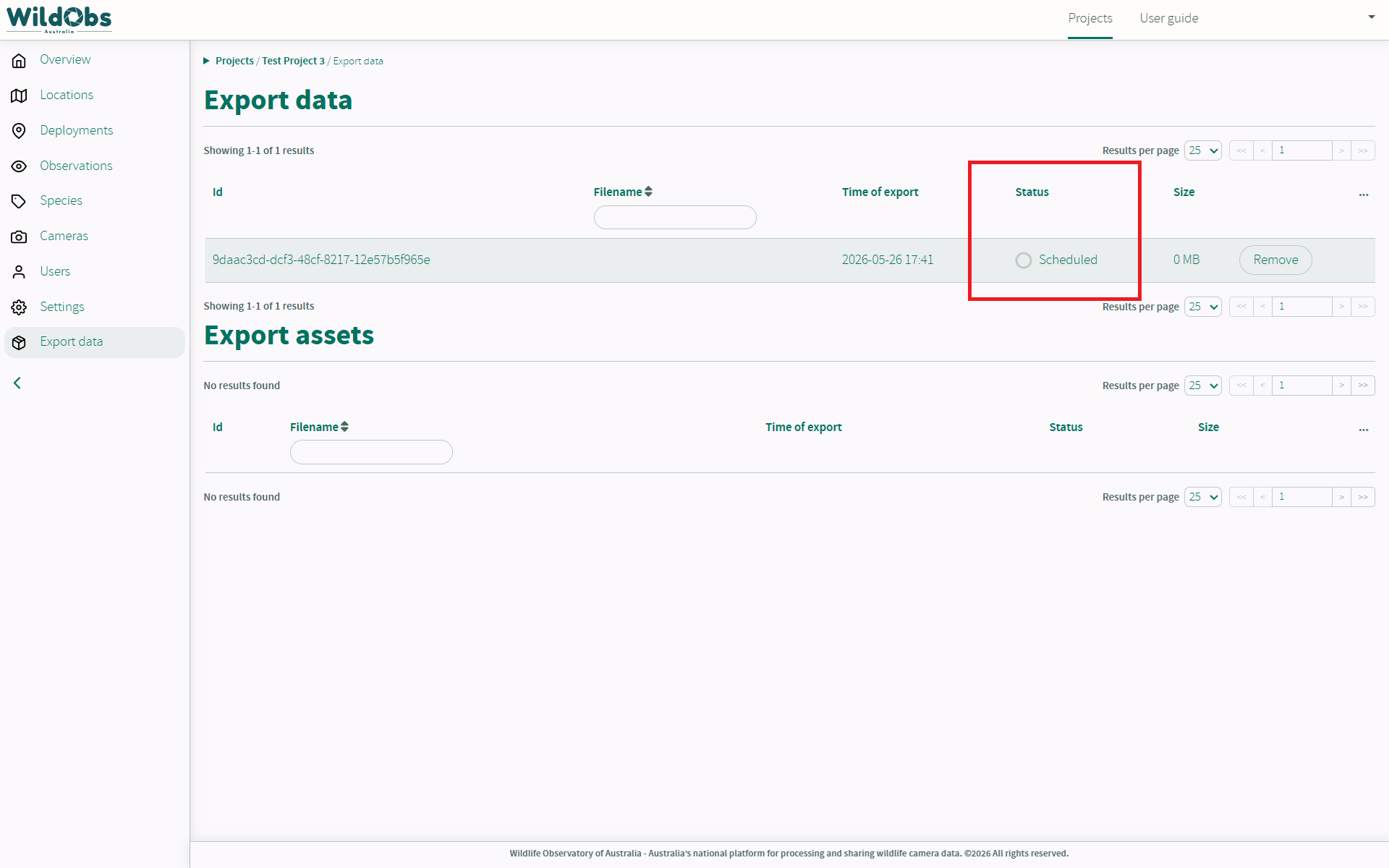
This page does not automatically refresh, so please reload your page to see if your export has completed.
If the data export shows an error or takes longer than 4 hours, please contact the team by submitting a ticket.
2. Download exported data
Once the export has been created, click "Download":
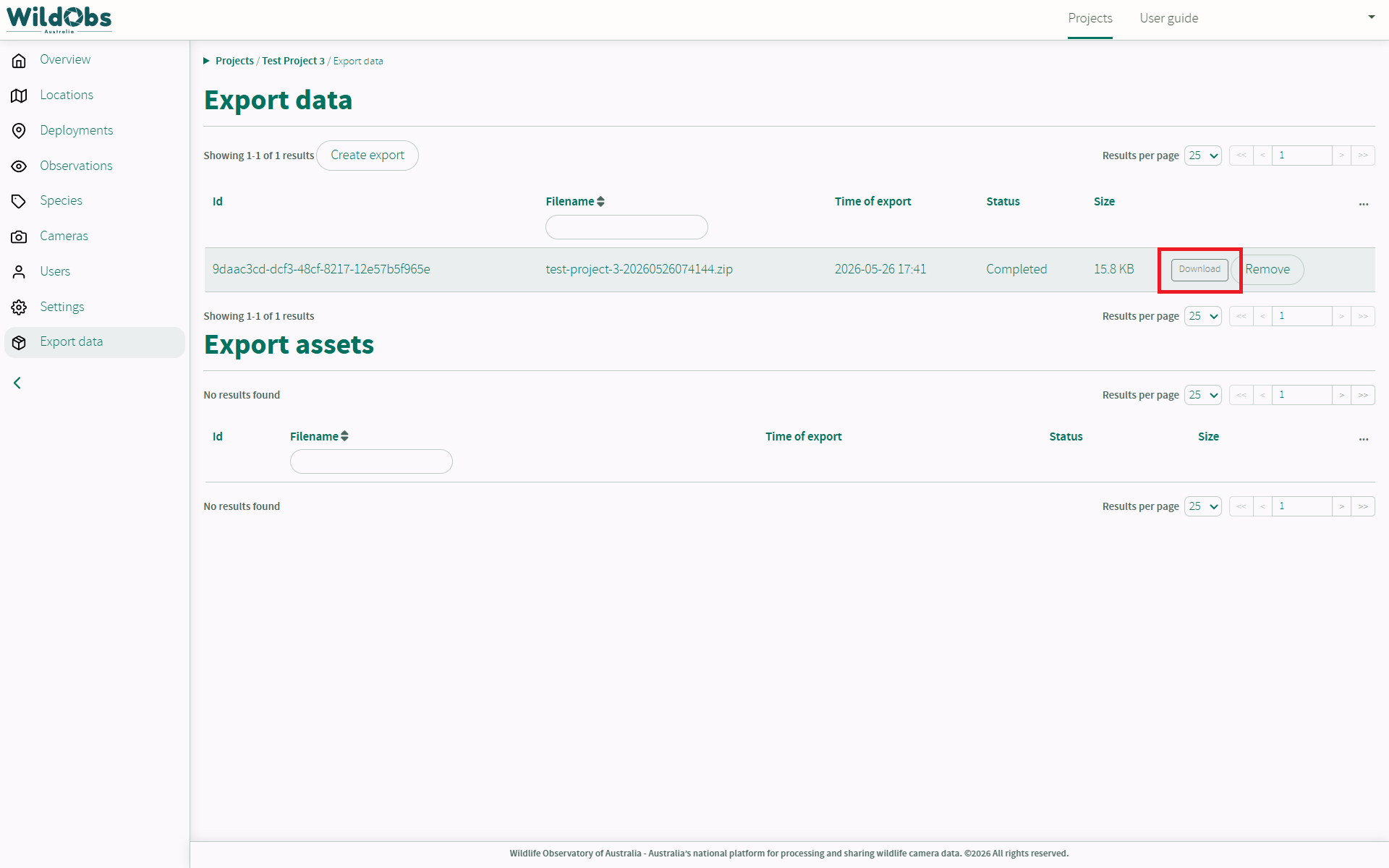
The "Export assets" feature is not currently available.
3. About data exports
The downloaded data will be in the Camera Trap Data Package (Camtrap DP) format and consist of a .zip file containing the 4 data files that make up the data package.
For more information on how WildObs uses the Camtrap DP format, visit WildObs data standards.
Next steps
Was this article helpful?
That’s Great!
Thank you for your feedback
Sorry! We couldn't be helpful
Thank you for your feedback
Feedback sent
We appreciate your effort and will try to fix the article