This guide is for WildObs platform testers only. You will not be able to sign in to the WildObs test platform if you have not been invited by the WildObs team. If you are interested in becoming a platform tester, please register your interest here.
TABLE OF CONTENTS
1. Copy and share project invite link (managing user)
2. Collaborator uses link to request access to the project (invited user)
3. Accept the access request (managing user)
4. Edit the new user's role (managing user)
5. Check access (invited user)
Only users with "Admin", "Principal investigator", "Project coordinator" or "Taxonomic expert" Roles on the project can view and manage users. For more information user roles and permissions, visit Roles and permissions.
1. Copy and share project invite link (managing user)
Follow the steps in WildObs Image Platform Quick Start Guide to navigate to the project you wish to collaborate on.
Click "Users" in the Project menu bar, then click "Copy invite link" in the top right of the Project / Users page.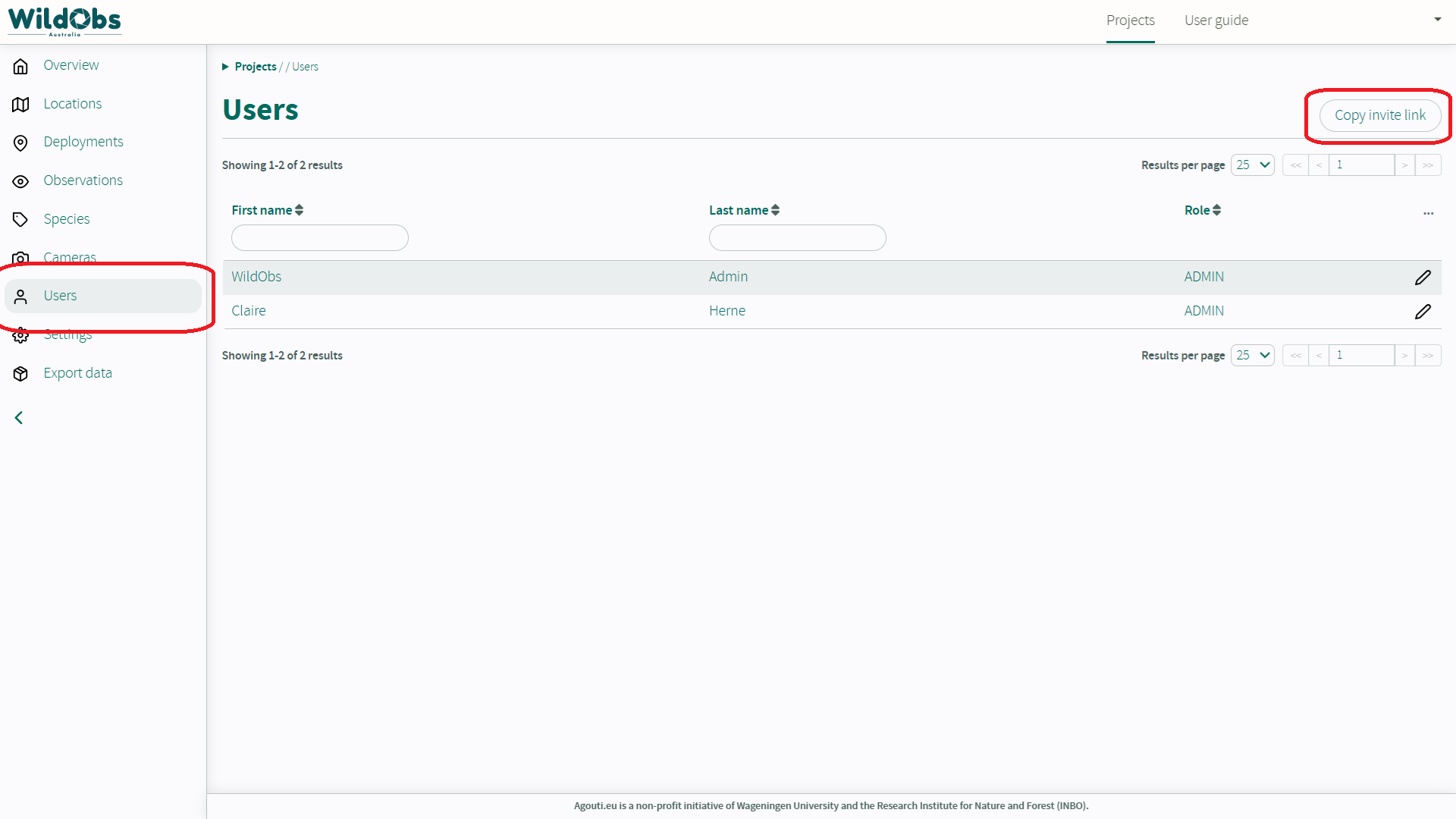
Share the copied link with the person you wish to add to the project.
2. Collaborator uses link to request access to the project (invited user)
The invited user must create a WildObs account, log in, then click the shared invite link.
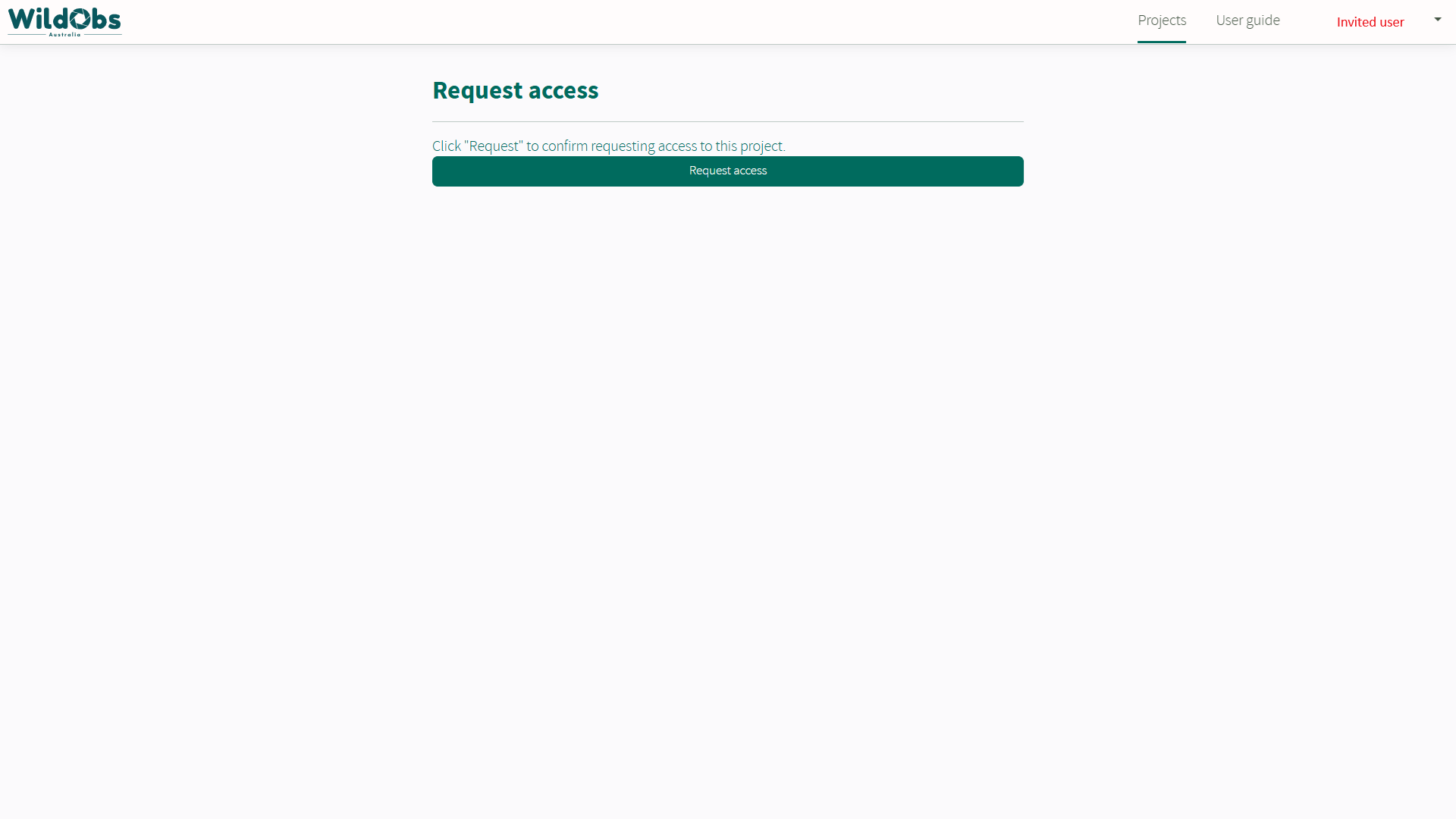
Once the shared invite link has been opened, click "Request access":
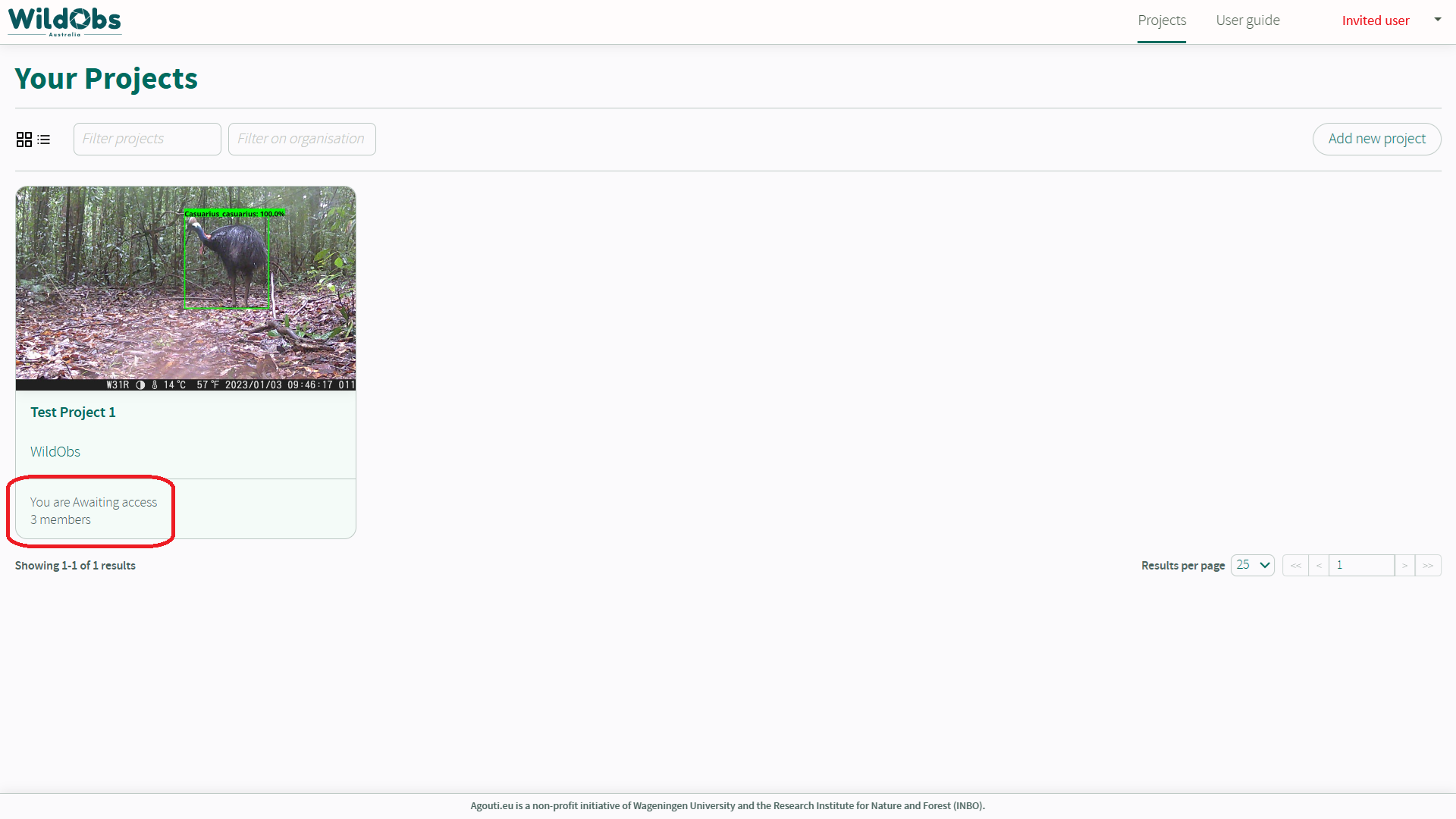
The project will appear in the invited user's "Your Projects" page but it will be inaccessible until access has been approved:
3. Accept the access request (managing user)
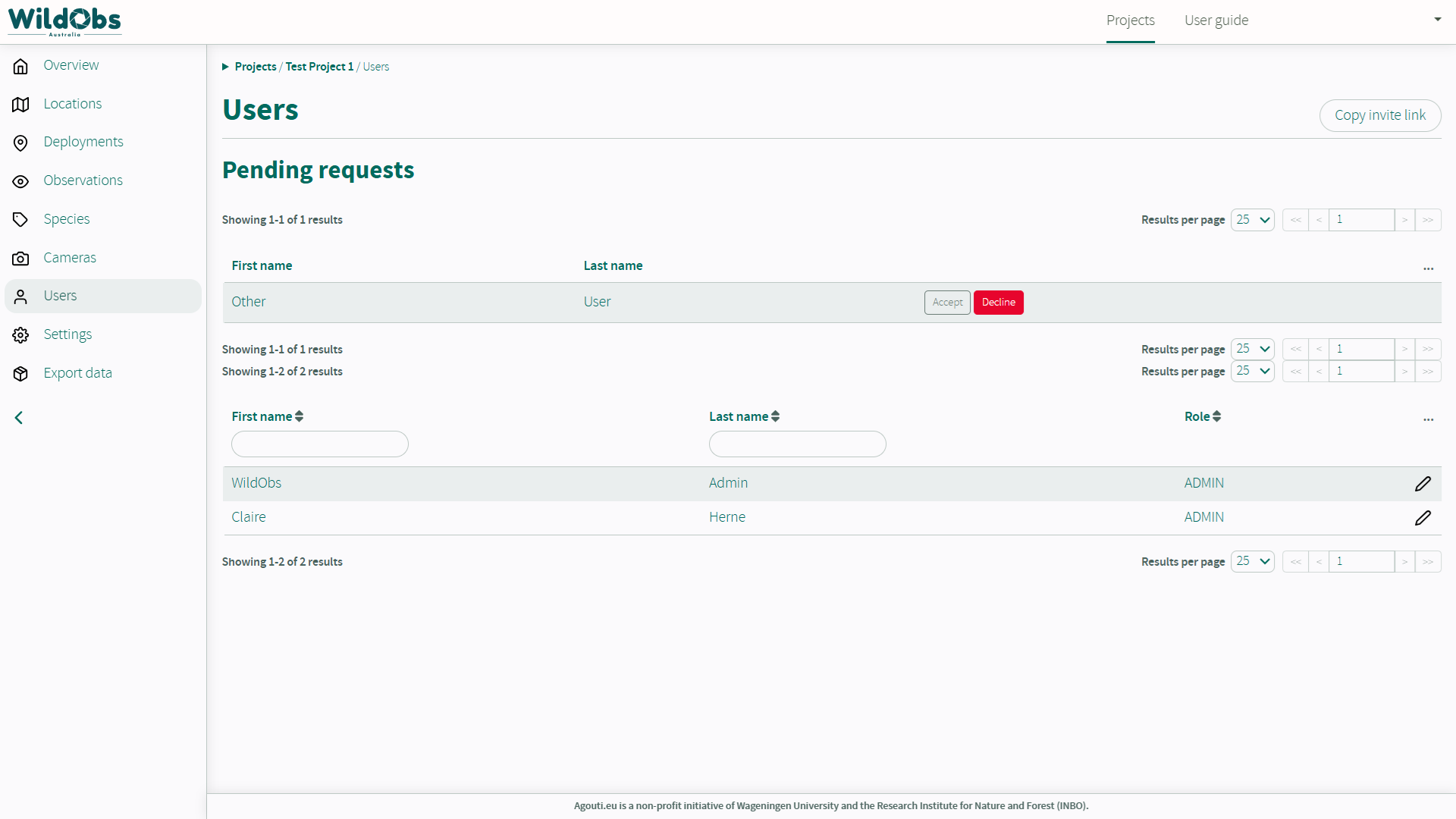
The managing user can navigate to the Project / User page to review the request, and click "Accept" or "Decline". A pop-up will ask you to confirm once clicked.
4. Edit the new user's role (managing user)
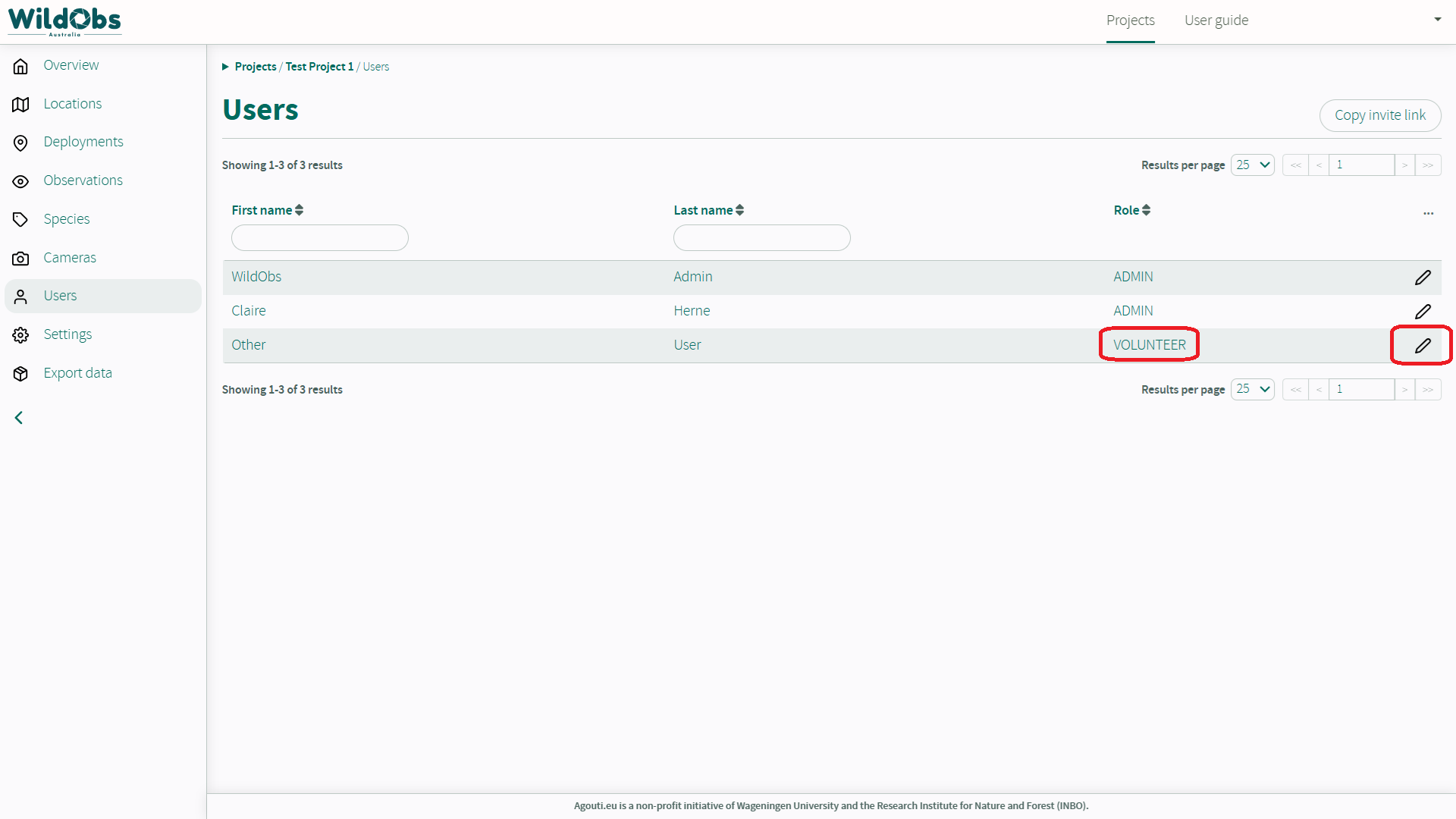
New users are added to the project as the least permissive role with access, "Volunteer". To give required access permissions, a managing user must edit the user's role by clicking the pencil icon next to the new user's name:
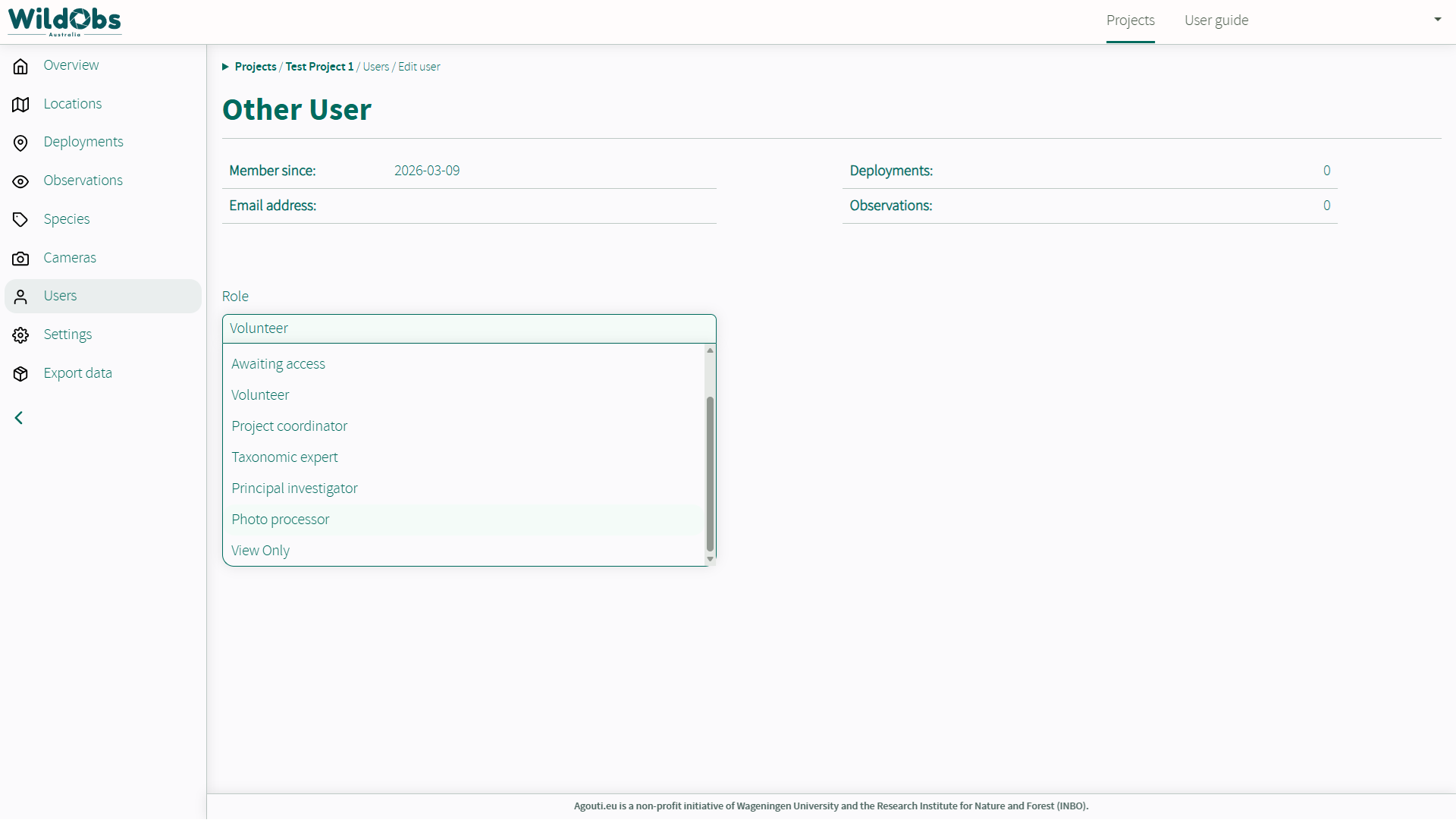
Click on the Role drop-down to select the appropriate role for the new user, followed by clicking "Save":
5. Check access (invited user)
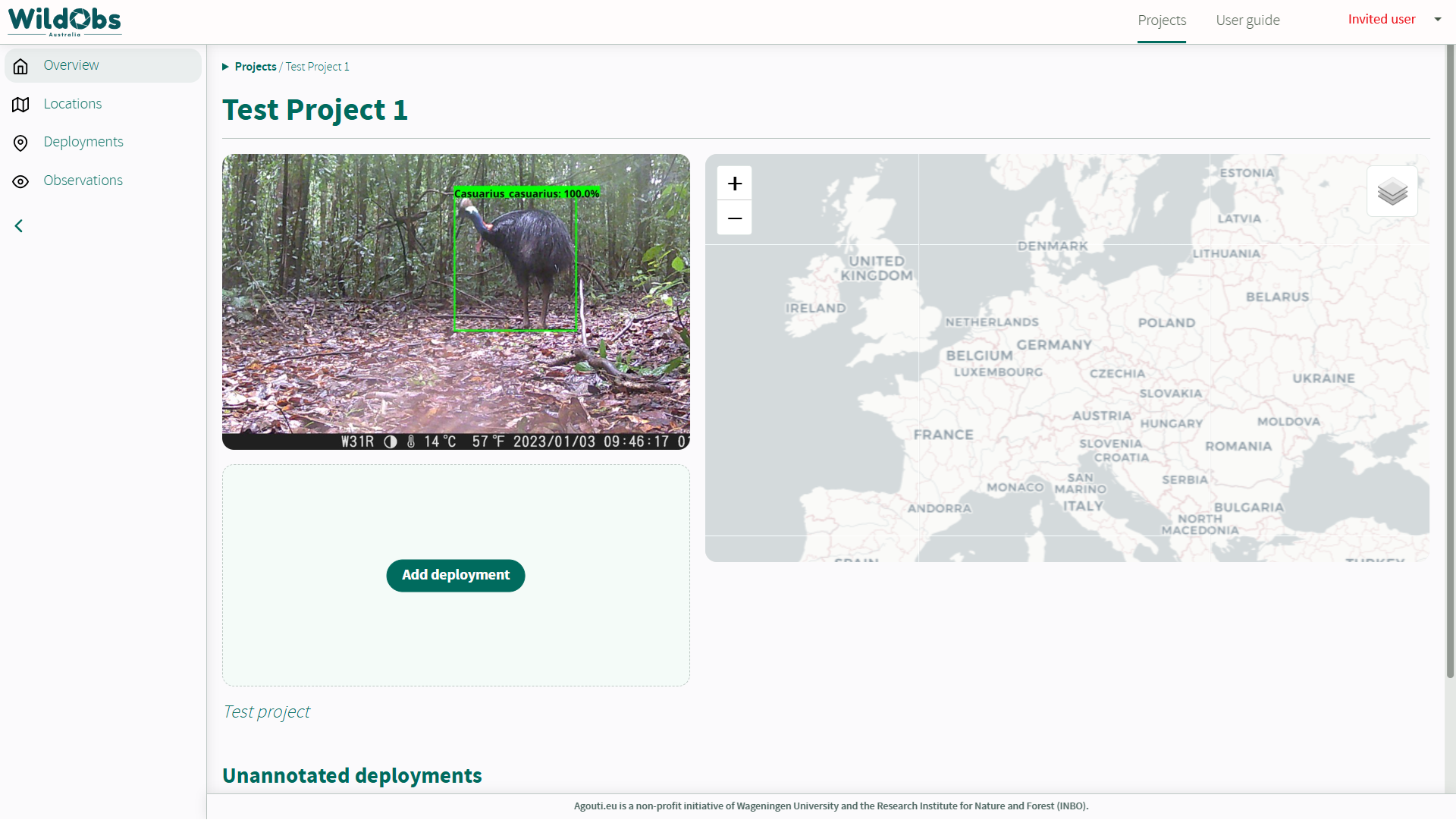
The invited user can reload the "Your Projects" landing page to see the updated new role reflected on the project. After clicking on the project, access to features will be in accordance with the selected role:
Next steps
Invite others to collaborate on your project
Add a deployment to your project
Was this article helpful?
That’s Great!
Thank you for your feedback
Sorry! We couldn't be helpful
Thank you for your feedback
Feedback sent
We appreciate your effort and will try to fix the article