This guide explains how to use the "Import All (CSV) feature of the WildObs Image Platform. Import multiple deployments at once by uploading a CSV file to populate the deployment, location, tags, groups and camera information. It can save time when adding a large number of deployments to a project while ensuring data integrity.
Visit Getting started with the WildObs Image Platform for all guides in this series. Learn about deployments with Add a deployment to a project.
TABLE OF CONTENTS
1. Prepare your multiple deployment import CSV file
2. Understand how the CSV will be processed
3. Upload your CSV file to start the import
1. Prepare your multiple deployment import CSV file
The CSV file must use the exact column names as the example CSV, which can also be downloaded from the Project Overview page.
Visit Deployment and Import All CSV fields to understand more about the CSV fields and how data must be formatted.
2. Understand how the CSV will be processed
When a CSV is uploading, it will go through a validation process to ensure that the data is entered correctly:
- Each row is an individual deployment.
- Required fields are validated and will give an error if they are not provided in any of the rows.
- Formats of date fields will be checked.
- If a set of unique location or camera information is provided more than once, it will not create a duplicate entry. If the entry already exists in the project, the existing entry will be used.
- Tags and groups will not be duplicated in the project if they already exist.
- The setupBy and pickupBy fields will search the project for the name of the user and match that user to the field.
- If more than one user of that name exists, the first one listed on the project will be used.
- If a name is not provided or unable to be matched to a user, the Principal Investigator will be added.
- If there is no Principal Investigator, the project owner will be added to the field.
3. Upload your CSV file to start the import
Navigate to the Deployments view of your project using the left side menu and click "Import All (CSV)":
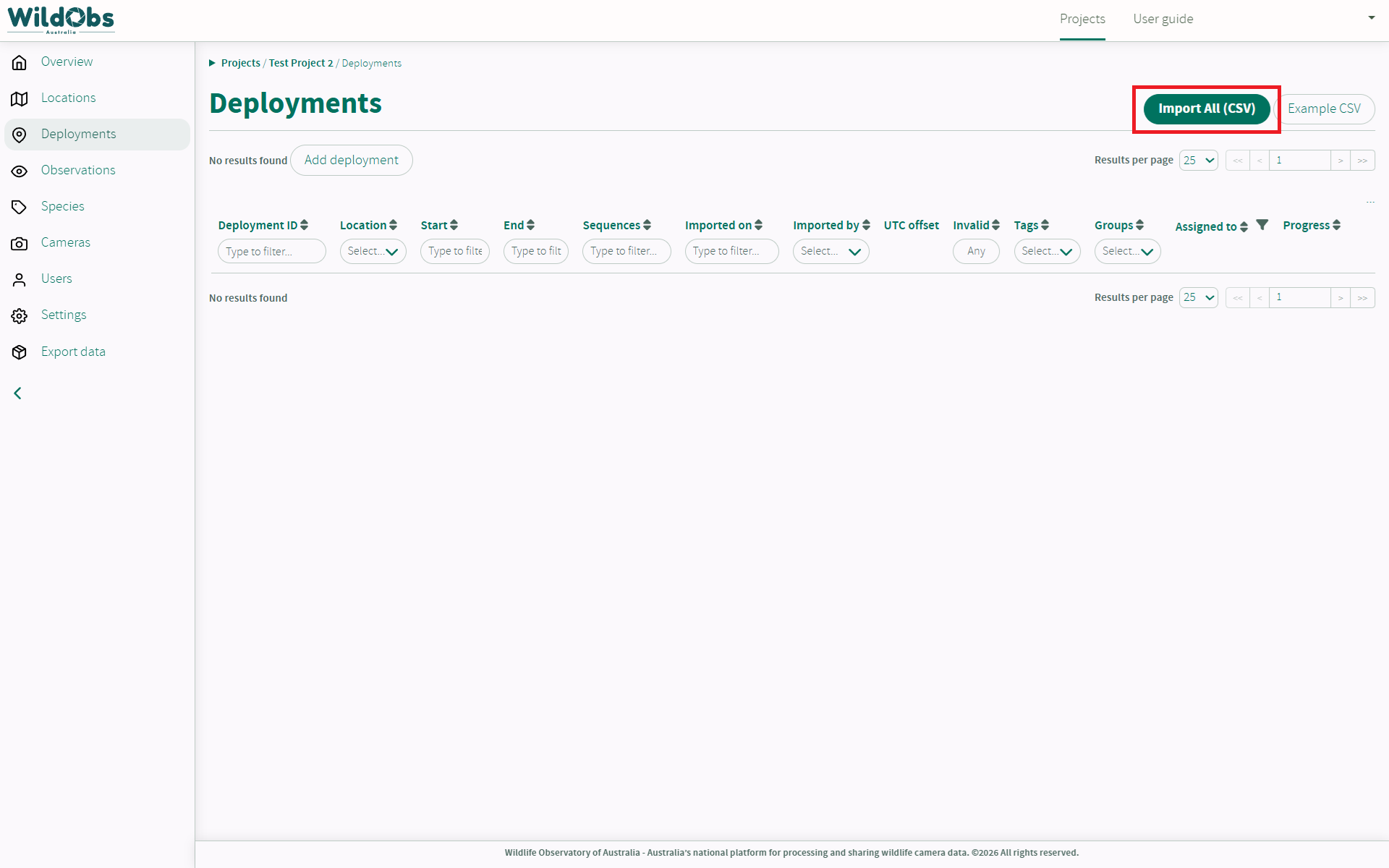
Open your prepared CSV file to start the import.
3. Successful import
If successful, a grey dialog box will appear in the top right of the window stating "CSV uploaded successfully" and the table of deployments will refresh populated:
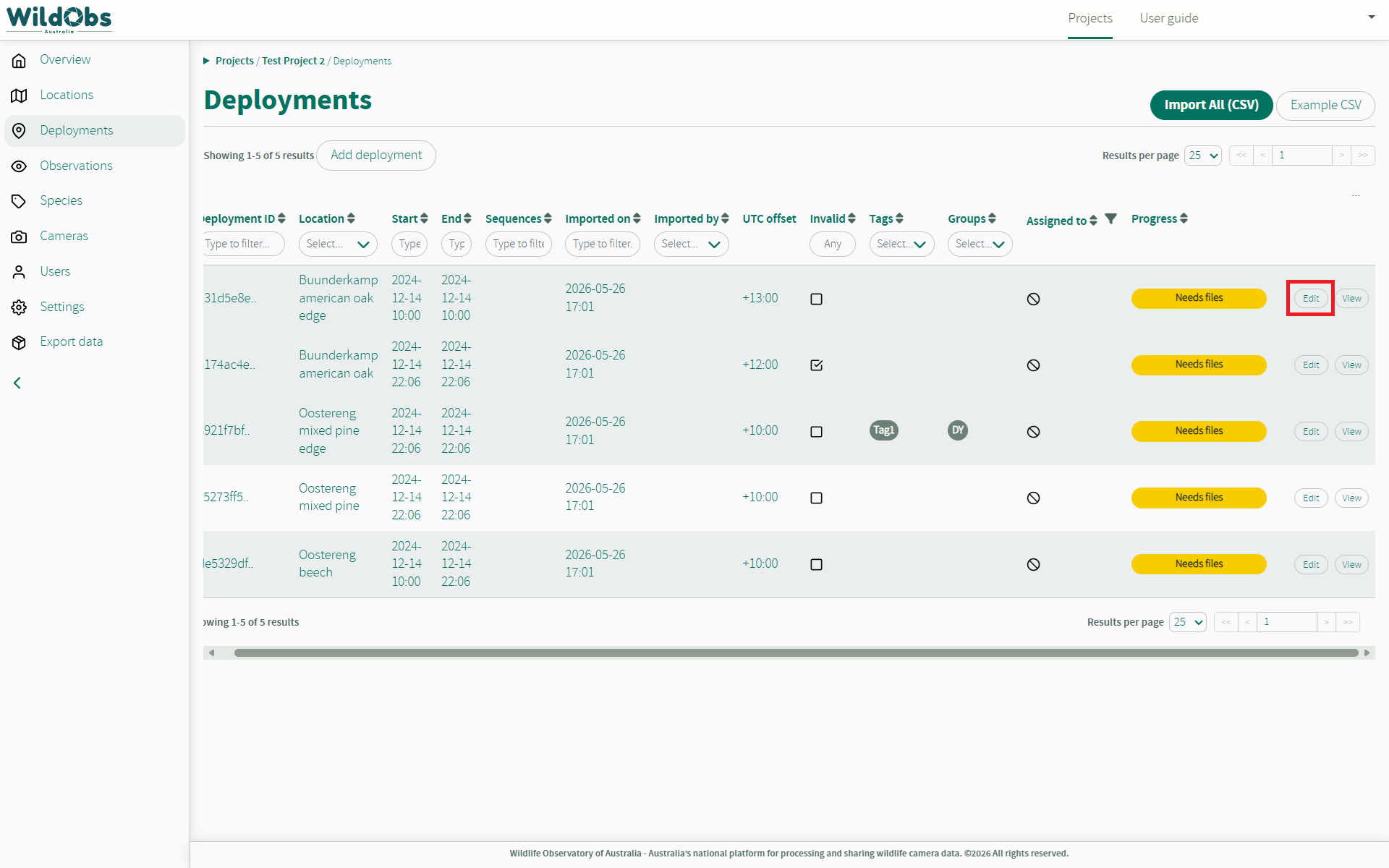
Cameras, Locations, Deployment tags and Deployment groups will also be populated with entries created from the import.
From here, each deployment must be edited individually to add camera trap media for processing. Visit Add a deployment to a project or Upload images using Nextcloud for details on how to add camera trap images or media to your deployment.
4. Unsuccessful import
If there is an error with your upload, none of the deployments will be imported.
An error message will appear in the top-right corner of the window with the first error it encountered:
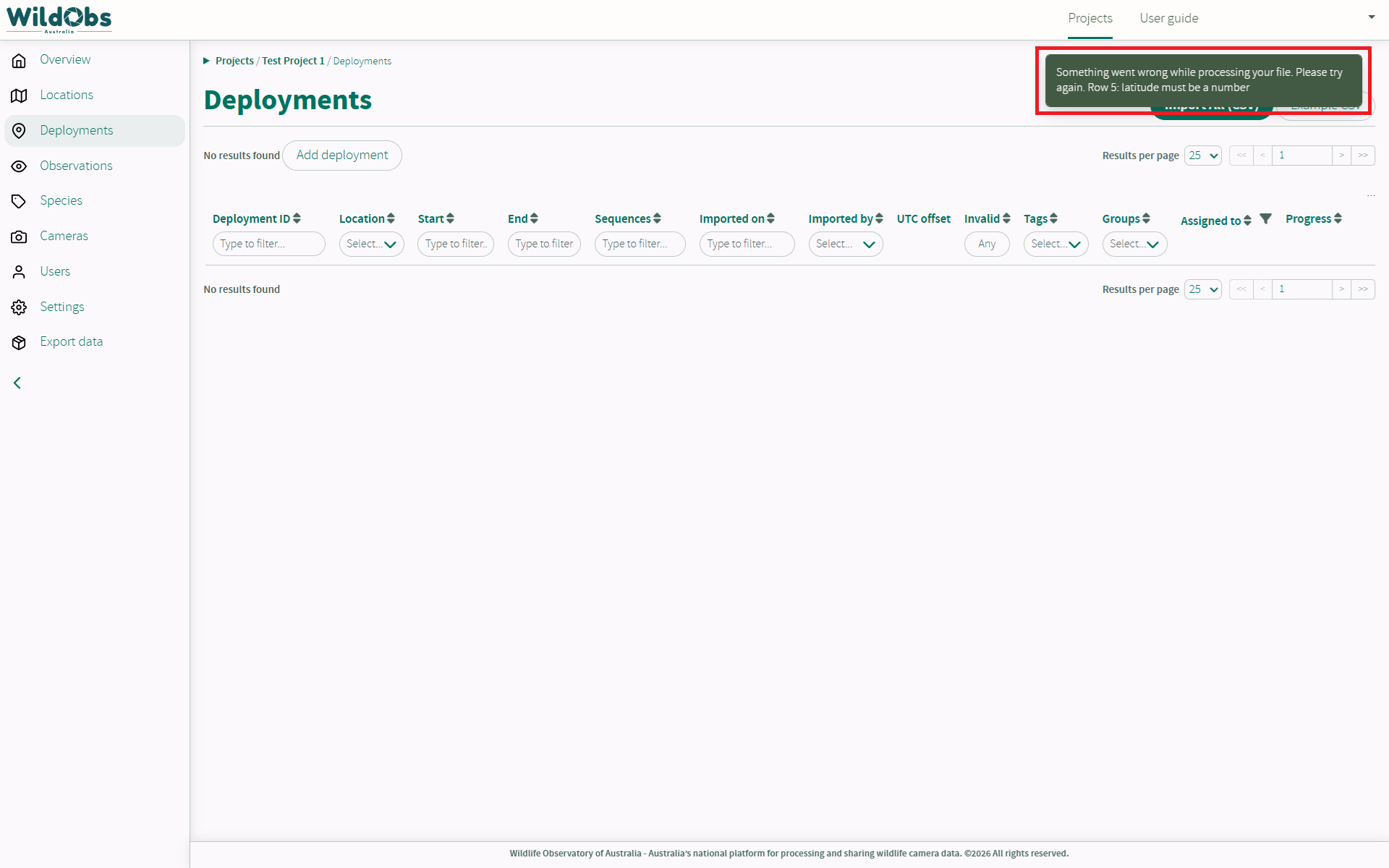 Please check your CSV file and try again. Don't forget to refer to Deployment and Import All CSV fields for more details on how to correctly format your CSV file.
If you continue to experience issues, let us know by submitting a ticket.
Next steps
Was this article helpful?
That’s Great!
Thank you for your feedback
Sorry! We couldn't be helpful
Thank you for your feedback
Feedback sent
We appreciate your effort and will try to fix the article