This guide shows how to enable camera trap image annotation by computer vision AI model on a WildObs Image Platform project and how to run tools on a deployment.
Visit Getting started with the WildObs Image Platform for all guides in this series.
TABLE OF CONTENTS
1. Navigate to your project annotation settings
2. Choose a default AI model for your project
3. Enable automatic annotation
4. Annotate a deployment using AI
4. a) Annotate a deployment with existing sequences
4. b) Automatically annotate a deployment after uploading images
7. Use an AI model to annotate individual sequences in real time
1. Navigate to your project annotation settings
Note: Only users with "Admin", "Principal investigator" or "Project coordinator" Roles on the project can view and manage project settings. For more information user roles and permissions, visit Project roles and permissions.
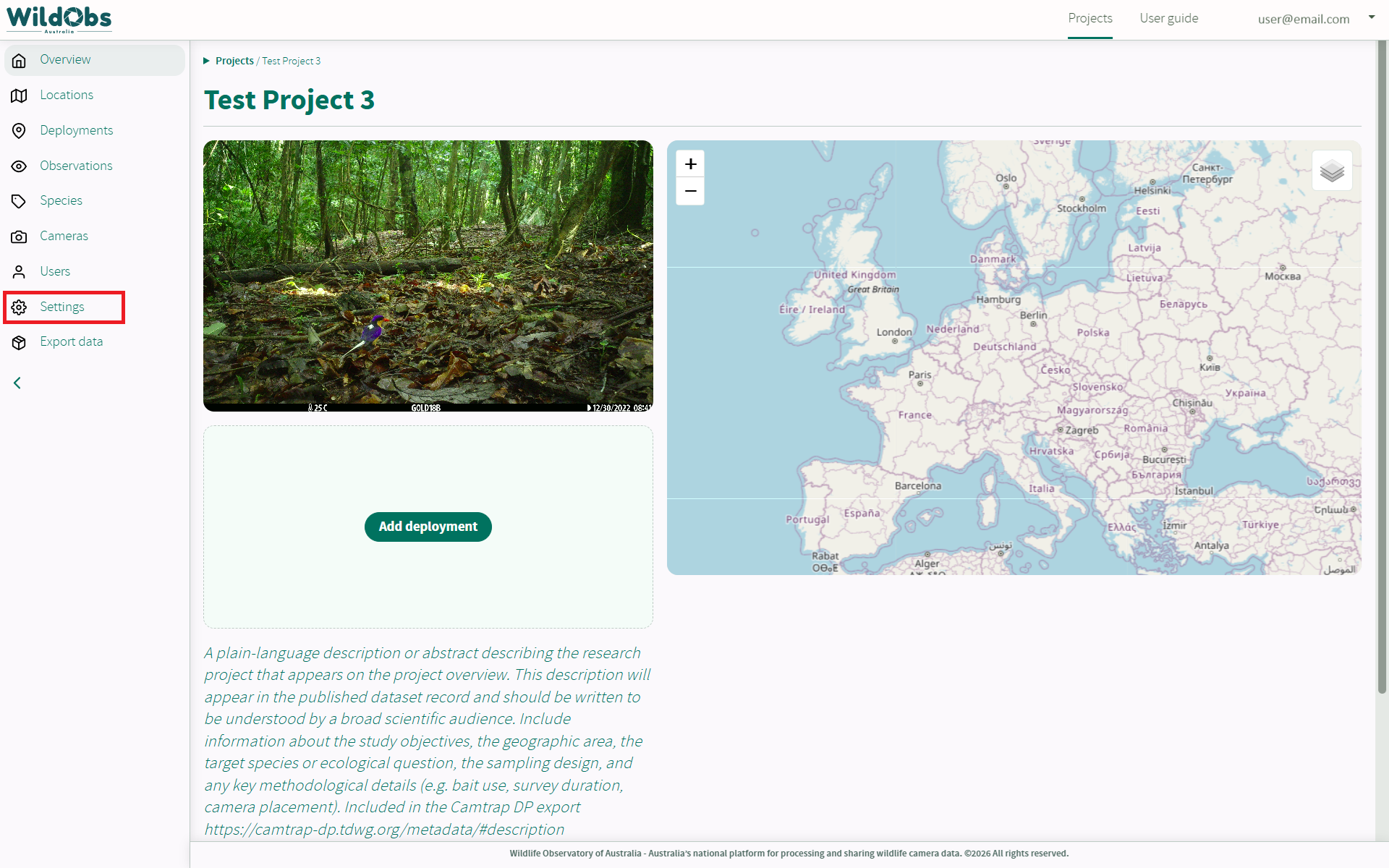
Follow Create a project on the WildObs Image Platform to create a project. From anywhere in the project, click "Settings" in the left side menu and scroll down to "Annotation":
2. Choose a default AI model for your project
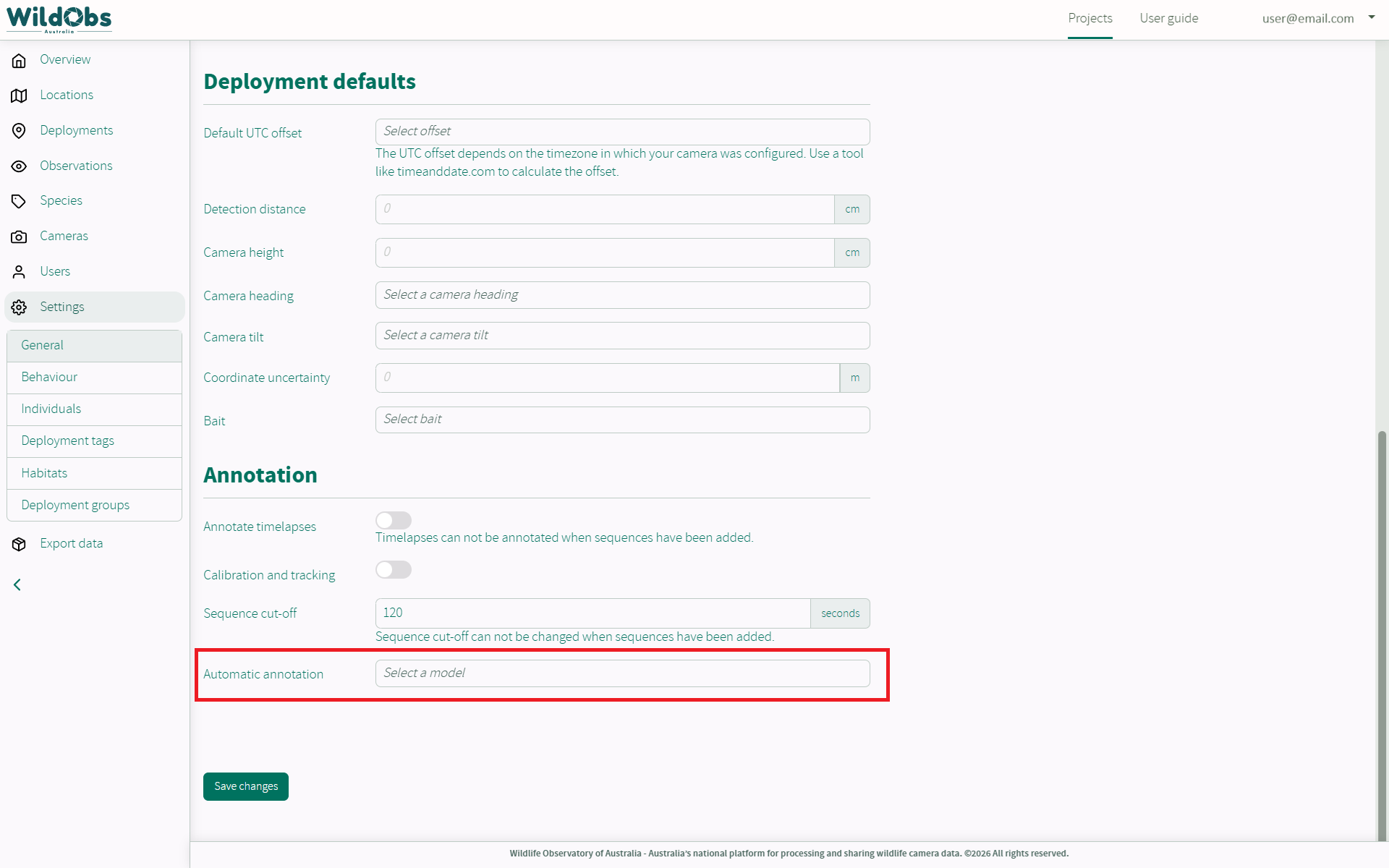
Click the "Select a model" drop-down menu to choose a default AI annotation model.
3. Enable automatic annotation
Once a model has been selected, a new option "Automatically with new photo series" appears.
This setting enables the "AI processing - Send deployment to AI" feature on deployments.
When selected, users adding or editing deployments on the project can choose to have the system automatically annotate images using the selected AI annotation model.
If you do not want the option for new deployments to be annotated by AI automatically after saving, disable this option.
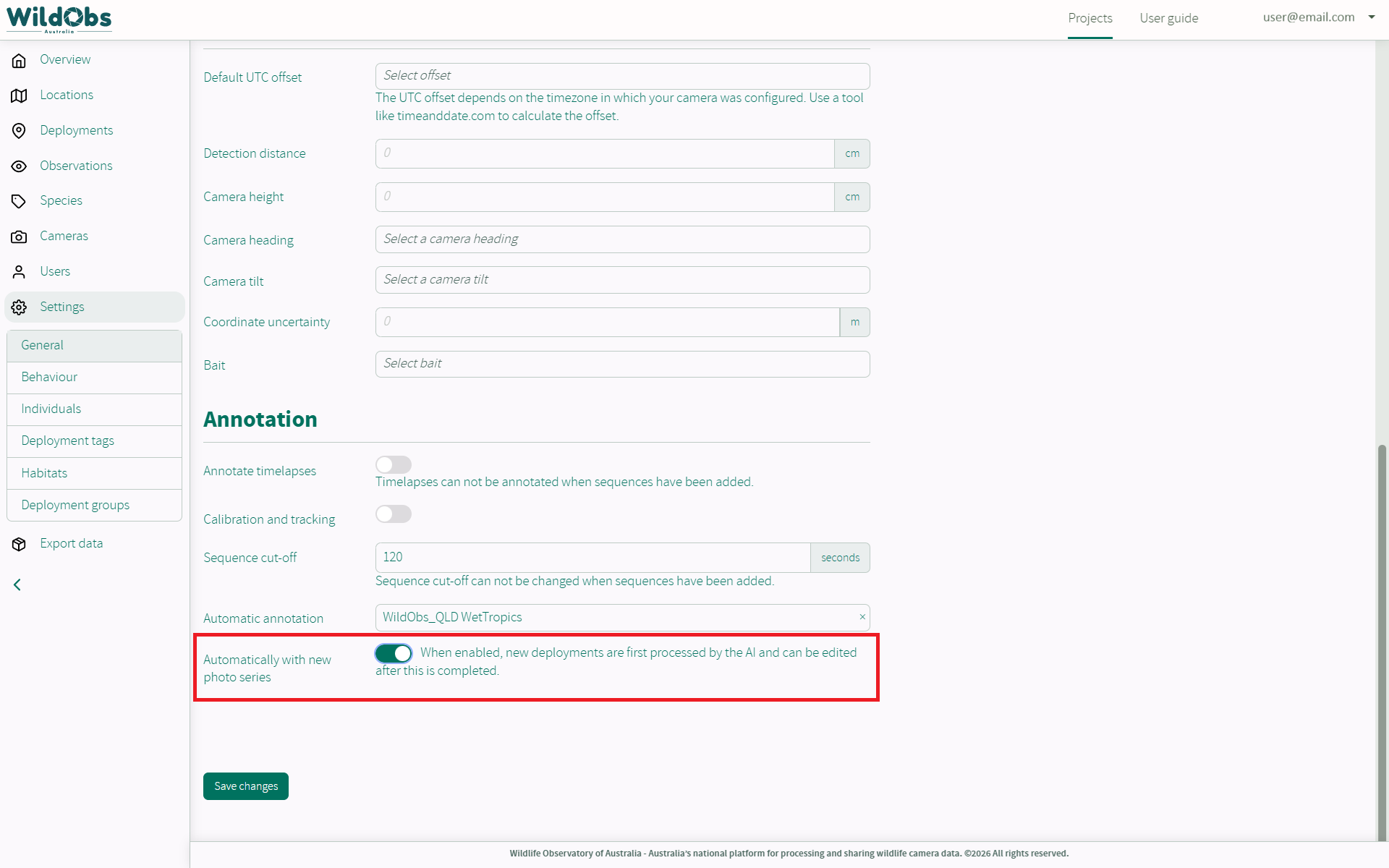
Click "Save changes" to update your project settings.
4. Annotate a deployment using AI
Annotation by AI model can be set to run on a deployment two ways:
4. a) Annotate a deployment with existing sequences
If automatic annotation has not been enabled in project settings or is not selected when adding a deployment, it can be run on a deployment after media files have been uploaded and sequences created.
4. b) Automatically annotate a deployment after uploading images
If automatic annotation is enabled in project settings and "AI processing - Send deployment to AI" is enabled on the deployment, the deployment can be sent for AI annotation immediately after media files are uploaded and sequences are created. This is a useful option, especially if a large number of files are being uploaded using Nextcloud.
4. a) Annotate a deployment with existing sequences
If a deployment has been added, sequences created and not previously annotated by AI, it will now have a new option on the Deployments view. Click "Annotate by AI" to send the deployment for AI annotation:
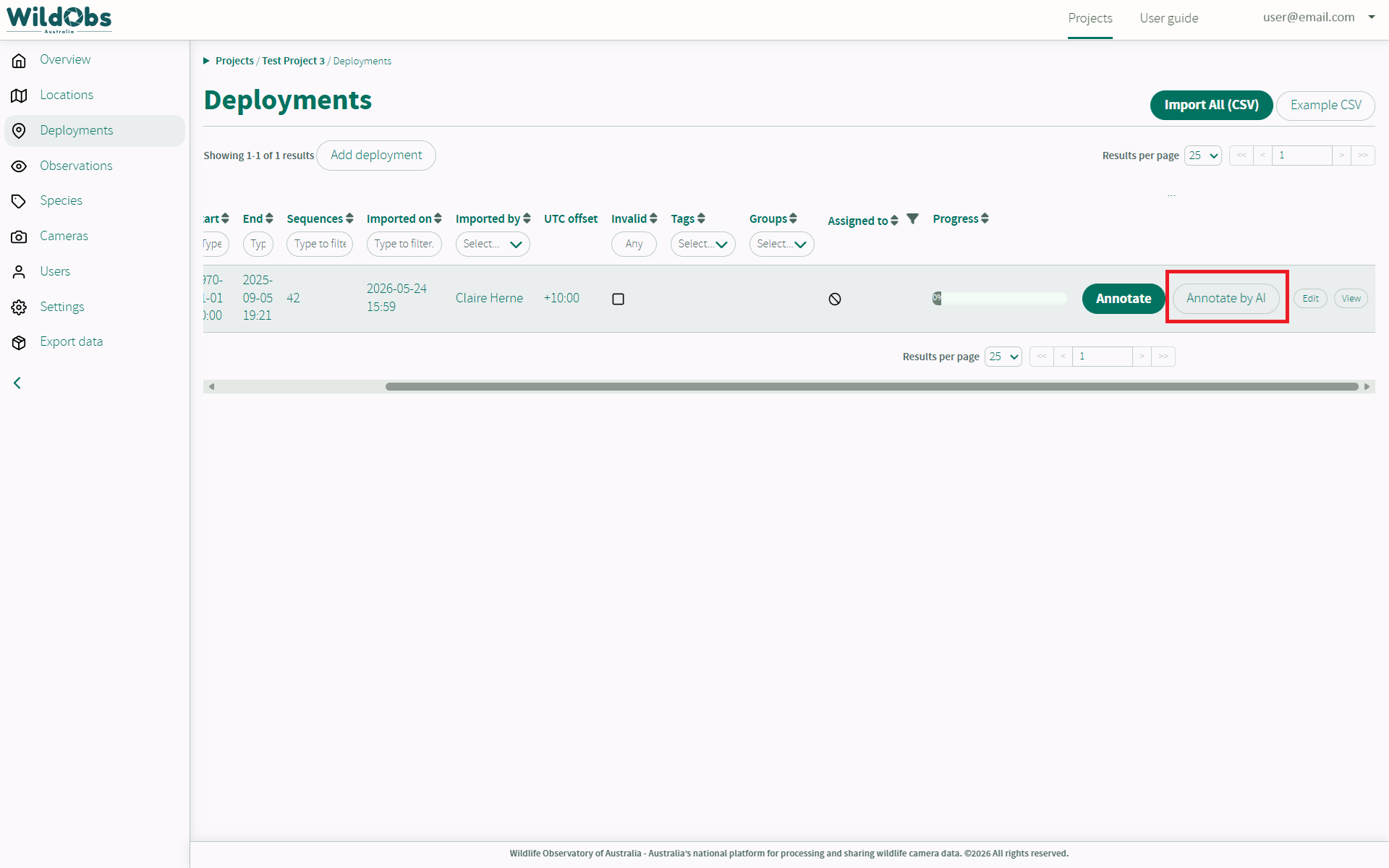
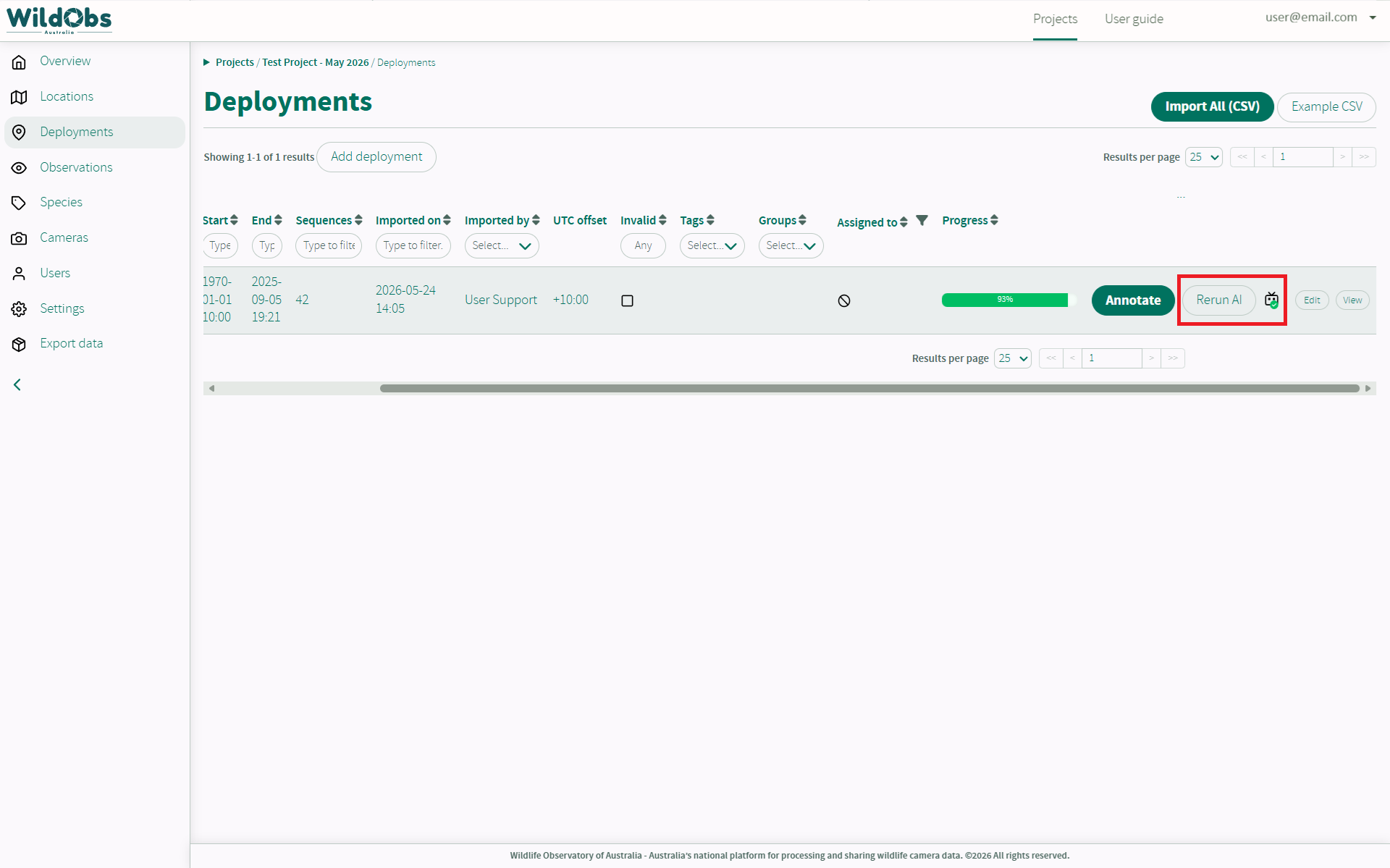
If you have run AI annotation previously on a deployment, but have changed the selected automatic annotation model in Project settings, you will see an option to re-run the AI annotation using the selected model:
4. b) Automatically annotate a deployment after uploading images
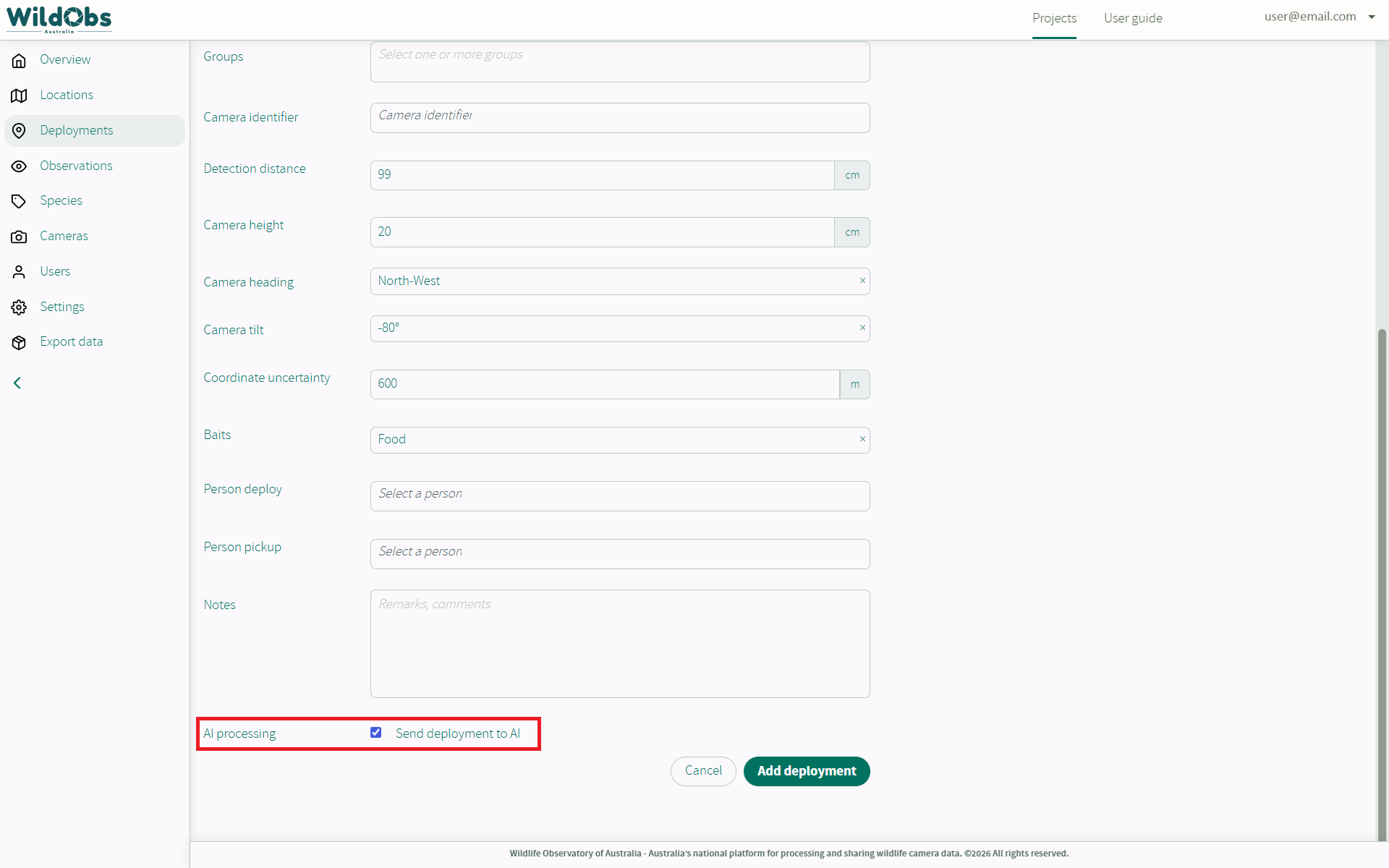
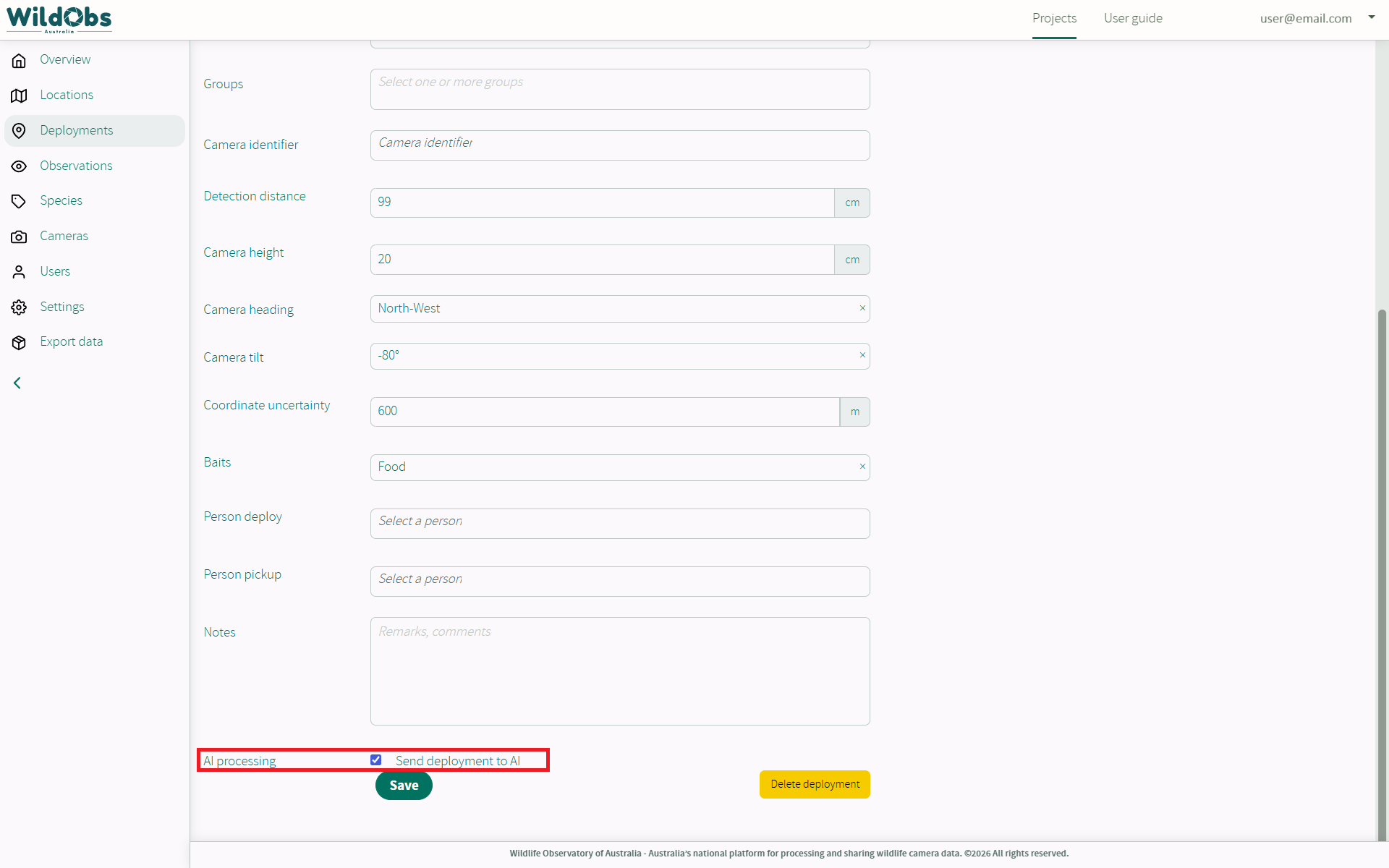
When automatic AI annotation has been enabled at the project level, when a new deployment is being added (see Add a deployment to a project) or images are being added to an existing deployment, there will be a new option for "AI processing" after "Notes". When this option is selected, images will begin AI annotation immediately after images are clustered into sequences.
Add deployment with images added:
Edit deployment with images added:
5. Annotation progress
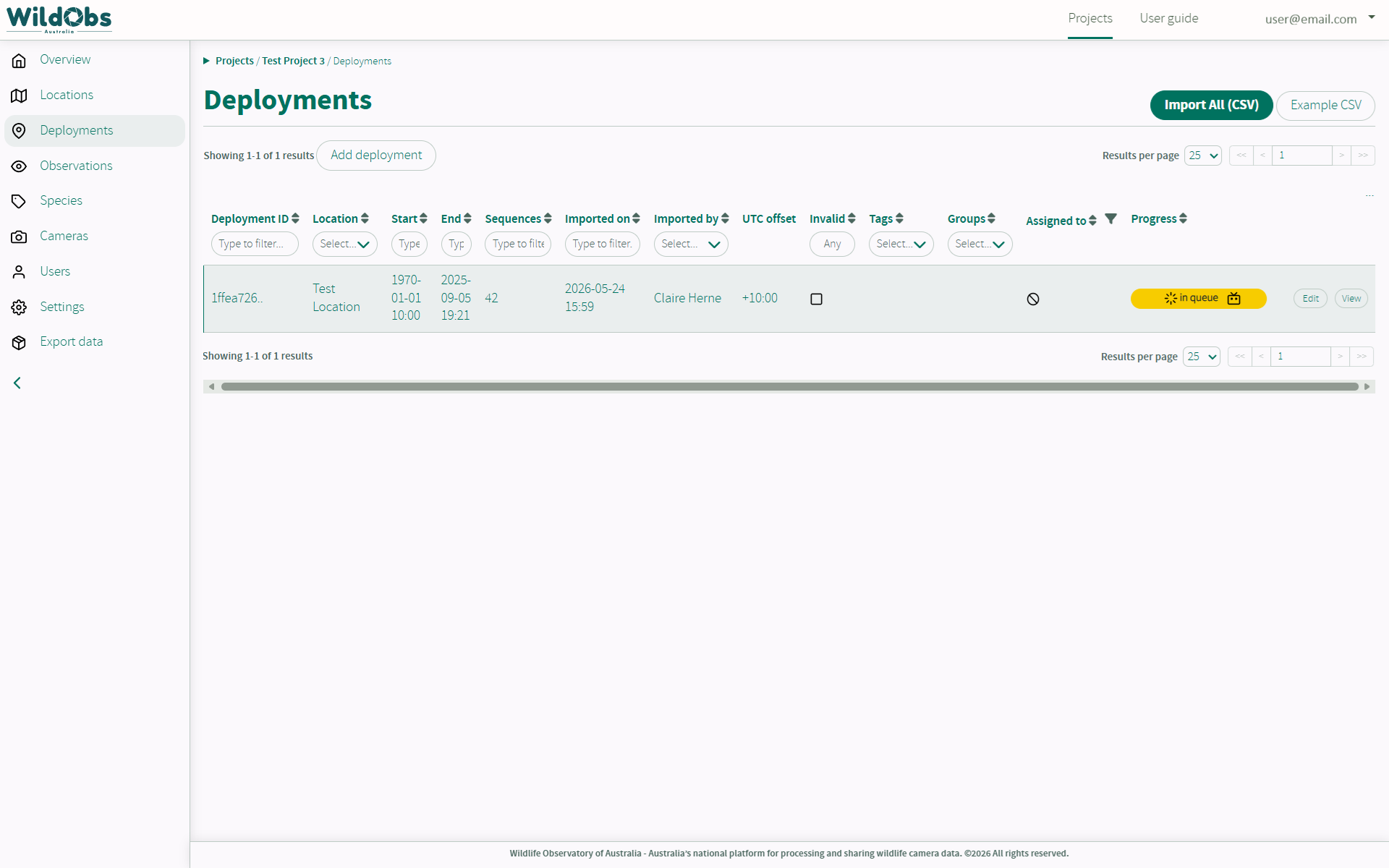
Once a deployment has been submitted for annotation by AI model, either as an existing deployment or a new one, the "Progress" field will change to show annotation job status. The field will be a yellow card when queued or a green bar while in progress.
Note: Refresh the deployments page to see the updated status.
6. View AI annotation results
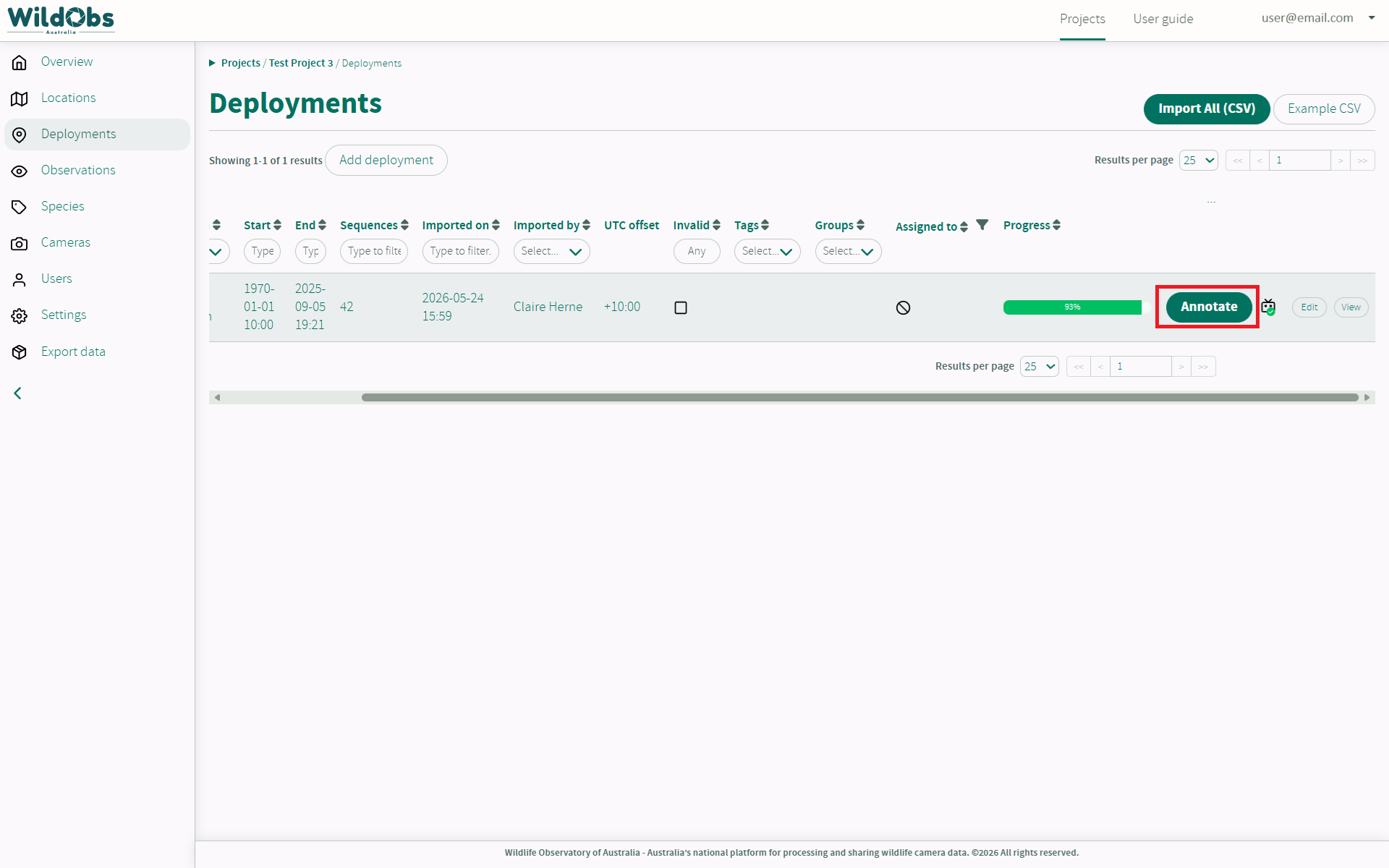
Once complete, the "Progress" field will show the "Annotate" button with a robot icon next to a green progress bar.
If the green progress bar does not show 100%, some sequences were unable to be annotated, possibly due to low confidence score or poor image quality.
Clicking the "Annotate" button here will automatically open the first of any sequences that could not be annotated with confidence by the AI model:
7. Use an AI model to annotate individual sequences in real time
Annotations can be added manually for sequences that do not have AI annotations added.
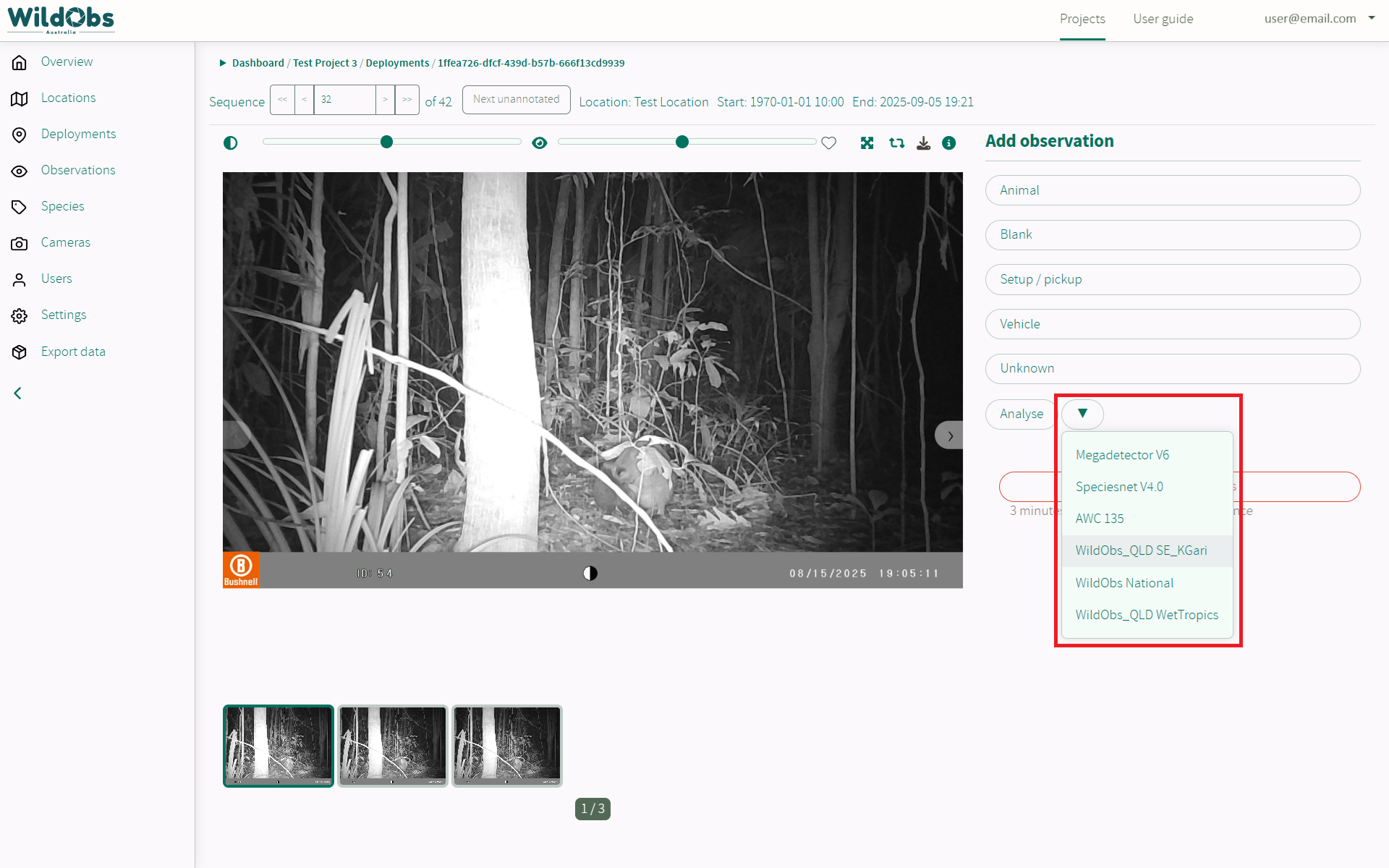
Clicking "Analyse" will run the default AI model selected for the project on the current sequence.
A sequence can be analysed using a different AI model than the one selected as the default for the project by clicking the down arrow:
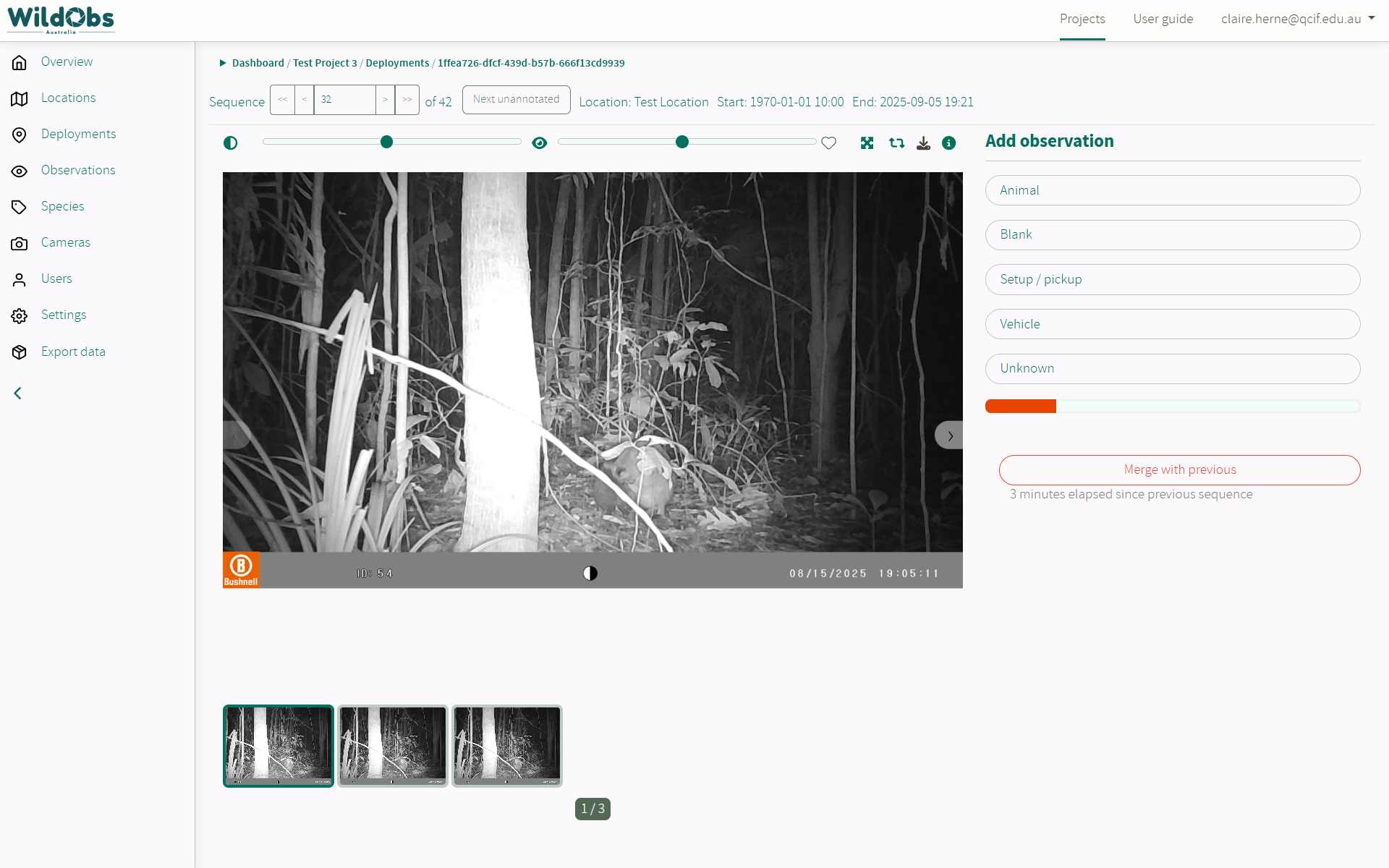
A progress bar will appear showing that the sequence has been sent for annotation using the selected model:
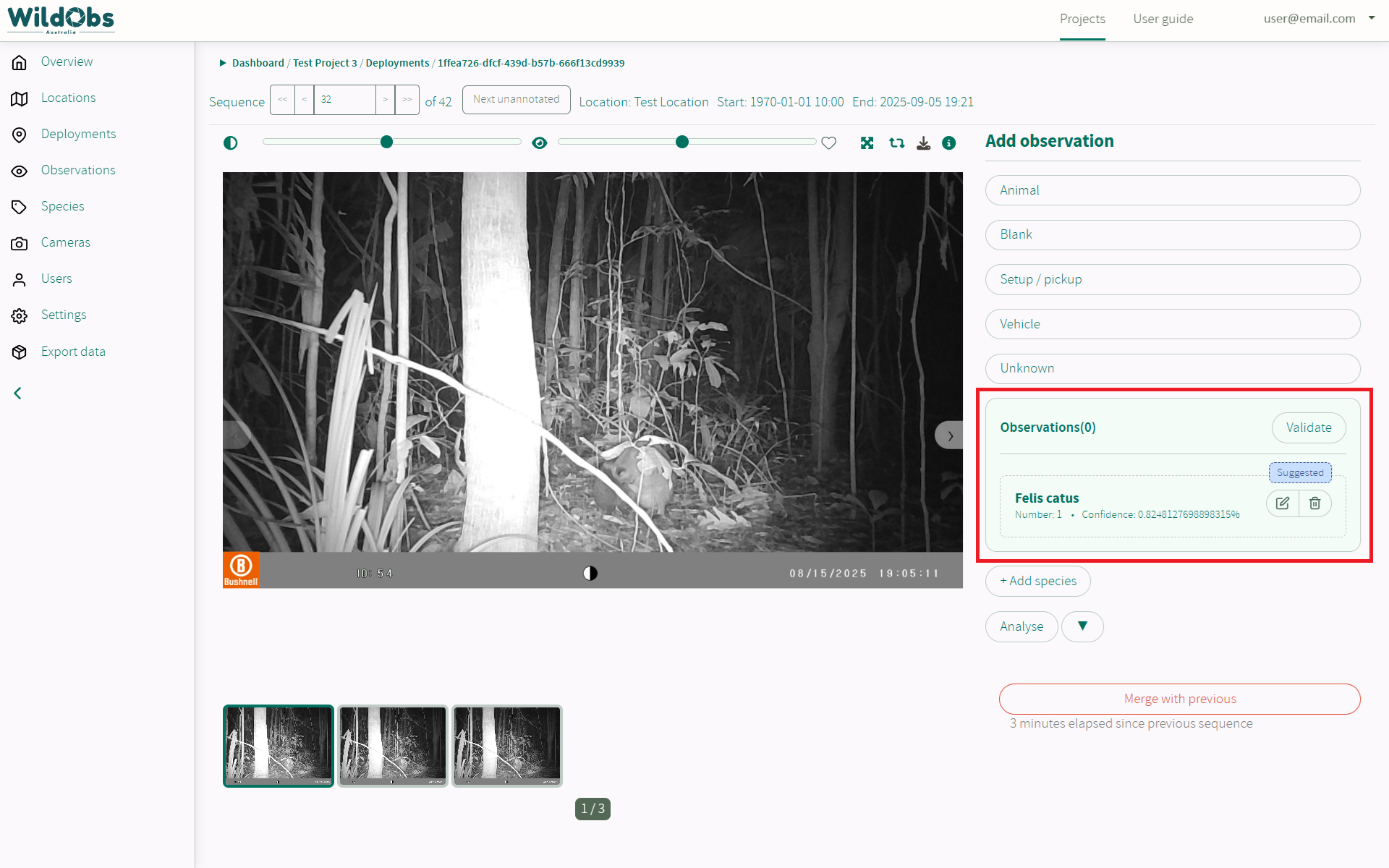
If the selected model makes an observation, it can be validated, edited or deleted:
Clicking "Next unannotated" will take you to the next unannotated sequence or back to the project overview if all sequences have been annotated:
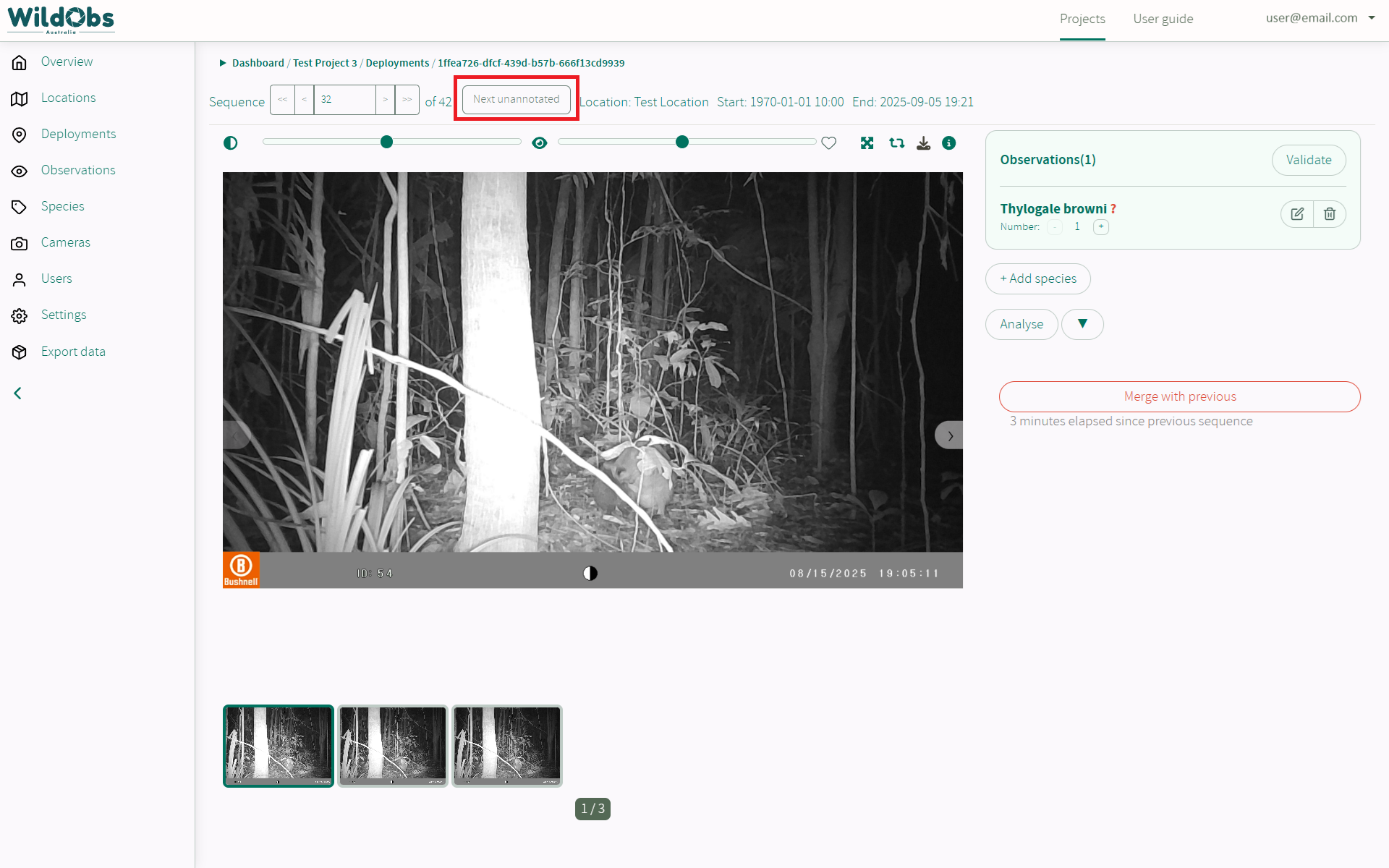
It is recommended that all observations are then validated in order of capture.
Next steps
Return to Getting started with the WildObs Image Platform
Was this article helpful?
That’s Great!
Thank you for your feedback
Sorry! We couldn't be helpful
Thank you for your feedback
Feedback sent
We appreciate your effort and will try to fix the article