This guide shows how to annotate sequences of images with observations manually, how to run real-time AI on a sequence and how to validate observations.
Visit Getting started with the WildObs Image Platform for all guides in this series.
To run annotation automatically on all sequences of a deployment, visit Use AI models to annotate deployments.
TABLE OF CONTENTS
1. About deployments, sequences and observations
2. Start annotating a deployment
4. Annotate a sequence an observation
5. Use real-time AI annotation
1. About deployments, sequences and observations
As soon as a deployment is saved with images or videos, the WildObs Image Platform processes series of images into sequences according to the selected sequence cut-off. See Project settings / Sequence cut-off.
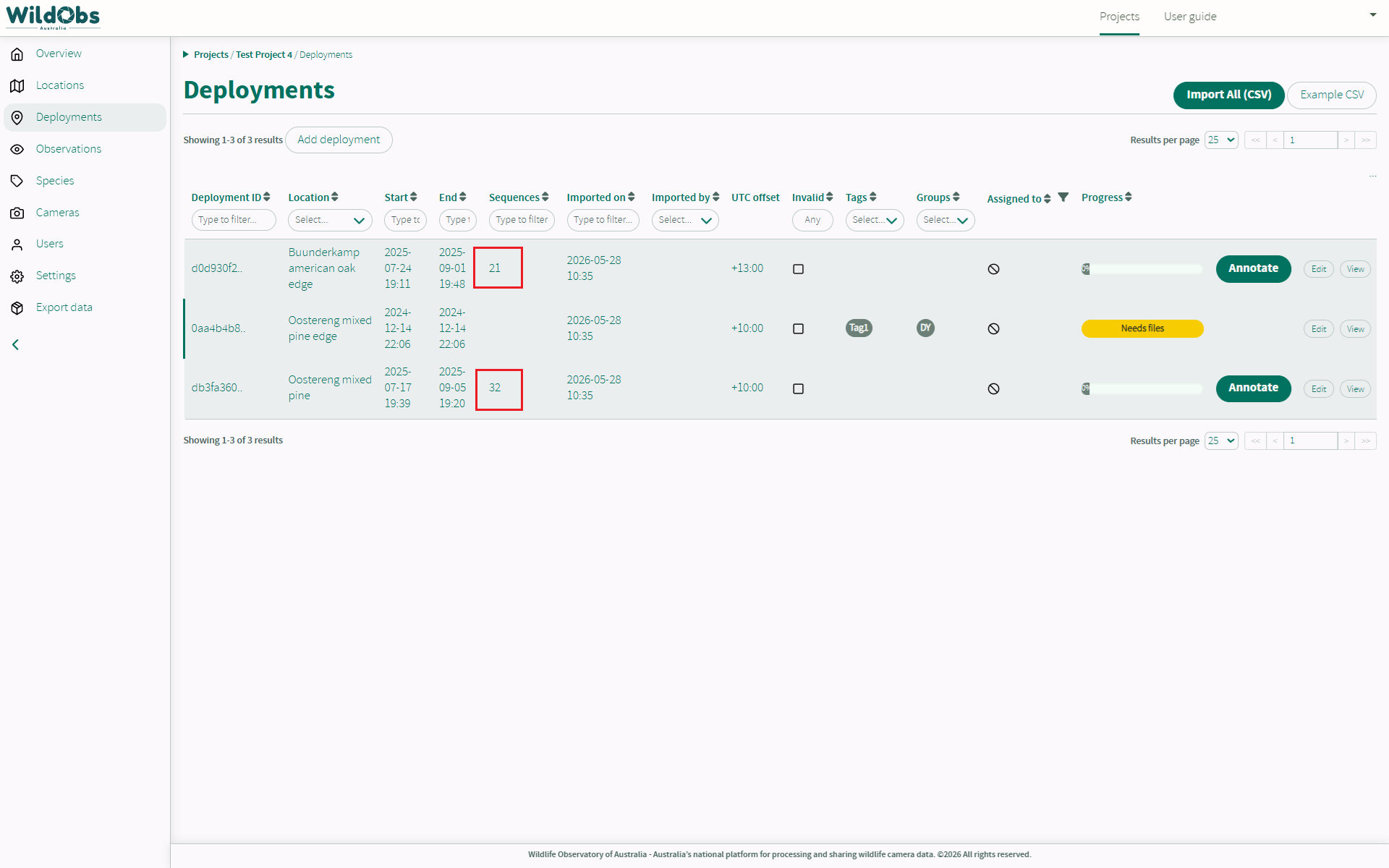
Here, two of three deployments have had images added, and sequences created:
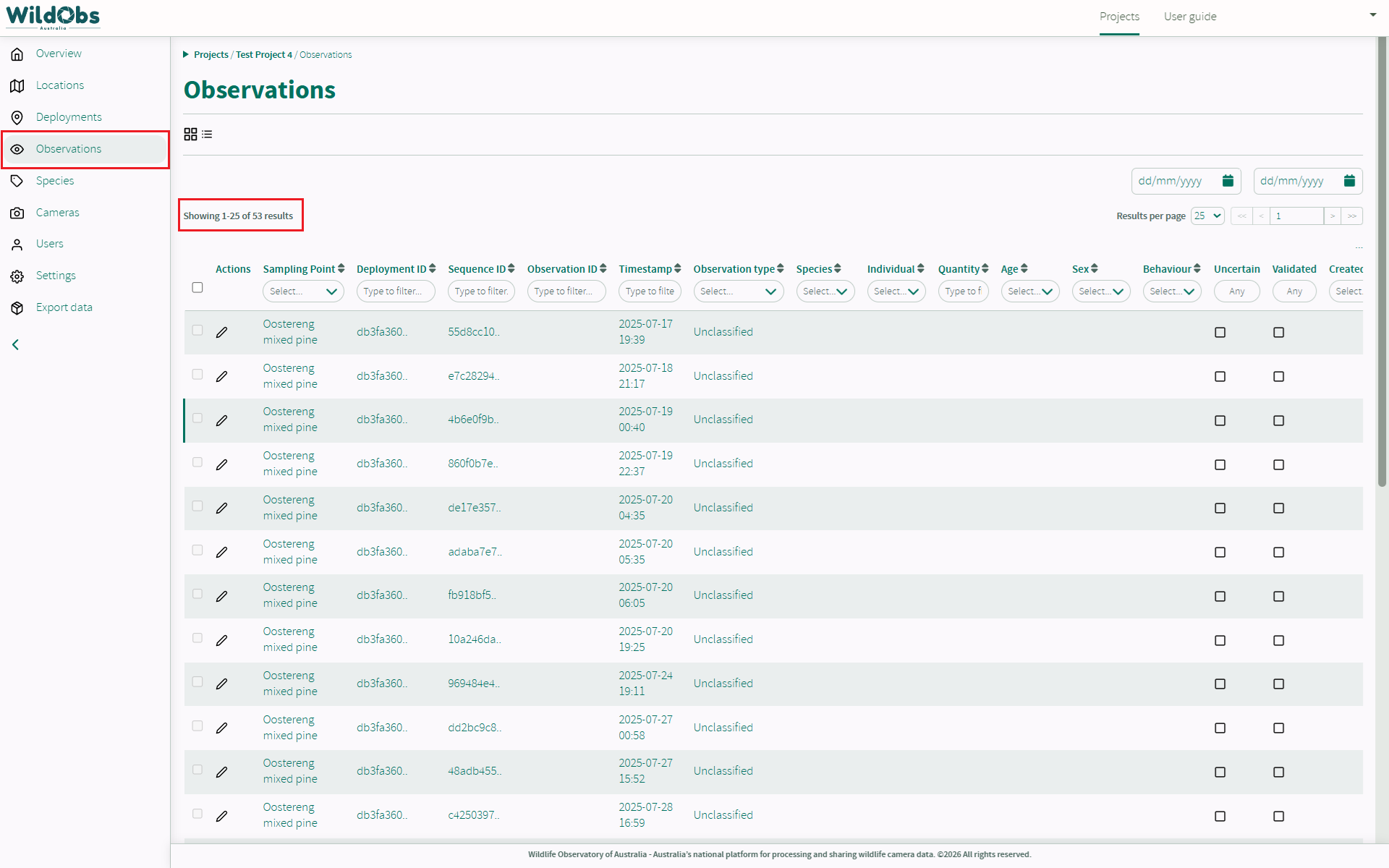
Under Observations in the left side menu, you can see that an observation record has been created for each sequence, but those observations do not have any annotation information:
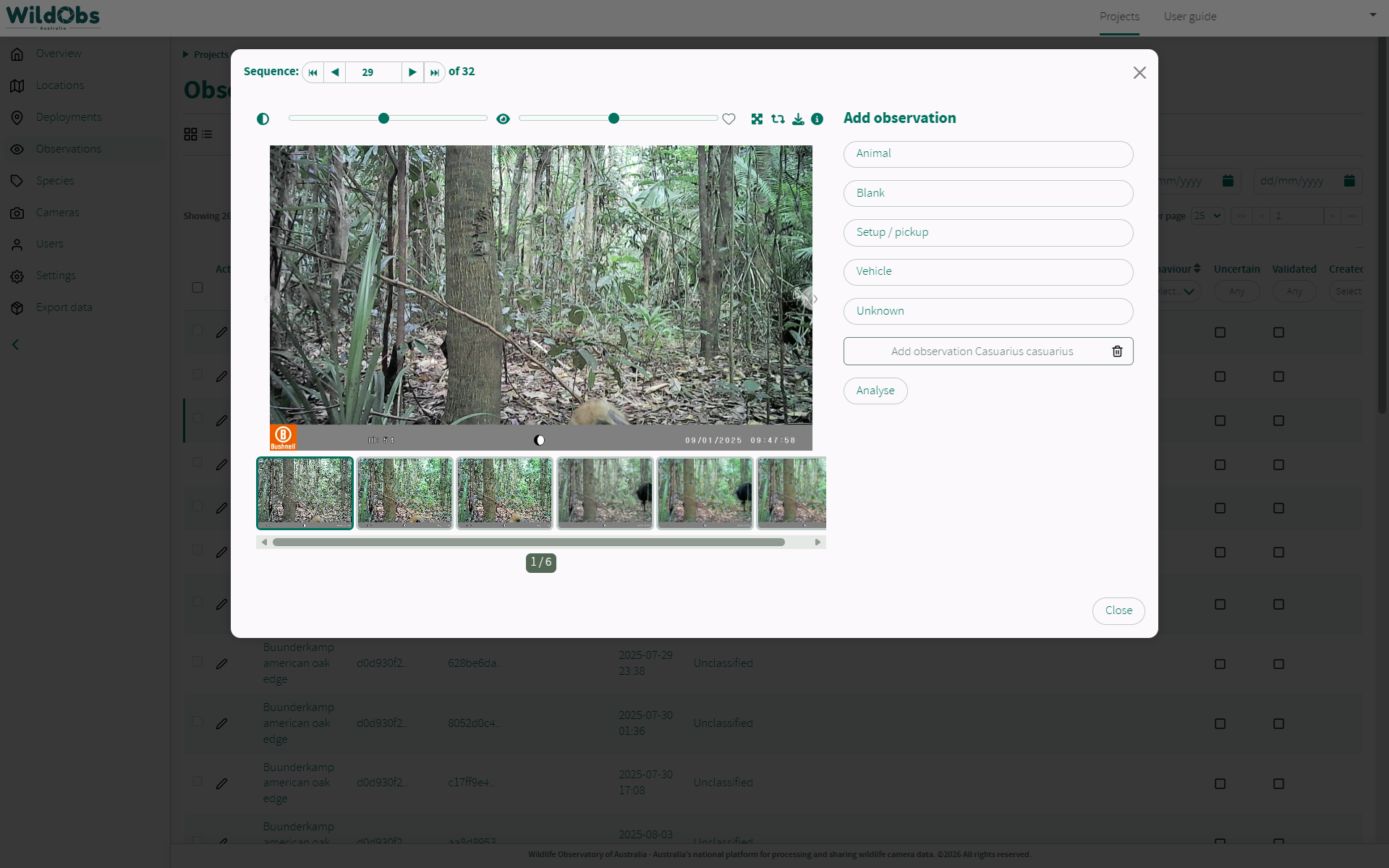
Click any observation to view the images that make up the sequence. This observation consists of 6 images:
Sequences can be annotated from the observations view per above, but it is recommended to annotate sequences from the deployment view as it opens full screen and makes organising your workflow easier.
2. Start annotating a deployment
Returning to the deployment view, click "Annotate" for the deployment you want to annotate manually:
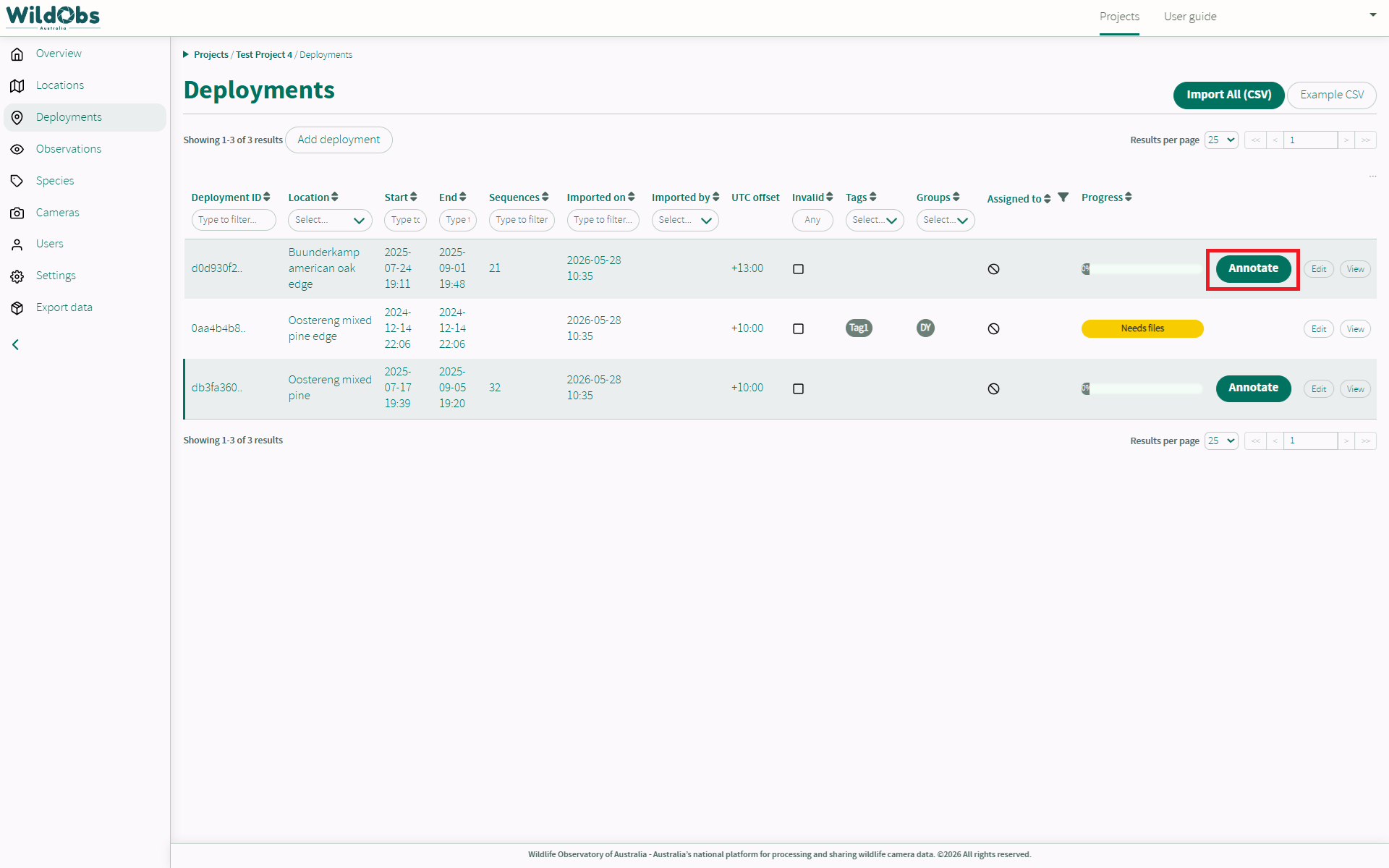
Note: If you have enabled or completed AI annotation your options here will look different. See Use AI models to annotate deployments for more information.
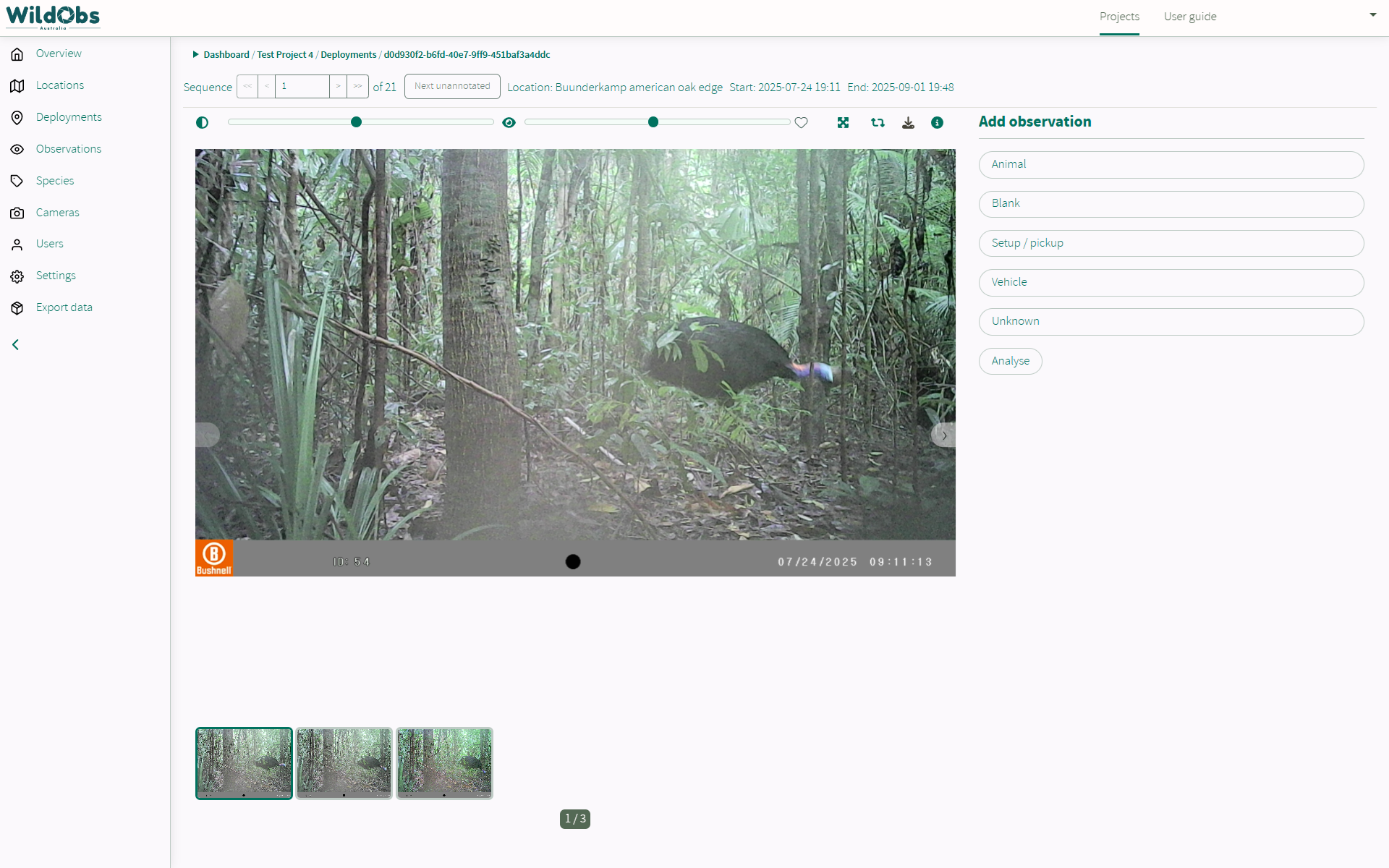
The page will open to the first unannotated sequence by default. As none of this deployment has been annotated, the first sequence has opened:
3. Annotation view tools
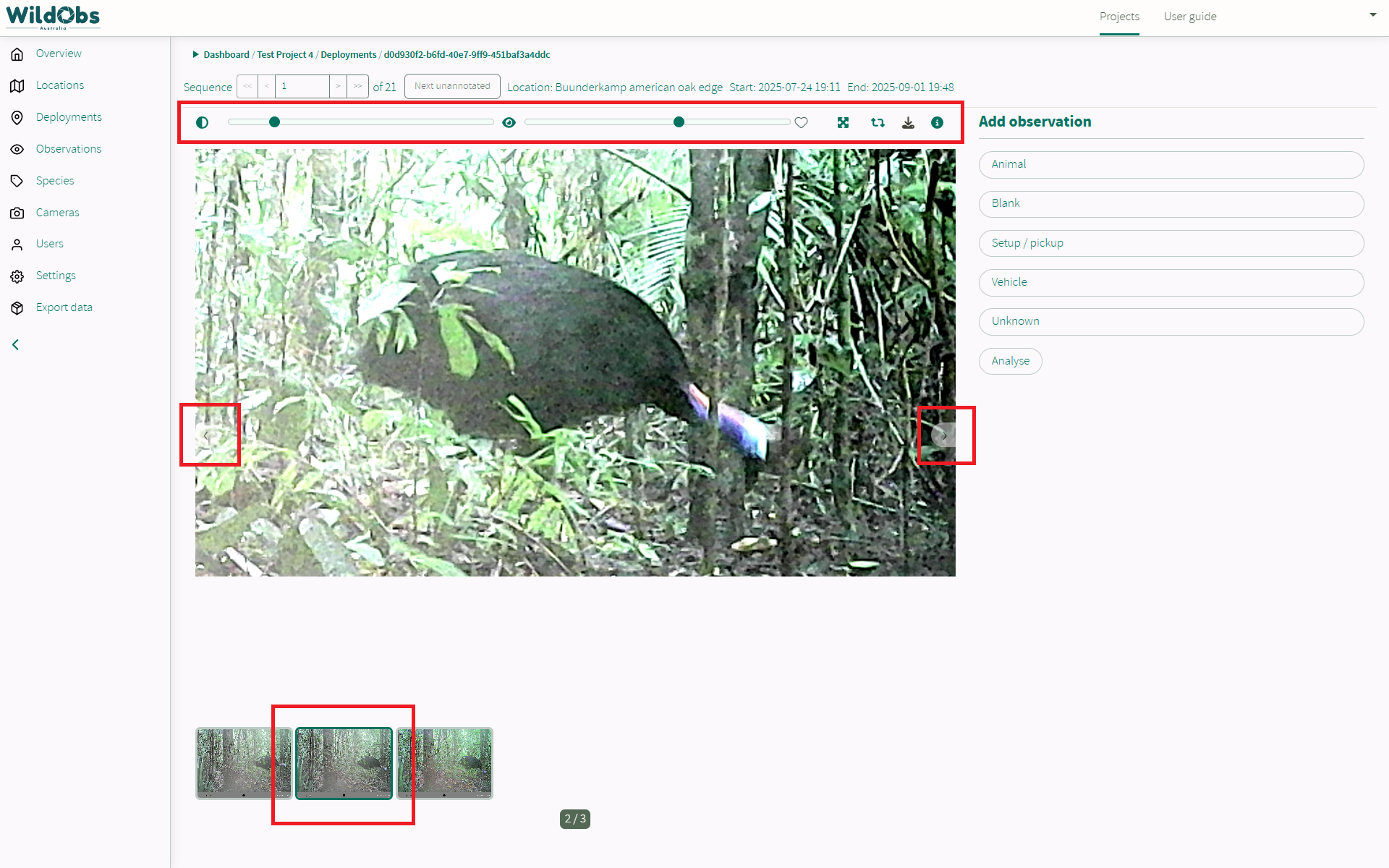
There are a number of options to help visualise the sequence images:
- Switch between images in the sequence using the bottom thumbnails or the left and right arrows floating over the image frame.
- Scroll within the image frame to zoom, and click and drag to reposition the image within the frame. Reset the zoom and pan using thefour diagonal arrow icon at the upper right of the image.
- Use the top sliders to adjust the contrast (left) and brightness (right) of the image and reset these settings using the two cycle arrow icon.
- Favourite an image by selecting the heart icon.
- Download an image.
4. Annotate a sequence an observation
Start by selecting the observation type under "Add observation".
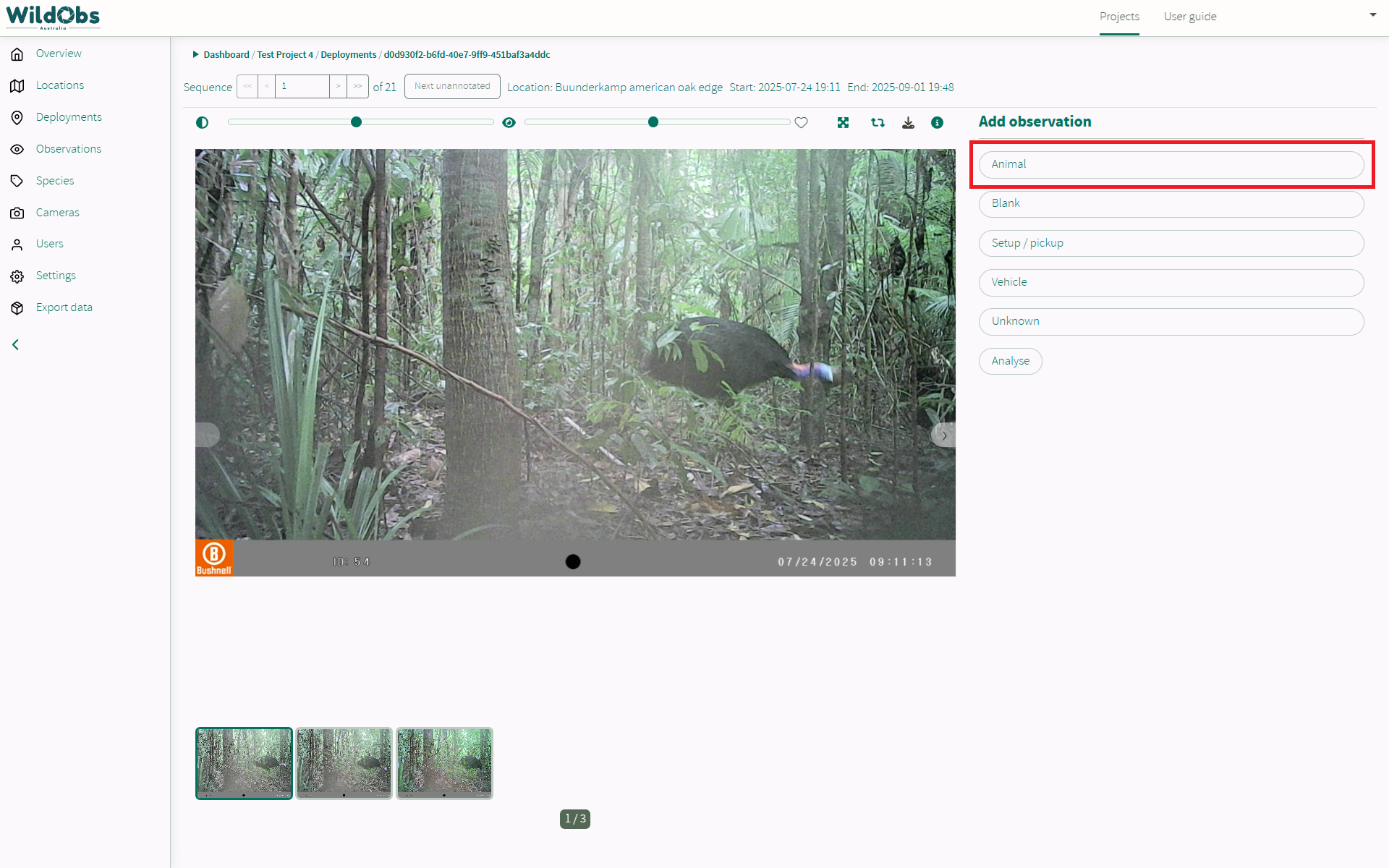
Sequences can be marked as Blank, Setup/pickup, Vehicle or Unknown by a single click of the type. Once a type has been added, it can be removed by clicking "Unmark". Only one observation type can be selected at a time. For more information on the observation type Camtrap DP field, see https://camtrap-dp.tdwg.org/data/#observations.observationType.
If species have already been identified on this project, or they have been added to the Species list in the left side menu, they will appear under the "Species" drop-down. Alternatively, search for the species name (common or scientific) and select the correct scientific name for the animal:
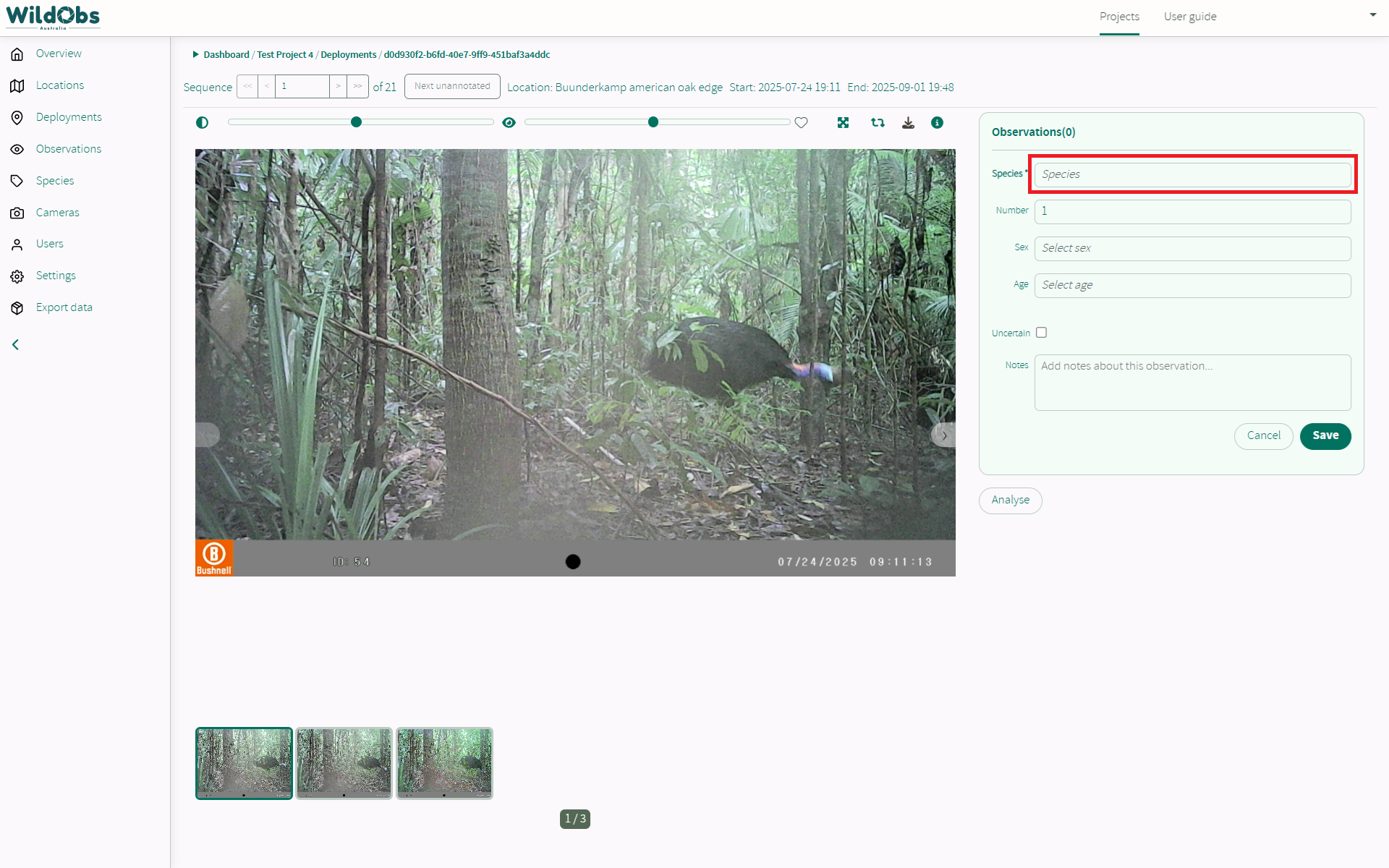
Add number of individuals, sex, age, if you are uncertain of the observation (for later checking), any notes and click "Save".
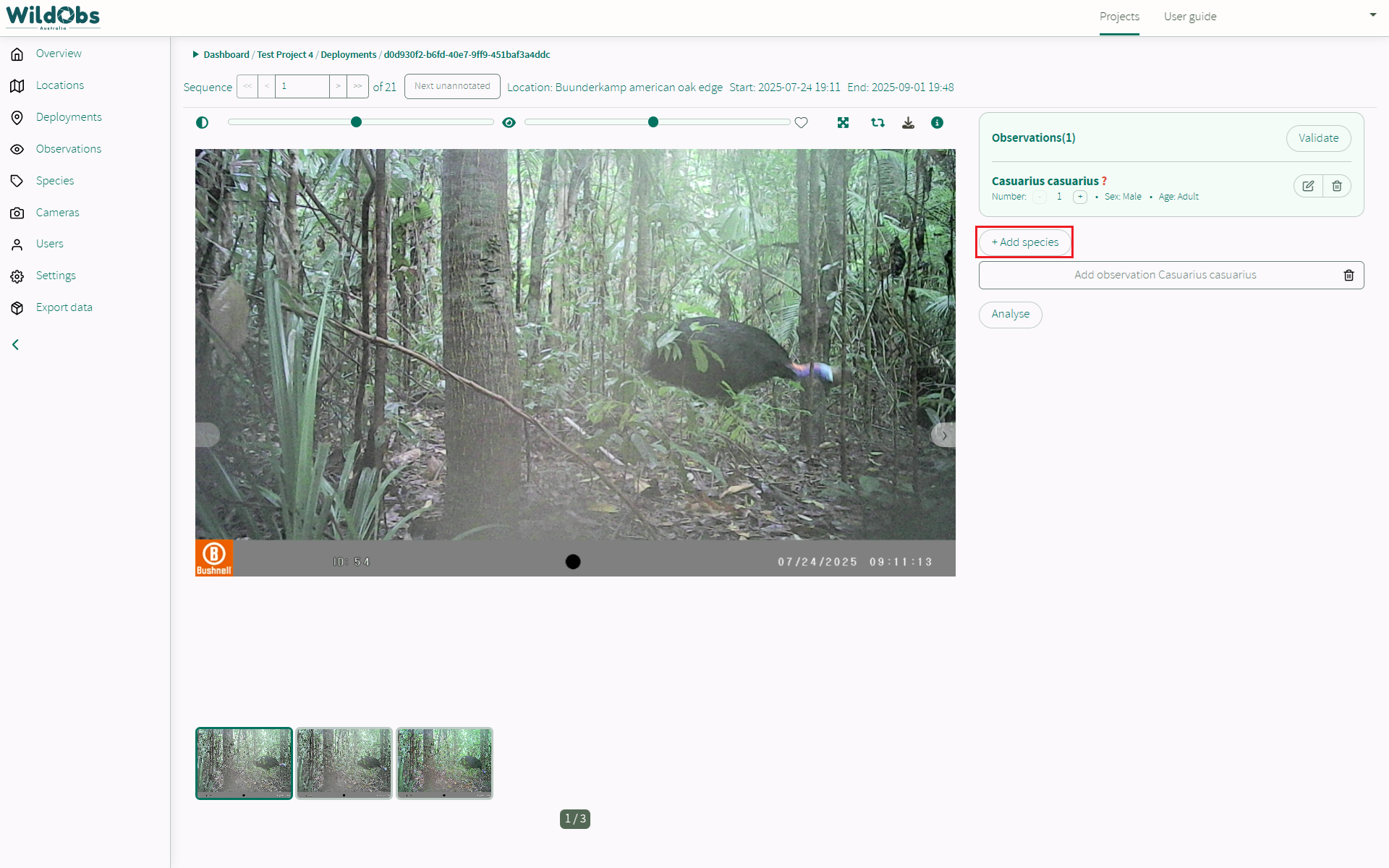
Once saved, the observation will be listed on the sequence. From here, you can edit or delete the created annotation, add an additional annotation using "+Add species":
Quick links appear for one-click addition of a species to a sequence:
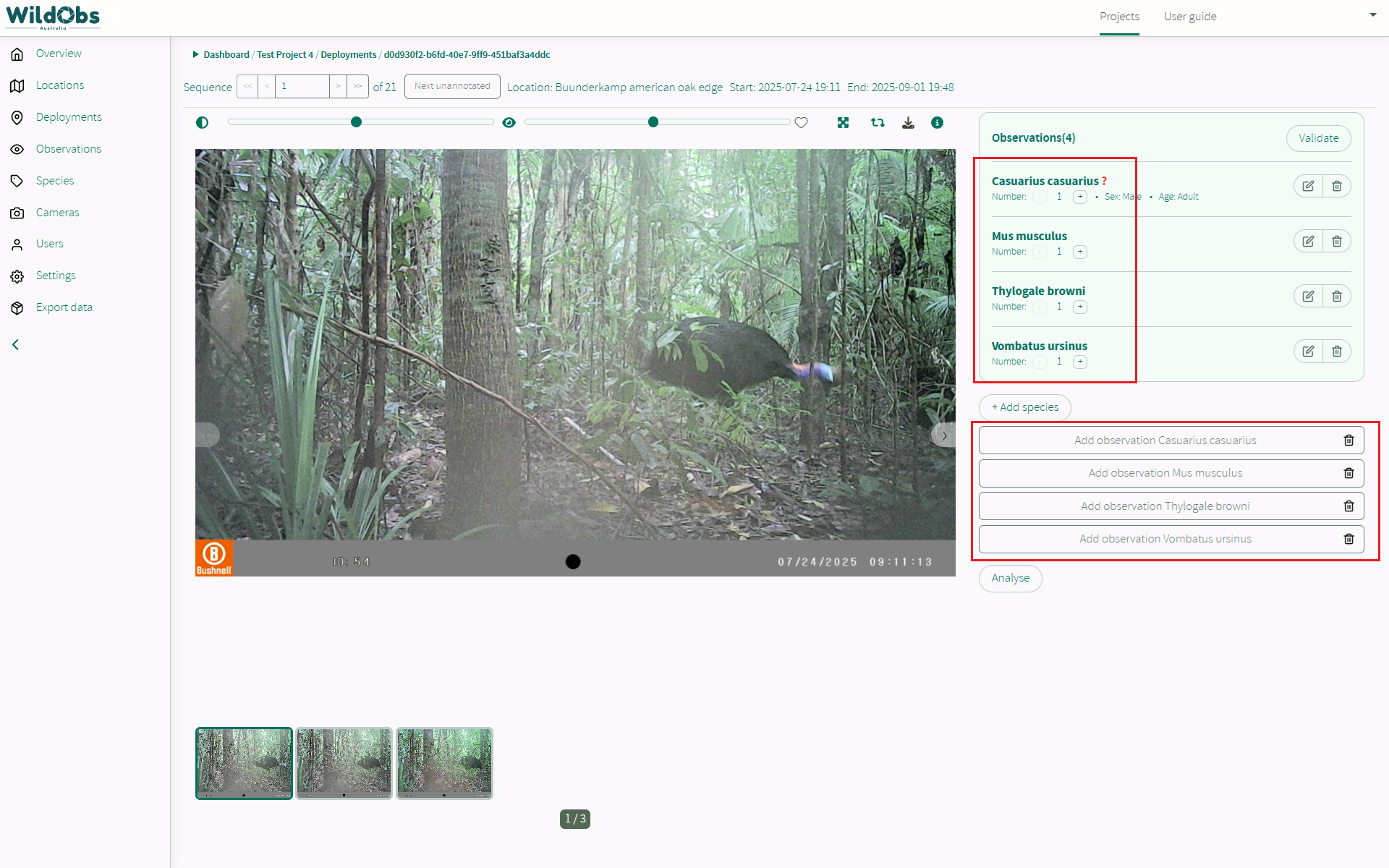
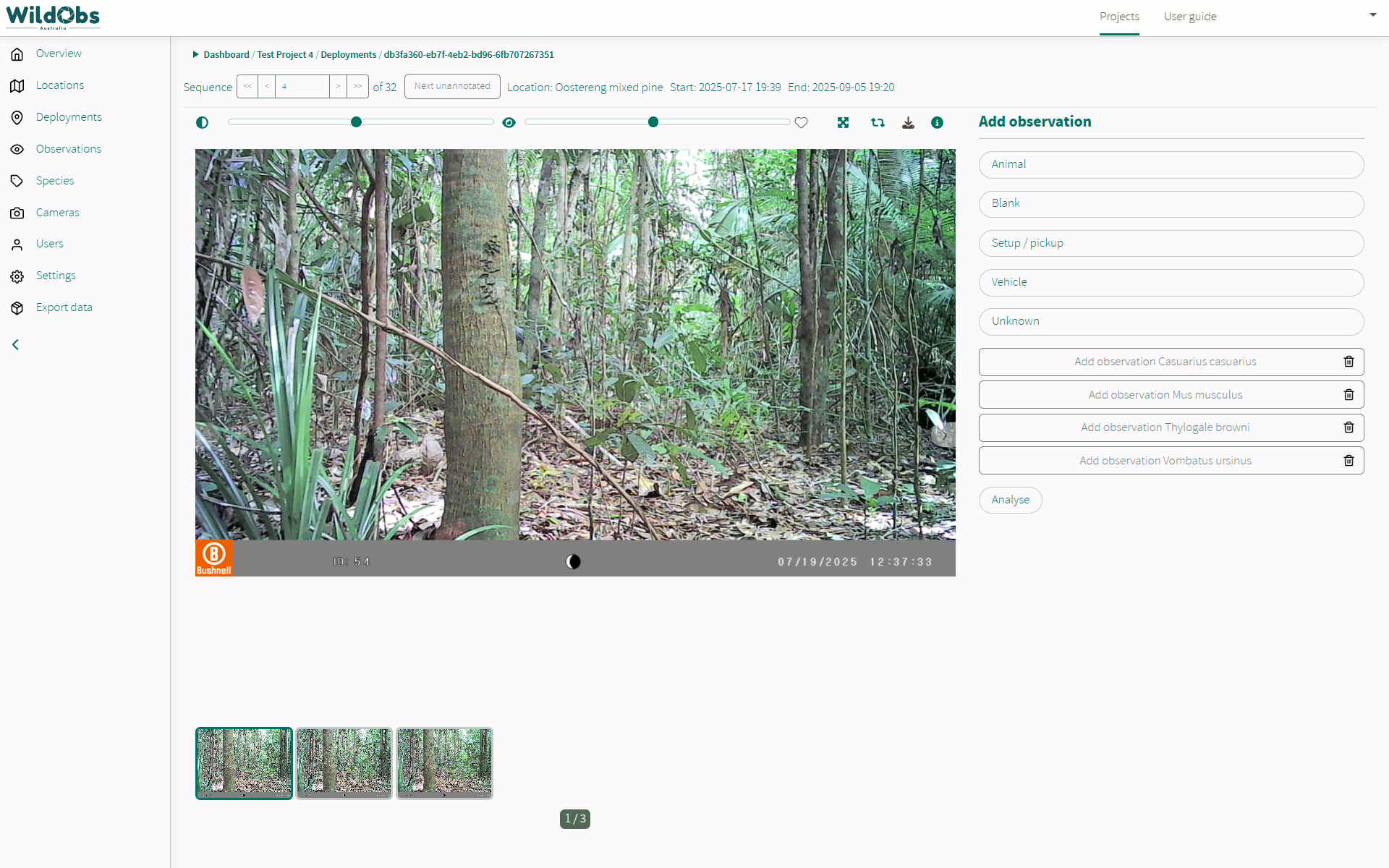
These appear project-wide and can be removed if not relevant:
5. Use real-time AI annotation
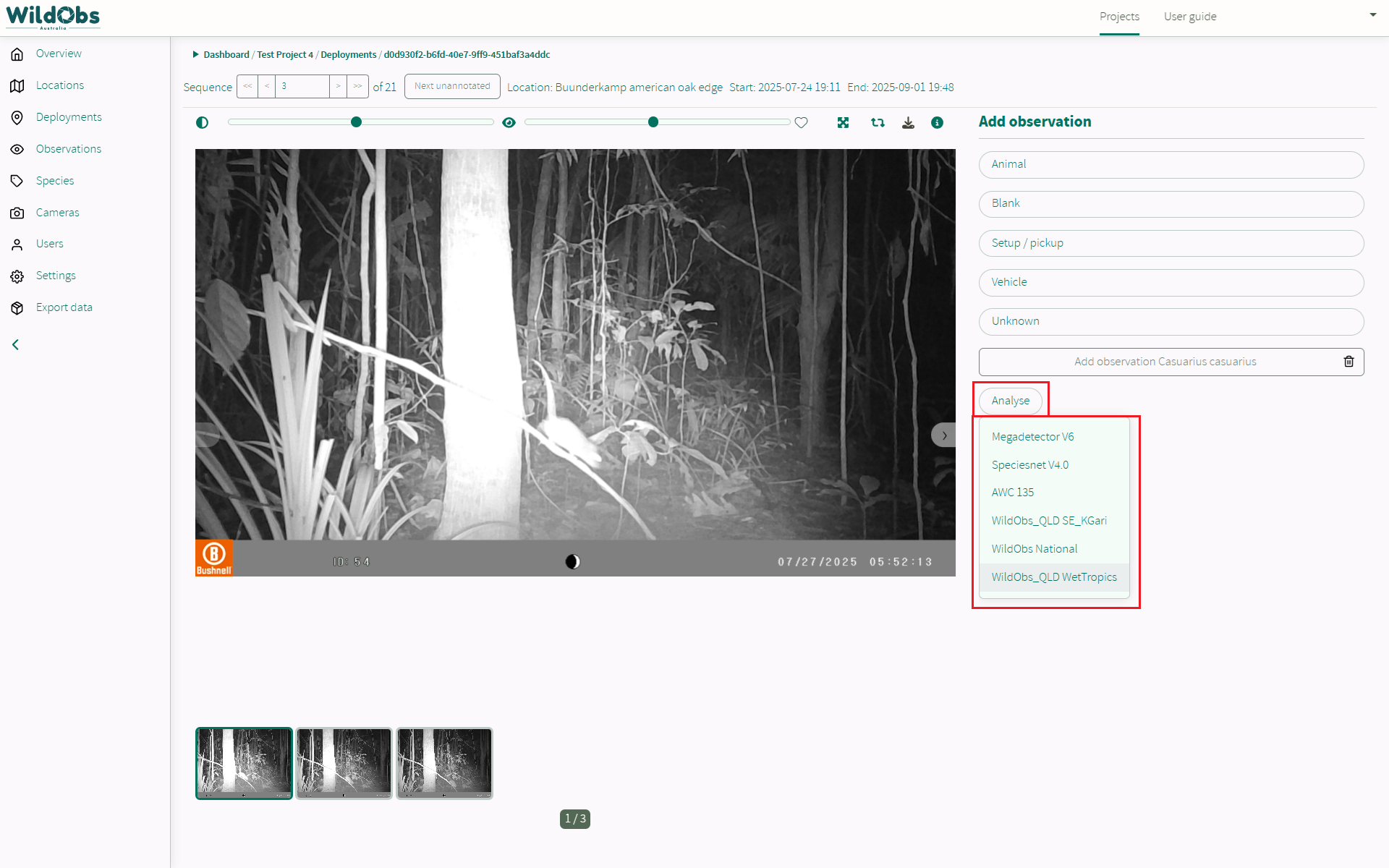
Any AI annotation models that are currently available on WildObs can be applied to analyse a single sequence in real time.
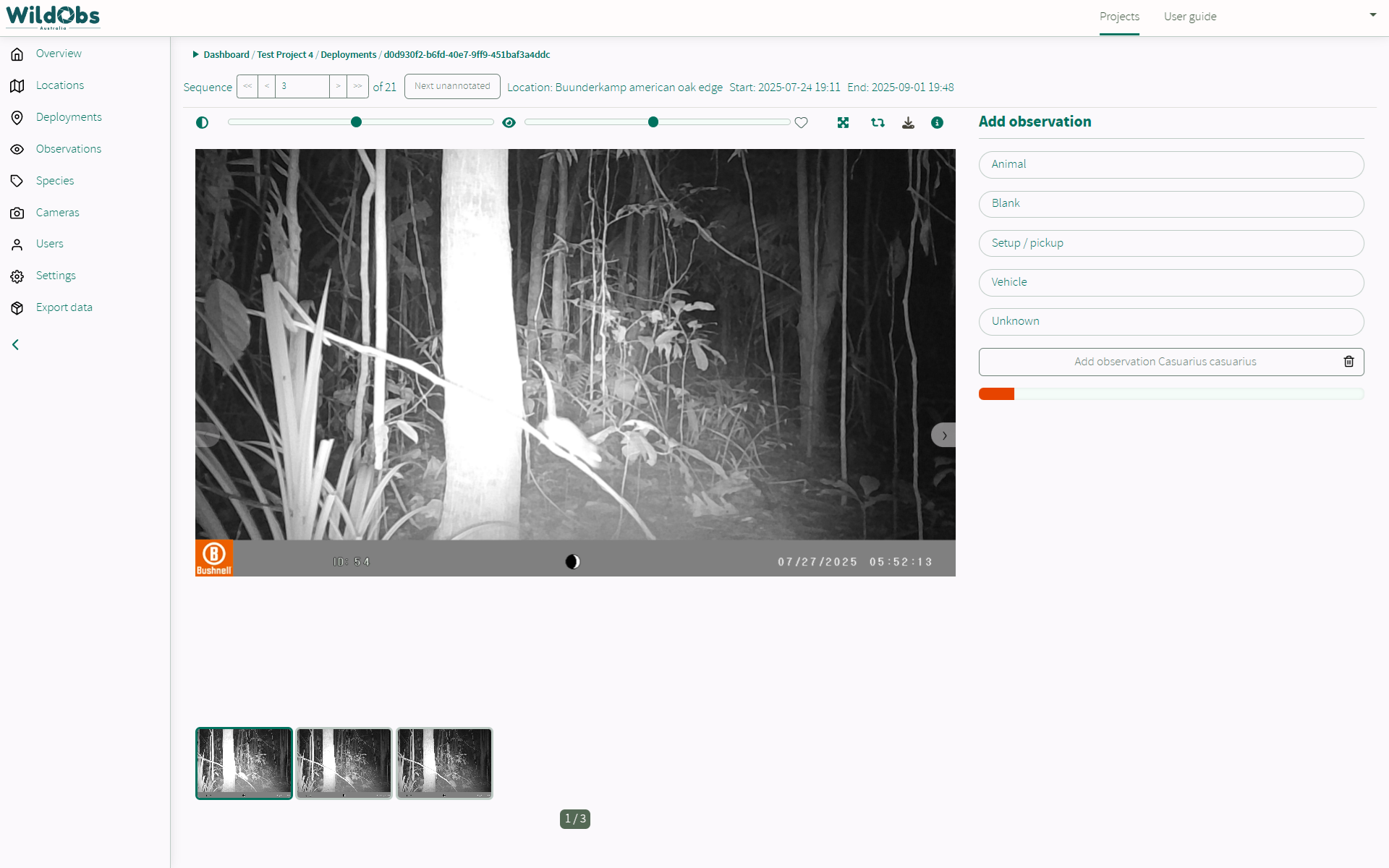
Click the "Analyse" button and select the desired model from the drop-down to run immediately:
A progress bar will show as images are being downloaded and analysed:
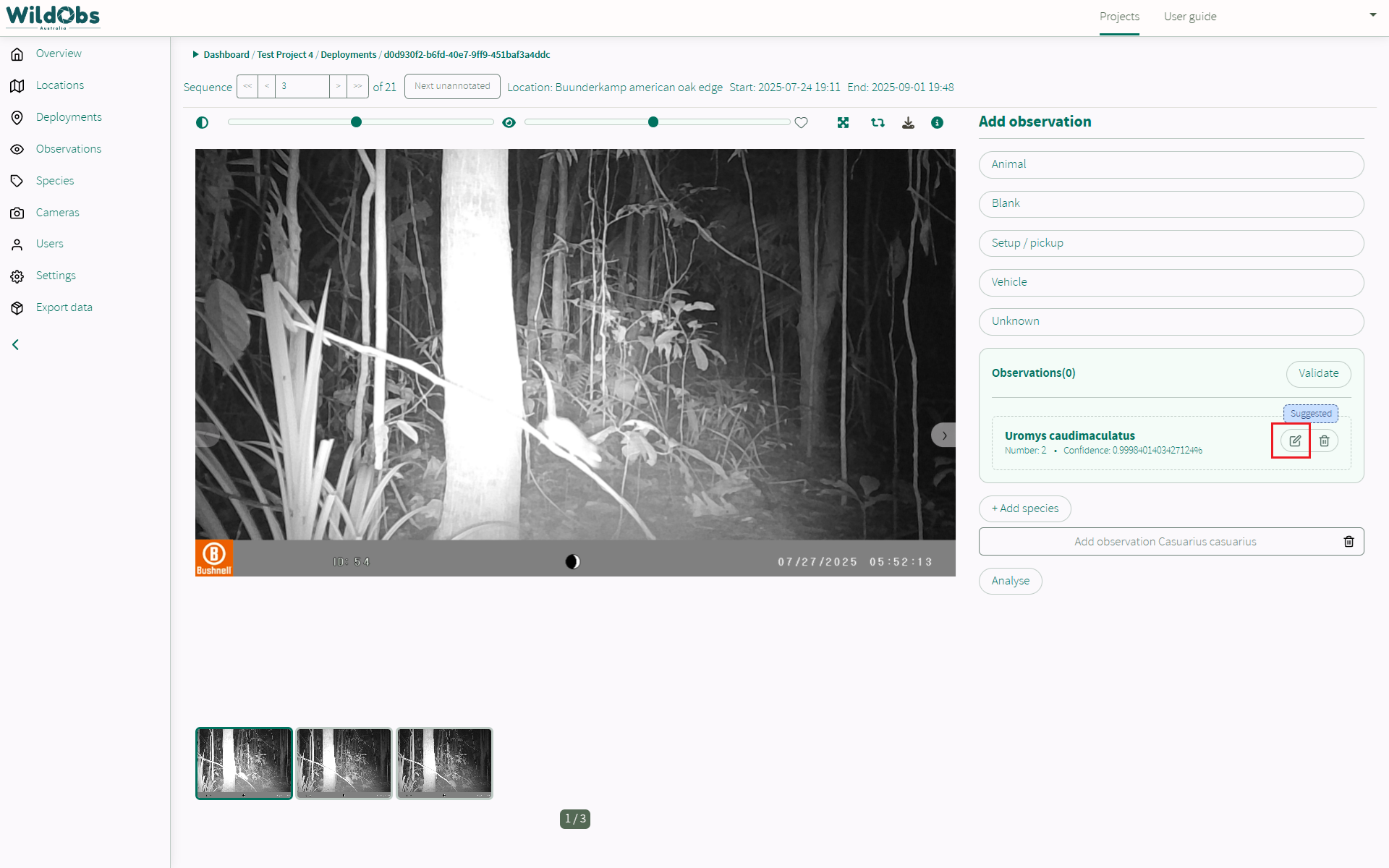
If the model makes a suggested observation, it will appear with a "suggested" tag. This observation has not yet been added, and you must click the edit icon to save the observation:
6. Finish annotating
Once all sequences have been annotated, click "Finish annotating" to be returned to the project overview page:
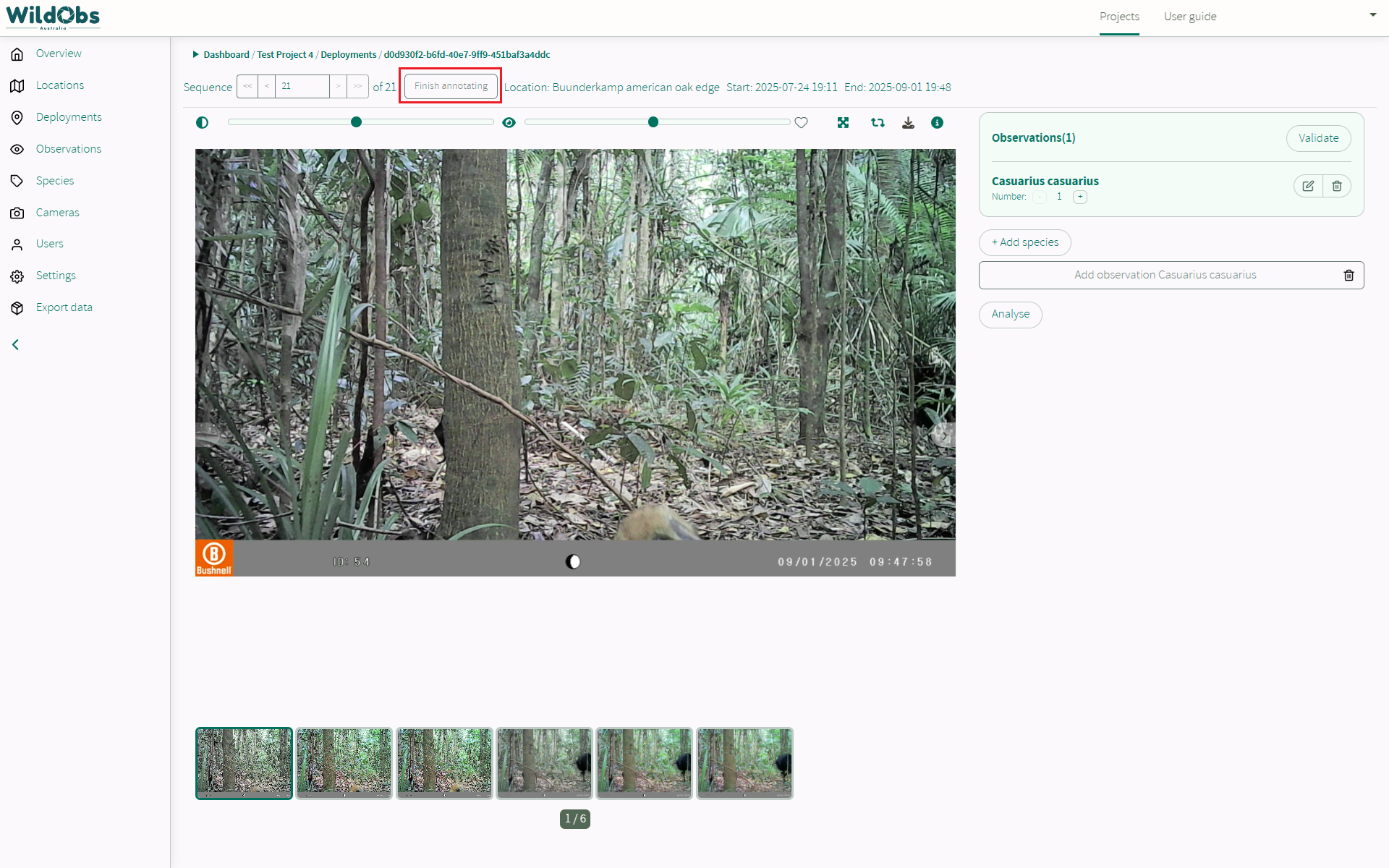 Note: "Finish annotating" appears on the last sequence of a deployment, and does not mean that all images have had an annotation added.
7. Validate observations
Validating observations indicates that at least one human has checked the annotation. This can be important when using AI annotation or the person annotating sequences is less experienced. Validation should ideally occur by someone other than the person who made the original annotation.
To validate an observation, click "Validate" in the observations box:
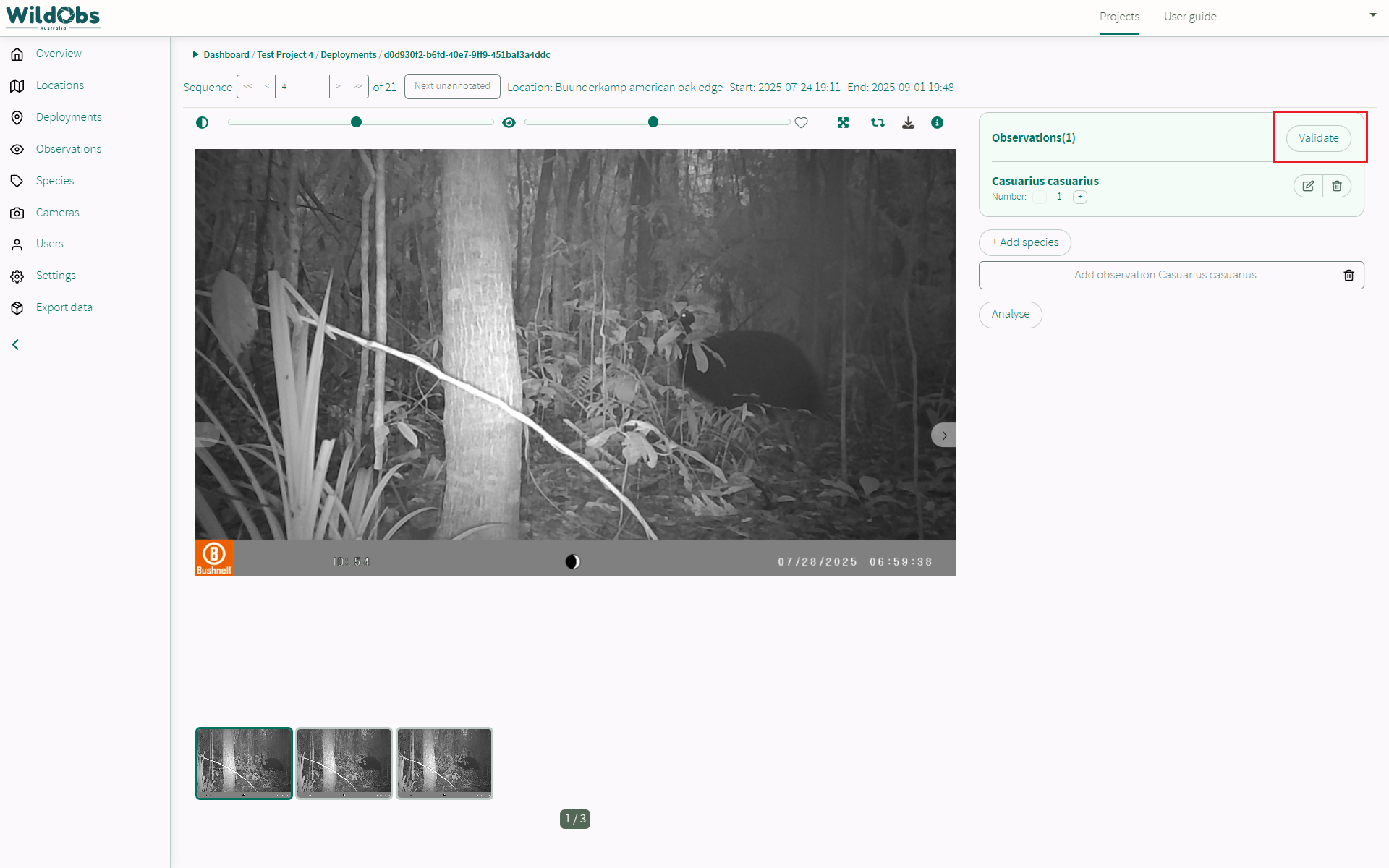
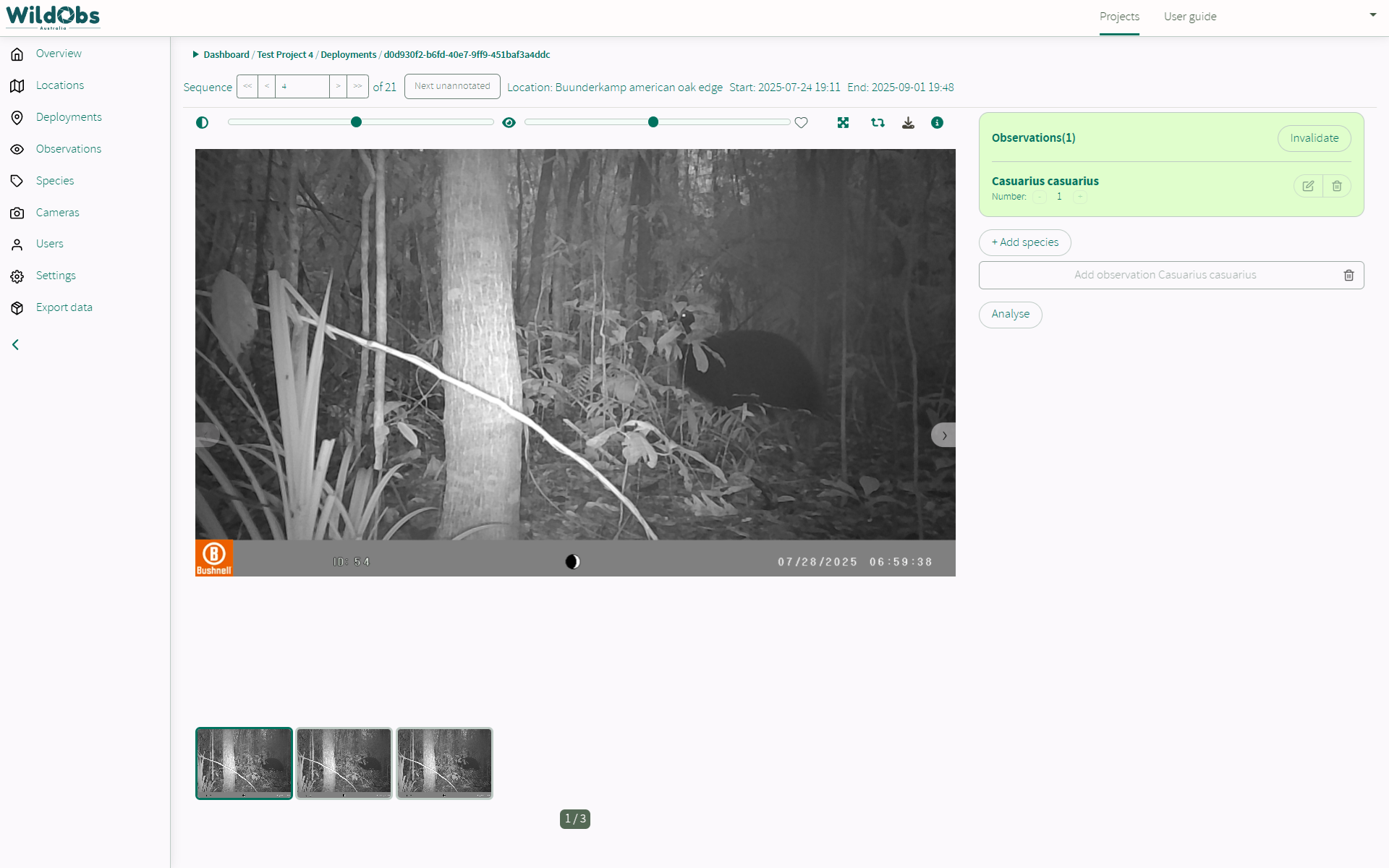
The observations box will change colour and the annotation will no longer be able to be edited or deleted:
Next steps
Return to Getting started with the WildObs Image Platform
Was this article helpful?
That’s Great!
Thank you for your feedback
Sorry! We couldn't be helpful
Thank you for your feedback
Feedback sent
We appreciate your effort and will try to fix the article