This guide shows how to add a single deployment to a project by uploading camera trap images from your computer.
Visit Getting started with the WildObs Image Platform for all guides in this series.
To upload images from your computer as a background process, familiarise yourself with adding a deployment in this guide, then visit the Upload images using Nextcloud guide.
TABLE OF CONTENTS
2. Navigate to Deployments and add a deployment
3. Enter required fields to enable image upload
4. Upload camera trap images or videos from your computer
5. Complete remaining deployment information
1. About deployments
A deployment describes a camera trap placement, including location, time and camera information. A project will have many deployments, depending upon the project setup.
Deployments can be added one at a time, as described in this guide, or by uploading a CSV file with details of many deployments. For more information on how to bulk import deployments, visit Import multiple deployments to a project (to be added).
On the WildObs Image Platform, only users with appropriate permissions can add deployments to a project. For more information, visit Project roles and permissions.
2. Navigate to Deployments and add a deployment
Follow the steps in Create a project on the WildObs Image Platform and navigate to the project you wish to add a deployment to.
⚠️ Check the correct "Sequence cut-off" value has been saved in project settings before adding a deployment to the project. See Project settings / Sequence cut-off.
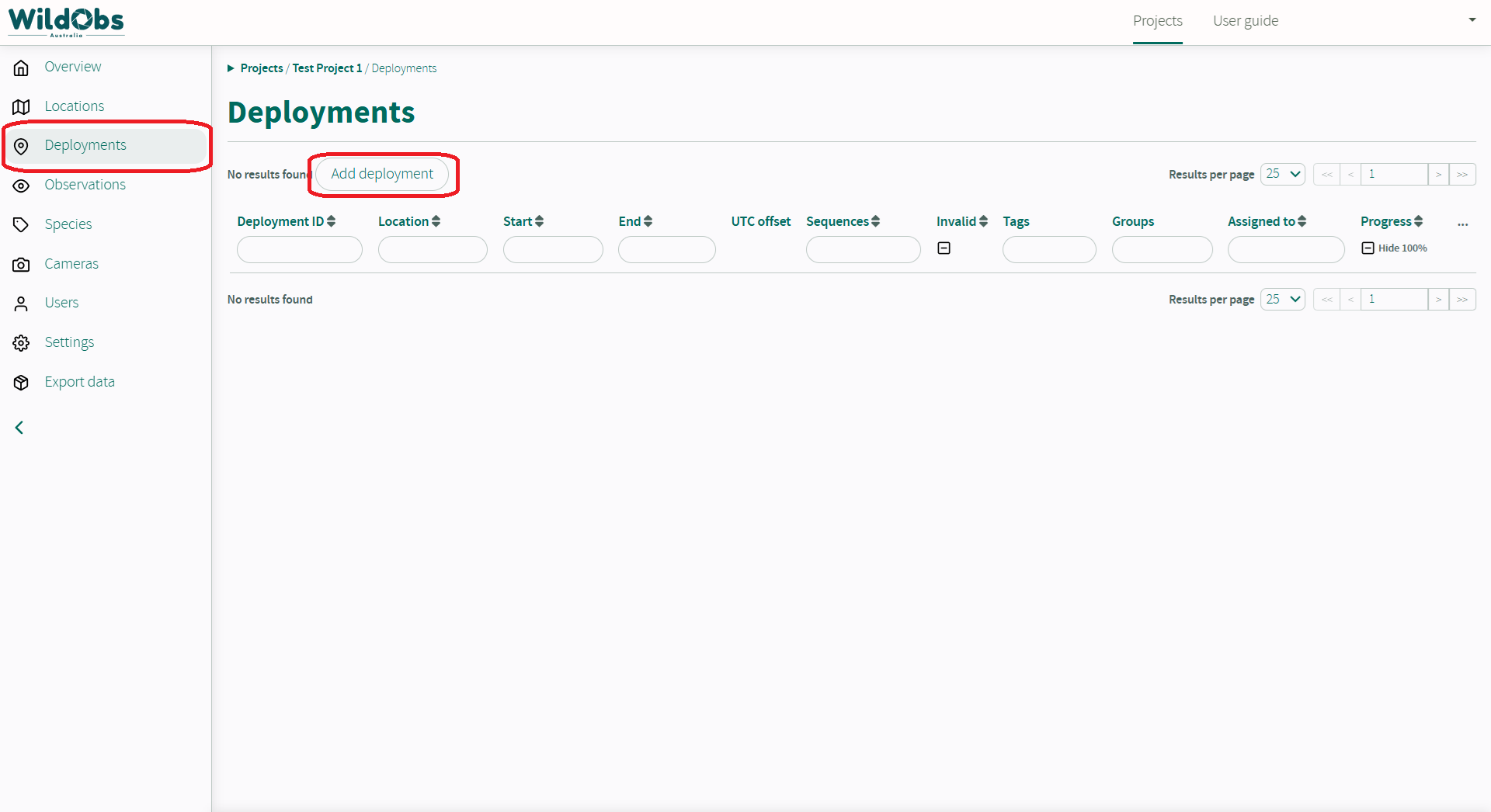
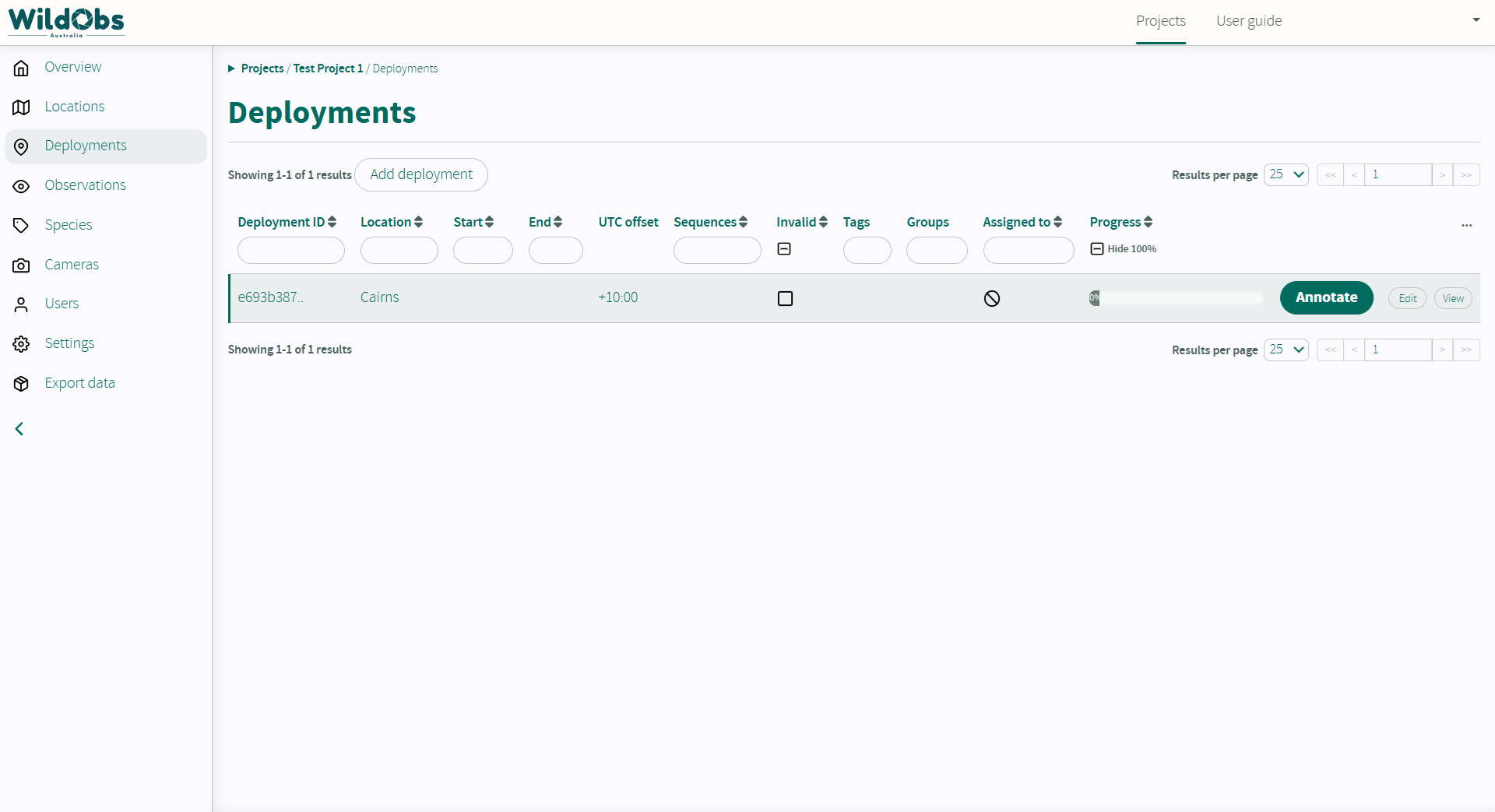
In the left side menu, click "Deployments". This will show the deployments overview page.
Click "Add deployment" to add a new deployment.
3. Enter required fields to enable image upload
Images cannot be uploaded until "Location" and "UTC offset" fields have been entered.
Once required fields have been completed, the deployment will be saved when you click away from this screen, even if no other details have been added:
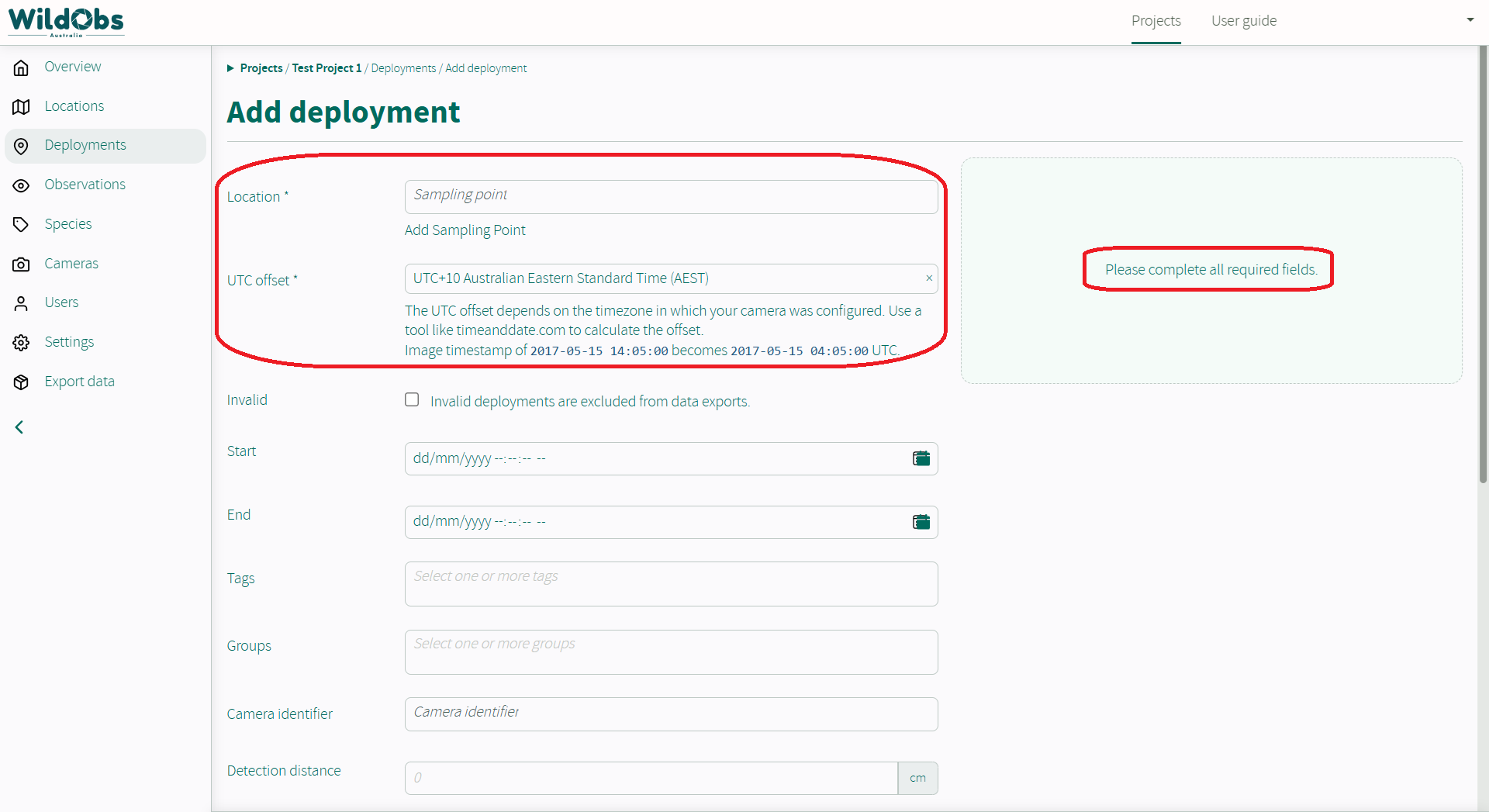
UTC offset
If a UTC offset was selected in Project Settings, this field will be pre-filled, along with other Deployment defaults. For more information, see Project settings / Deployment defaults.
Location
An existing location can be selected by using the drop-down menu "Sampling point". Alternatively, click "Add Sampling Point" to create a new location.
Clicking "Add Sampling Point" will open an "Edit location" modal where a new location can be added.
The location can be selected on the map or by specifying latitude and longitude.
A location can be saved without a location name, but it is not recommended as it might be difficult to select the same location later.
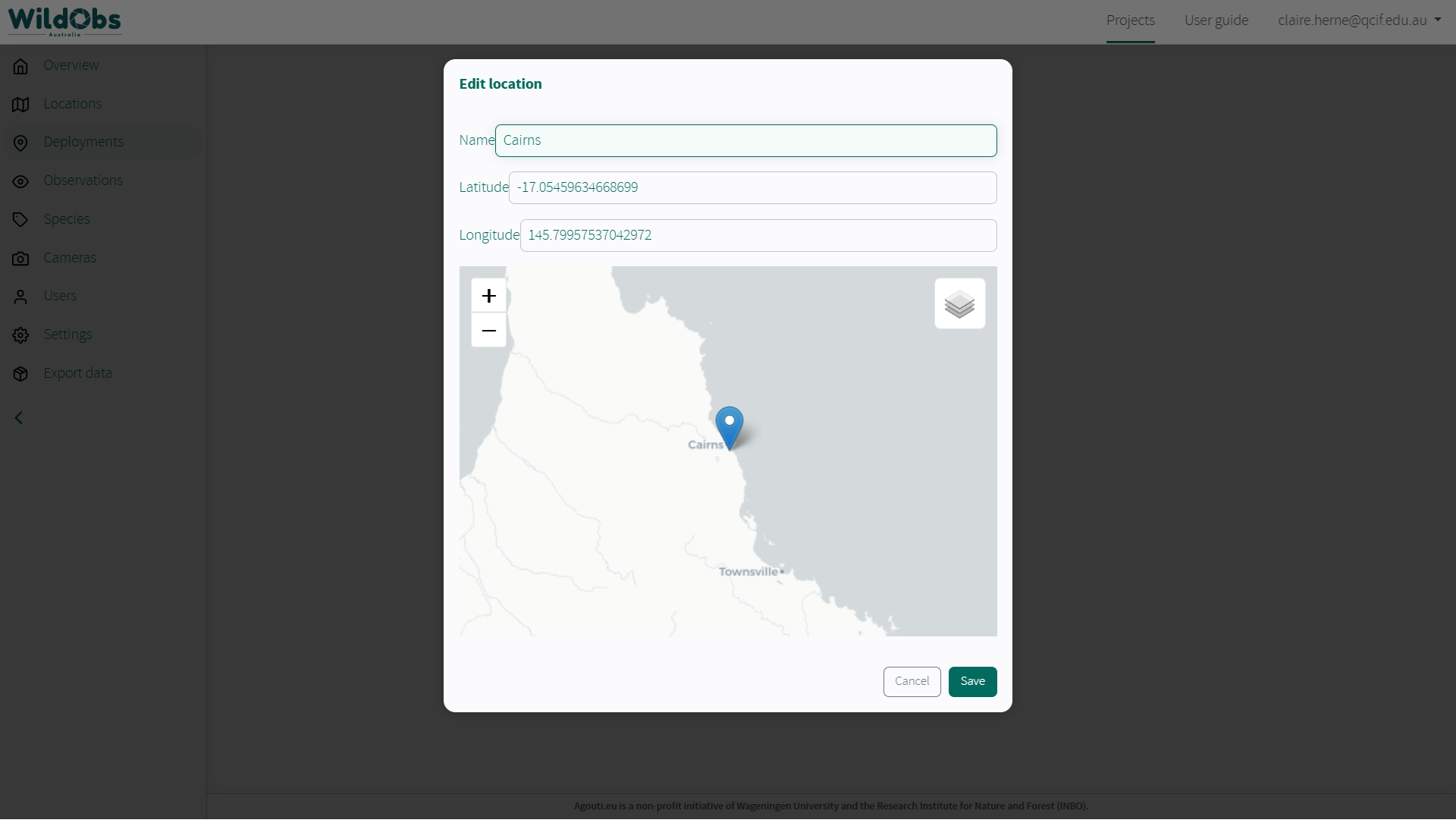
See locationID, latitude and longitude on Camtrap DP Deployments.
4. Upload camera trap images or videos from your computer
Once Location and UTC offset have been added, camera trap image or video files can be uploaded from your computer.
Click "Select files" to choose files from a folder or drag and drop images to the upload area.
The platform currently supports JPG and AVI formats. 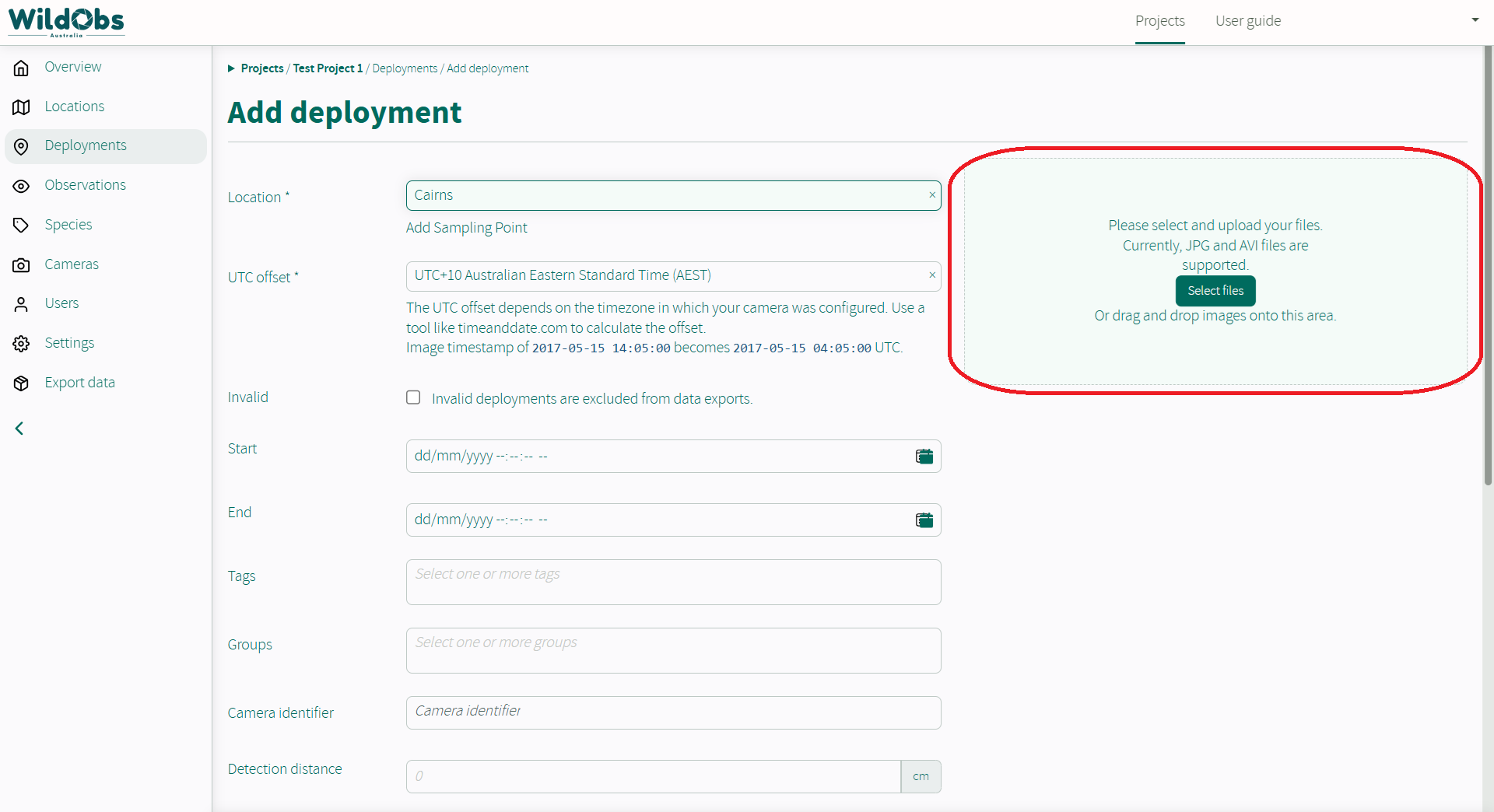
A progress bar will show the upload status and will turn green once complete.
Multiple sets of images can be uploaded while on this page. Images cannot be added to the deployment later.
⚠️ Do not close or click away from the window while the upload is in progress.
5. Complete remaining deployment information
For more information, visit Deployment fields which describes all fields related to a deployment.
For details on deployment fields that are pre-filled based on project settings, visit Project settings / Deployment defaults.
Once all remaining fields have been completed correctly, click "Add deployment" to save.
Some deployment information can be edited after the deployment has been saved but images can only be added once.
6. Deployment processing
The Platform will automatically begin to process images into sequences based upon the sequence cut-off time chosen in the project settings.
If you have selected a default AI annotation model and enabled it in the project settings and on the deployment, once sequences are created, AI annotation will take place immediately. For more information, see Use AI models to annotate deployments.
It is fine to close or click away from the window while the deployment is being processed. Processing of images into sequences may take some time depending on the number of images uploaded.
Once processing is complete, the "Annotate" button will be enabled to allow manual annotation of species in your images.
Next steps
Return to Getting started with the WildObs Image Platform
Was this article helpful?
That’s Great!
Thank you for your feedback
Sorry! We couldn't be helpful
Thank you for your feedback
Feedback sent
We appreciate your effort and will try to fix the article